
Managing Services and Clients
Managing Clients & Services — ResellPortal (New Platform)
ResellPortal makes it easy to manage your customers and the services connected to them. The Clients and Services sections in your dashboard give you complete control over accounts, subscriptions, and access details.
You can view, update, pause, or remove services at any time.
Where to Find It
In the left-hand menu of your dashboard you will see:
-
Clients — Manage people or companies
-
Services — Manage all active services
These two sections work together to give you full visibility and control.
Clients Section
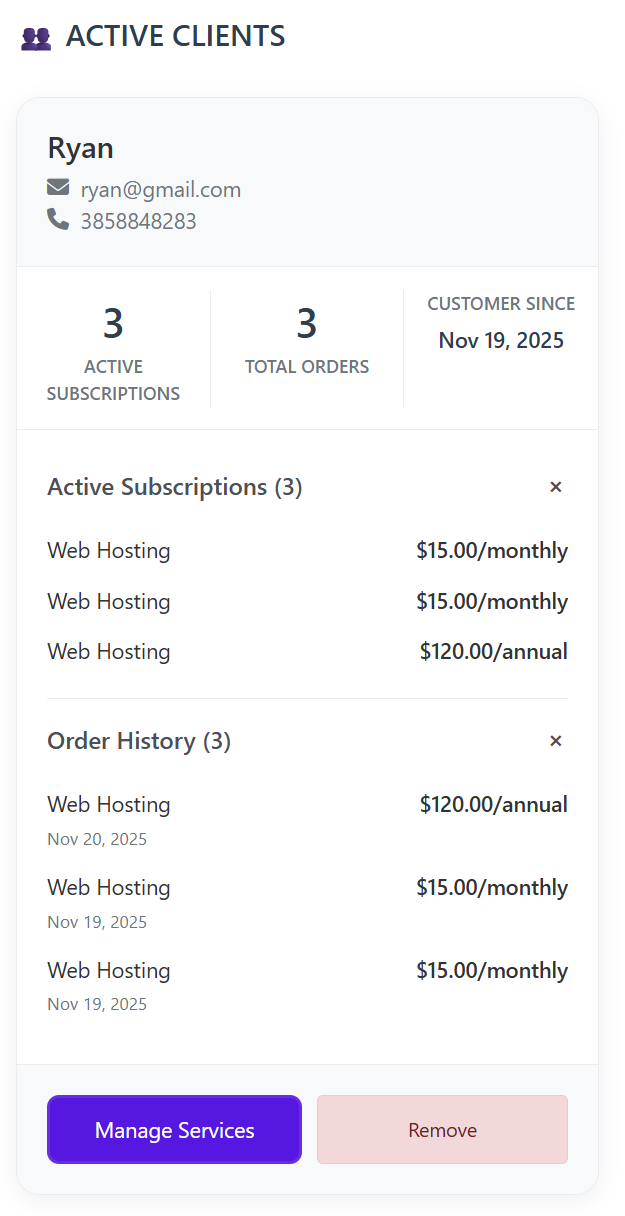
The Clients section is where you manage individual customer accounts.
From here you can:
-
View all of your clients
-
See their contact information (name, email, phone, company, etc.)
-
View how many active services they have
-
See total orders and account history
-
Open an individual client profile to manage their services
Click on any client to open their full account view.
Inside a client’s profile, you can:
-
View all active subscriptions for that client
-
View order history (past purchases and renewals)
-
Click on any service to view details and credentials
-
Suspend a service if needed
-
Remove a service permanently
-
Remove the entire client (only after all services have been removed)
✅ A client can only be deleted once all of their services have been removed.
Services Section
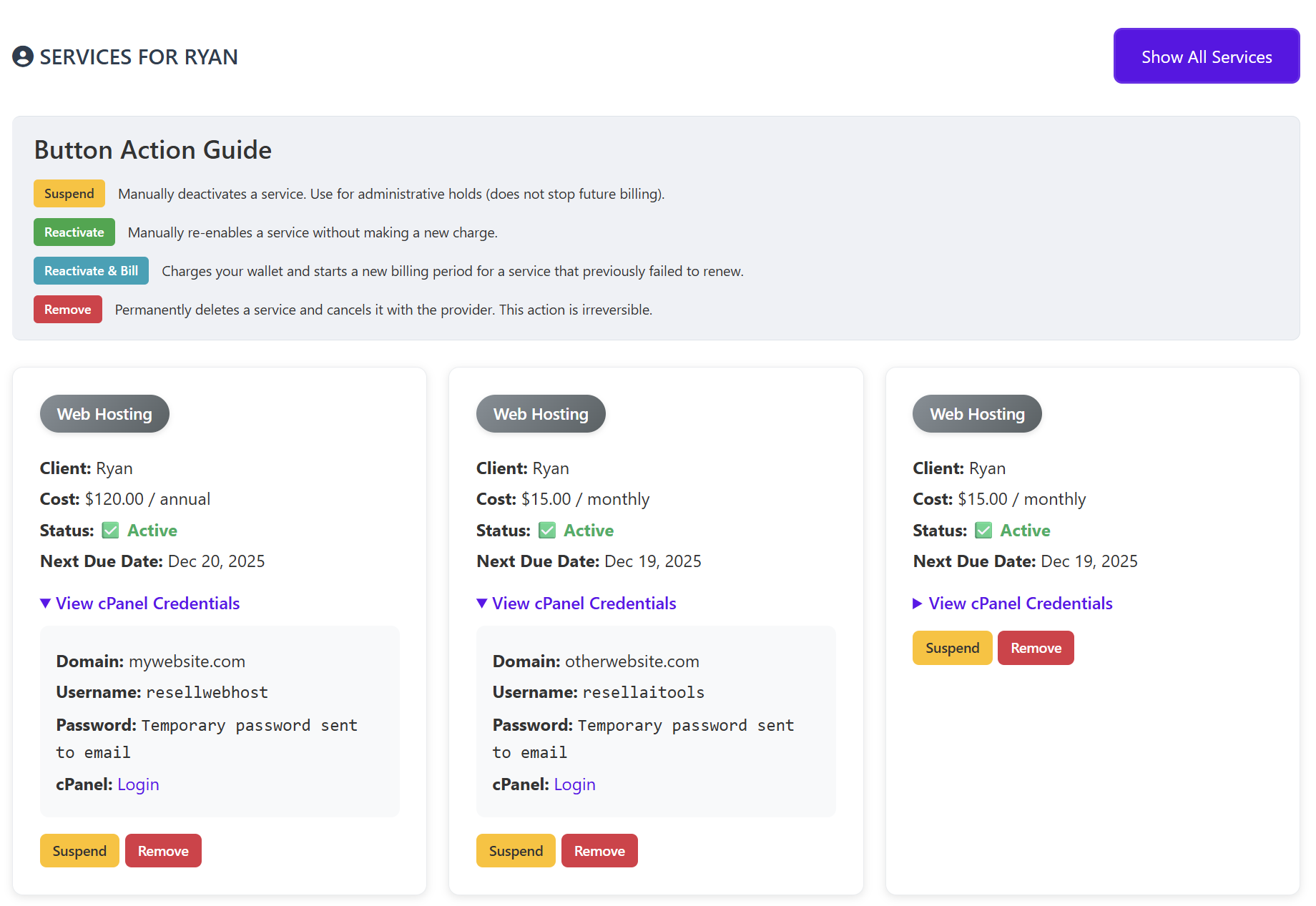
The Services section shows every service you have active, across all clients, in one place.
This is useful if you prefer to manage by service instead of by client.
From this pagetopic you can:
-
View each service’s status (active, suspended, etc.)
-
See which client it is assigned to
-
Open the service to view details and login credentials
-
Suspend or remove the service
-
Quickly manage large numbers of services
This is ideal for audits, bulk management, and troubleshooting.
Viewing Service Details & Credentials
Whether accessed from a client profile or from the Services page,topic, you can click a dropdown or View Details button on any service to see:
-
The associated client
-
Billing term (monthly or annual)
-
Current status
-
Next renewal date
-
Login information (when available)
-
Direct login links (such as cPanel, dashboards, or tools)
Some services send temporary passwords to the client’s email for security.
Service Management Options
Each service includes management controls:
-
Suspend — Temporarily pause the service without deleting it
-
Remove — Permanently delete the service from the system
Use suspend if the service might return.
Use remove when the service is no longer needed.
Best Practices
-
Always try suspend first before removing, if unsure
-
Remove services before attempting to remove a client
-
Keep client contact details up to date
-
Use the Services
pagetopic for faster bulk management -
Review your list regularly to keep your account clean and organized
Summary
| Section | What it’s for |
|---|---|
| Clients | View & manage individual customer accounts |
| Services | View & manage all services across all clients |
| Service Details | Access credentials, billing, and status |
| Suspend / Remove | Control access and clean up accounts |
| Remove Client | Only allowed when no services remain |