
Activating AI Business Tool
AI Business Tools — Activation & Management
The AI Business Tools Suite allows you to provide powerful, white-labeled AI tools to your clients — all managed directly from your ResellPortal dashboard.
With the new system, you can:
-
Choose which AI tools to activate for each client
-
Add or remove AI tools at any time
-
Manage tools from the activation screen or the client’s service card
-
Provide your client with access to a branded AI Suite portal
Available AI Tools
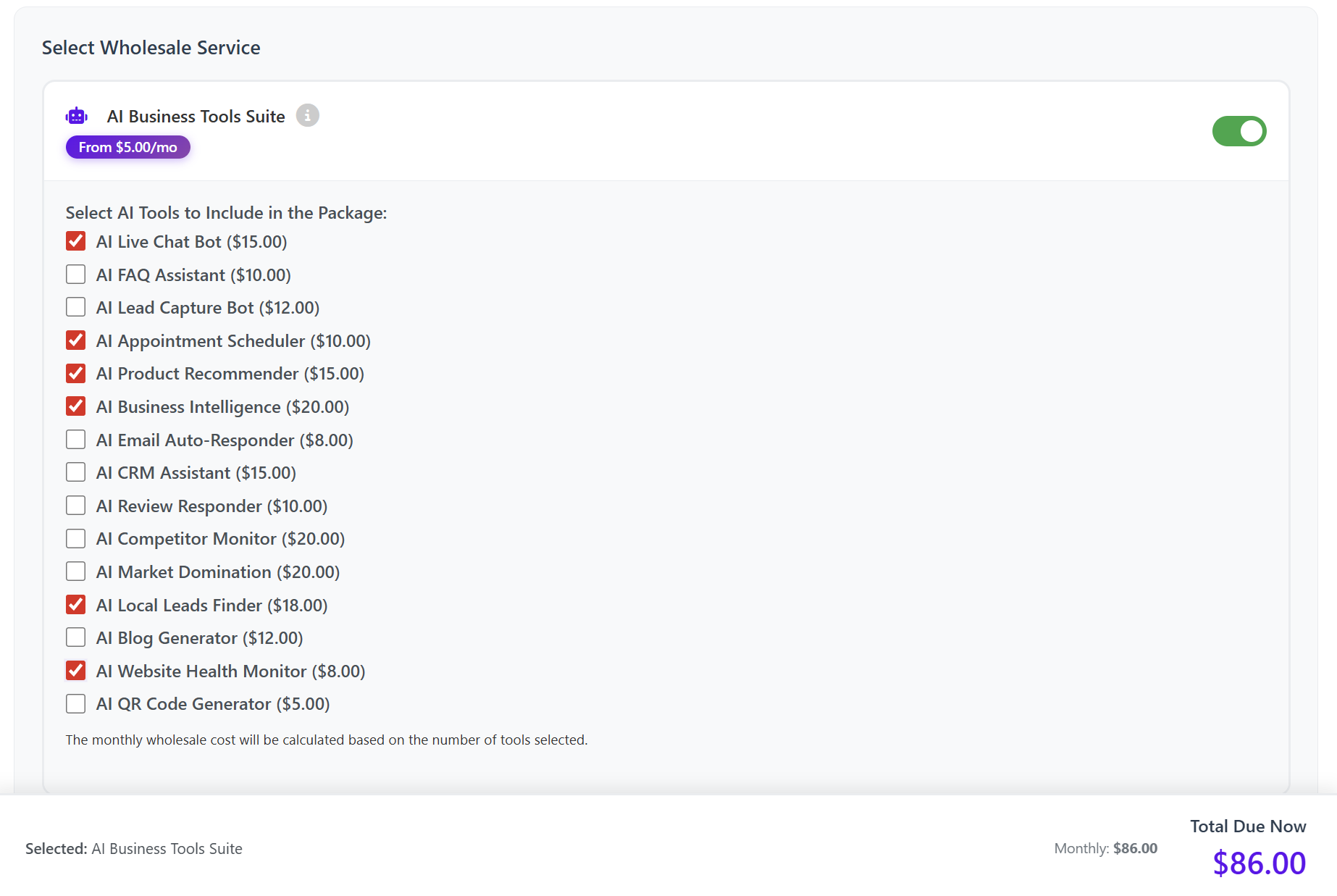
You can select any combination of the following tools when activating the AI Business Tools Suite:
-
AI Live Chat Bot ($15.00)
-
AI FAQ Assistant ($10.00)
-
AI Lead Capture Bot ($12.00)
-
AI Appointment Scheduler ($10.00)
-
AI Product Recommender ($15.00)
-
AI Business Intelligence ($20.00)
-
AI Email Auto-Responder ($8.00)
-
AI CRM Assistant ($15.00)
-
AI Review Responder ($10.00)
-
AI Competitor Monitor ($20.00)
-
AI Market Domination ($20.00)
-
AI Local Leads Finder ($18.00)
-
AI Blog Generator ($12.00)
-
AI Website Health Monitor ($8.00)
-
AI QR Code Generator ($5.00)
Your monthly wholesale cost is automatically calculated based on the tools selected.
How to Activate AI Business Tools for a Client
Step 1: Go to Add Client or Service
From the left-hand menu of your dashboard, click:
Add Client or Service
You can:
-
Add a new client
or -
Select an existing client by email
Step 2: Enter Client Details
The following fields are required:
-
Client name
-
Client email address
Optional:
-
Company name
-
Phone number
The client’s email will be used for login credentials and notifications.
Step 3: Select AI Business Tools
In the services list, enable AI Business Tools Suite.
You will then see the full list of available AI tools.
Toggle ON the specific tools you want to include for this client.
The total monthly cost is automatically calculated based on your selections.
Step 4: Confirm Activation
When you confirm:
-
Your wallet balance is charged for the selected tools
-
The AI tools are instantly activated
-
The service is attached to the client’s account
Managing AI Tools After Activation
Once the AI Business Tools Suite is active, you can modify it at any time.
You have two ways to do this:
✅ Option 1 – From the Activation Screen
-
Go back to Add Client or Service
-
Search and select the existing client
-
Update the AI tools by turning toggles ON or OFF
-
Save the changes
Your wallet will be adjusted accordingly.
✅ Option 2 – From the Client’s Service Card
-
Go to Clients in the side menu
-
Select the client
-
Find the AI Business Tools service
-
Click the dropdown / View Details
-
Use the AI Tools section to:
-
Add new tools
-
Remove existing tools
-
This gives you direct, service-level control.
AI Suite Domain & Client Access
After activation, your client can log into their AI dashboard from your AI Suite domain.
You can set or edit this domain at:
Whitelabel Settings → AI Suite Settings
You can use:
-
A free ResellPortal subdomain
or -
Your own custom domain (white-labeled)
Your client will use this domain to access their AI tools.
Login information is sent automatically to the client’s email address.
What Your Client Sees
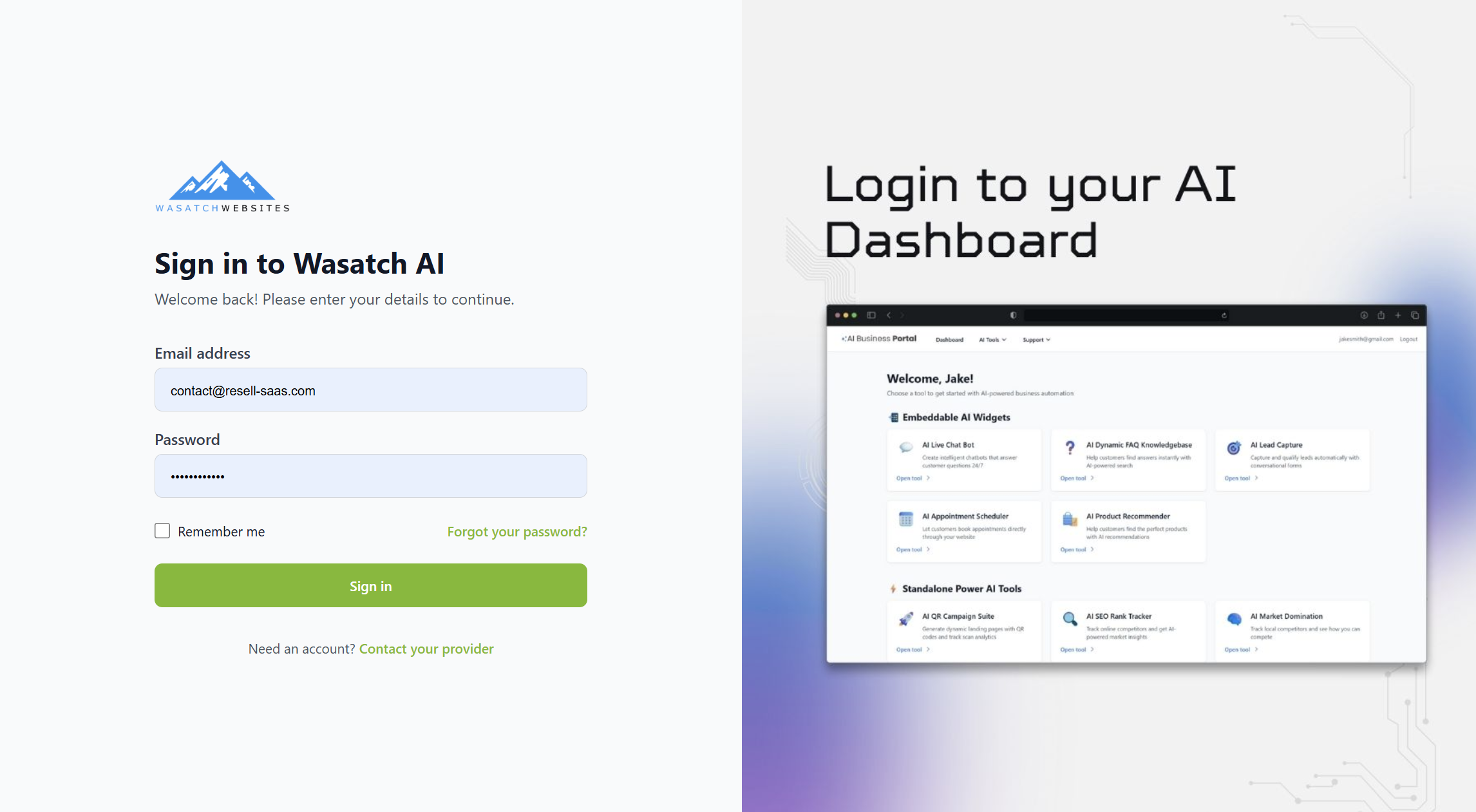
After activation, the client is sent an email containing:
-
Their AI Suite login URL
-
Username and password setup instructions
-
Instructions for accessing their AI tools
-
Your branded support contact details
All emails reflect your Whitelabel & Client Email Branding settings.
Best Practices
-
Set your AI Suite domain before activating tools
-
Configure Whitelabel + Client Email Branding first
-
Only enable tools the client actually needs
-
Use the Service Card to manage upgrades/downgrades
-
Review the client’s usage and renewals regularly
Summary
| Feature | Description |
|---|---|
| Activation Method | Add Client or Service |
| Tool Selection | Choose specific AI tools per client |
| Modification | Update at any time (2 locations) |
| Client Access | Via AI Suite domain |
| Billing | Based on tool selection |
| Branding | Fully white-labeled |