
Activating AI Business Tool
AI Business Tools — Activation & Management
The AI Business ToolTools Suite isallows a powerful suite availableyou to allprovide resellerspowerful, throughwhite-labeled theAI ResellPortal.comtools dashboard. It providesto your clients with— cutting-edgeall managed directly from your ResellPortal dashboard.
With the new system, you can:
-
Choose which AI
capabilitiestools toenhanceactivatetheirforbusinesseachoperations.client -
Add or remove AI tools at any time
-
Manage tools from the activation screen or the client’s service card
-
Provide your client with access to a branded AI Suite portal
AboutAvailable AI Tools
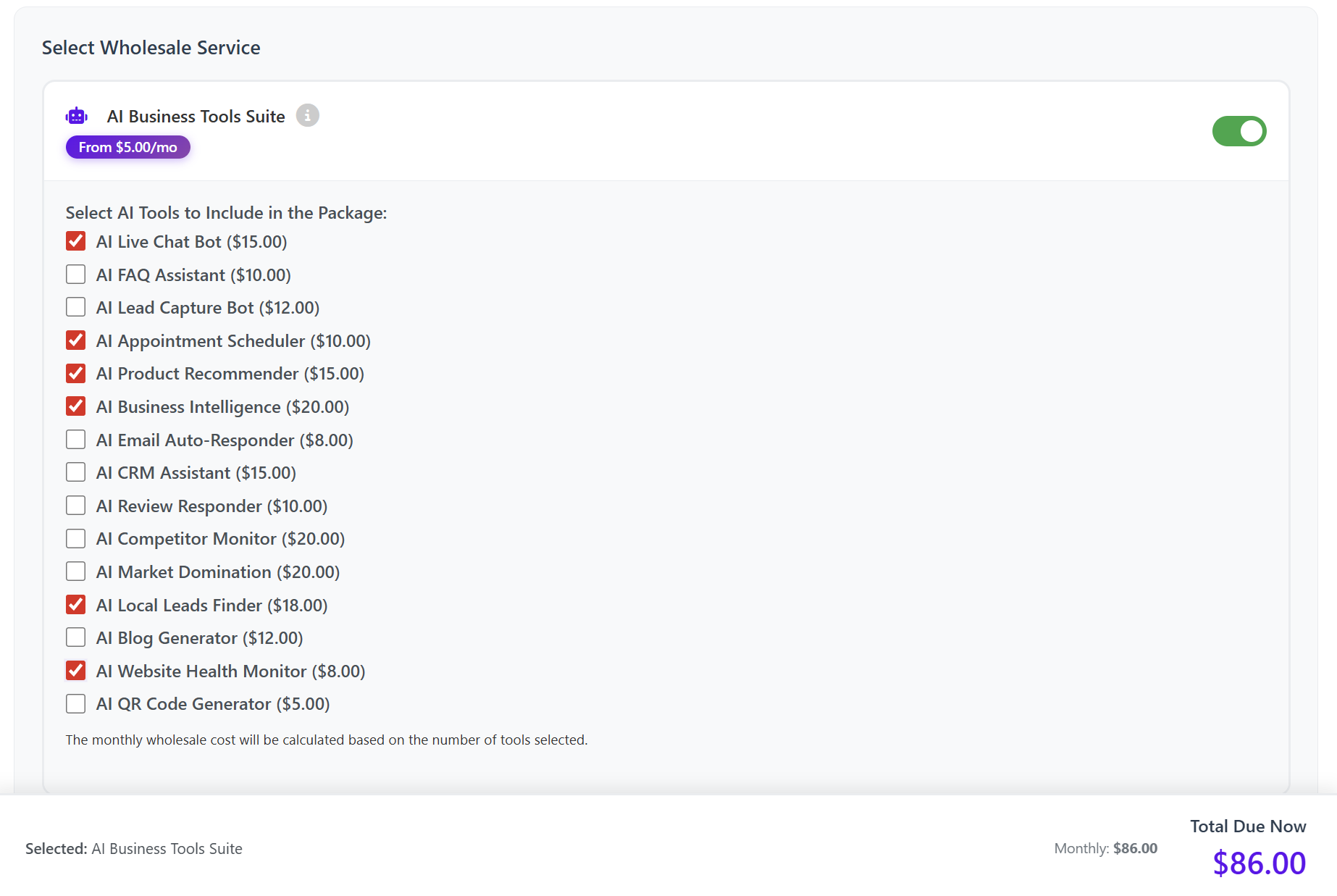
You can select any combination of the following tools when activating the AI Business ToolTools Suite:
-
ThisAIappLiveincludes:Chat Bot ($15.00) -
AI FAQ Assistant ($10.00)
-
AI Lead Capture Bot ($12.00)
-
AI Appointment Scheduler ($10.00)
-
AI Product Recommender ($15.00)
-
AI Business Intelligence ($20.00)
-
AI Email Auto-Responder ($8.00)
-
AI CRM Assistant ($15.00)
-
AI Review Responder ($10.00)
-
AI Competitor Monitor ($20.00)
-
AI Market Domination ($20.00)
-
AI Local Leads Finder ($18.00)
-
AI Blog Generator ($12.00)
-
AI Website Health Monitor ($8.00)
-
AI QR Code Generator ($5.00)
Your monthly wholesale cost is automatically calculated based on the tools selected.
How to Activate AI Business Tools for a Client
Step 1: Go to Add Client or Service
From the left-hand menu of your dashboard, click:
Add Client or Service
You can:
-
Add a new client
or -
Select an existing client by email
Step 2: Enter Client Details
The following fields are required:
-
AI-PoweredClientContent Generationname– Create articles, social posts, emails, and more. -
AIClientImageemailGenerationaddress–
Optional:
-
branding,Company
or web use.name -
PersonalPhone number
The client’s email will be used for login credentials and notifications.
Step 3: Select AI Business AssistantTools
In the services list, enable AI Business Tools Suite.
You Awill virtualthen assistantsee the full list of available AI tools.
Toggle ON the specific tools you want to streamlineinclude tasksfor andthis supportclient.
The total monthly cost is automatically calculated based on your selections.
Step 4: Confirm Activation
When you confirm:
-
Your wallet balance is charged for the selected tools
-
AI Live Chatbot– Engage website visitors with a smart, real-timeThe AIchatbot.tools are instantly activated -
The service is attached to the client’s account
StepsManaging toAI ActivateTools After Activation
Once the AI Business ToolTools ApSuite is active, you can modify it at any timep.
1.
You Loginhave two ways to Yourdo Dashboard
Log in to your reseller account on ResellPortal.com using your credentials.this:
2.✅ EnsureOption Your1 Balance– is Topped Up
Make sure you have sufficient credit in your account. The activation process requires available balance to proceed.
3. Navigate toFrom the 'ActivateActivation (Manual)'Screen
Section
-
FromGoyour dashboard sidebar or main menu, goback to"ActivateAdd(Manual)"Client or Service.This -
allowsSearch
youand select the existing client -
Update the AI tools by turning toggles ON or OFF
-
Save the changes
Your wallet will be adjusted accordingly.
✅ Option 2 – From the Client’s Service Card
-
Go to
deployClientsapps manually for clients.4. Search for "AI Business Tool"Inin thesearchsidebar,menutype -
Select the client
-
Find the AI Business
ToolToolsand click onDeploy appwhen it appears.
service -
OnClick theactivationdropdownpage,/chooseViewyourDetailspreferred -
Use the
subscriptionAIintervalTools:section to:-
MonthlyAdd new tools -
QuarterlyRemove existing tools
-
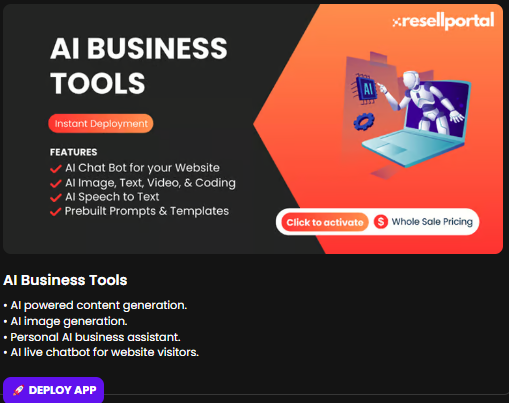
5. Select a Subscription Plan
This gives you direct, service-level control.
AI Suite Domain & Client Access
After activation, your client can log into their AI dashboard from your AI Suite domain.
You can set or edit this domain at:
Whitelabel Settings → AI Suite Settings
You can use:
-
A free ResellPortal subdomain
or -
YourBi-Annuallyown - custom
domainYearly

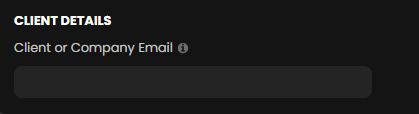
6. Enter Client/Company Email
In the Client Detail section, enter the client’s or company’s email address. This is the email where access details and onboarding instructions will be sent.
7. Activate the Service
Click Activate Service to finalize the deployment. Once confirmed, an email with setup details and next steps will be sent directly to your client's email.
What Happens Next?
Your client will receiveuse this domain to access their AI tools.
Login information is sent automatically to the client’s email address.
What Your Client Sees
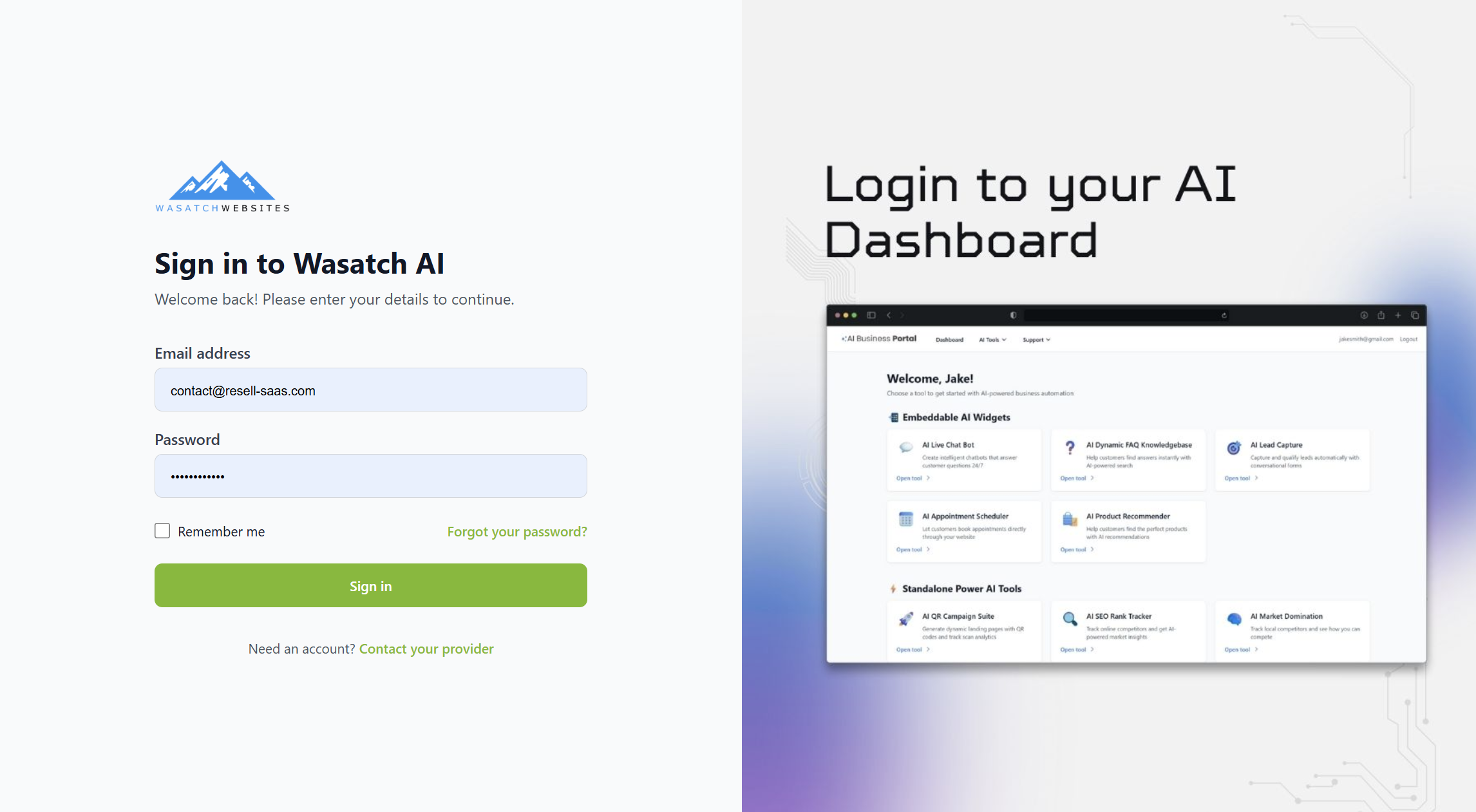
After activation, the client is sent an email with:containing:
-
Login or access details for theirTheir AIBusinessSuiteToollogindashboard.URL -
Username and password setup instructions
-
Instructions
toforbeginaccessingusingtheirtheAIapp features.tools -
SupportYour branded support contactinformation in case they need help.details
All emails reflect your Whitelabel & Client Email Branding settings.
Best Practices
-
Set your AI Suite domain before activating tools
-
Configure Whitelabel + Client Email Branding first
-
Only enable tools the client actually needs
-
Use the Service Card to manage upgrades/downgrades
-
Review the client’s usage and renewals regularly
Summary
| Feature | Description |
|---|---|
| Activation Method | Add Client or Service |
| Tool Selection | Choose specific AI tools per client |
| Modification | Update at any time (2 locations) |
| Client Access | Via AI Suite domain |
| Billing | Based on tool selection |
| Branding | Fully white-labeled |