
AI CRM
Welcome to AI CRM, your intelligent customer-relationship platform powered by automation, smart insights, and streamlined sales management.
Whether you start fresh with the built-in CRM or connect your existing HubSpot data, this guide will help you get up and running quickly.
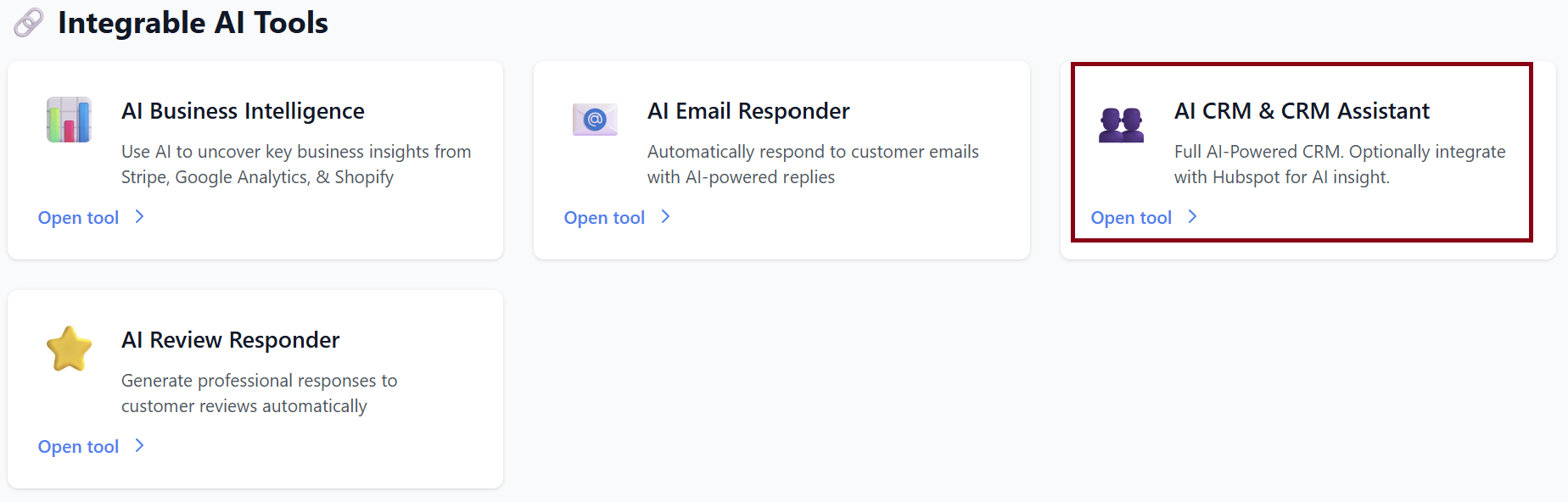
1. Getting Started
When you first open the CRM, you’ll see two options:
➤ Use Built-In AI CRM
Start with a clean, powerful CRM that includes:
-
AI-powered automation
-
Simple, intuitive interface
-
Free forever
-
Ready to use instantly
Click Get Started to activate your built-in CRM.
➤ Connect HubSpot
If you already use HubSpot, you can connect your account to unlock:
-
Data sync
-
AI assistant support
-
Automated insights
-
Workflow enhancements
Click Connect → and follow the login instructions.
2. After Clicking “Get Started”
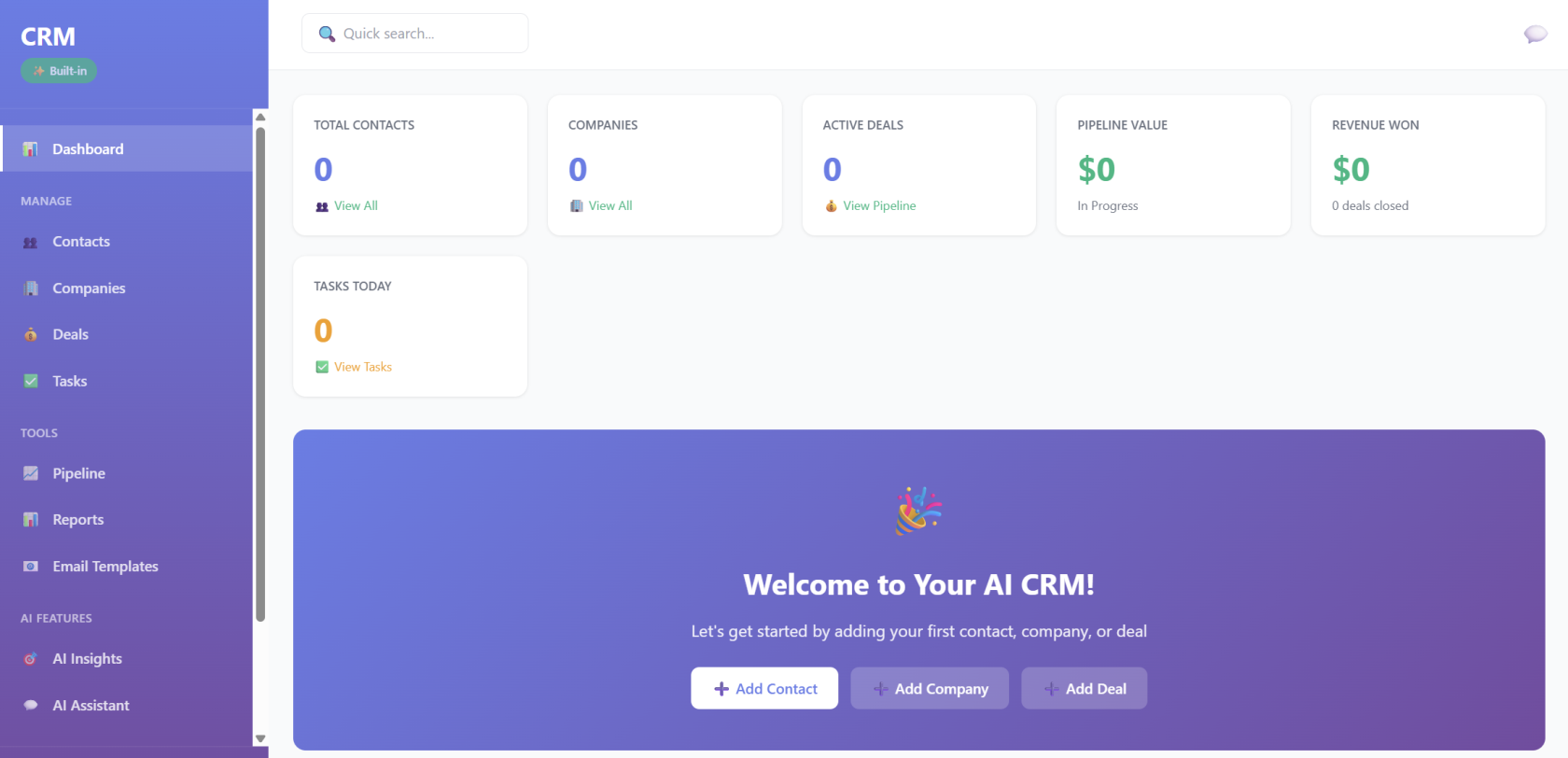
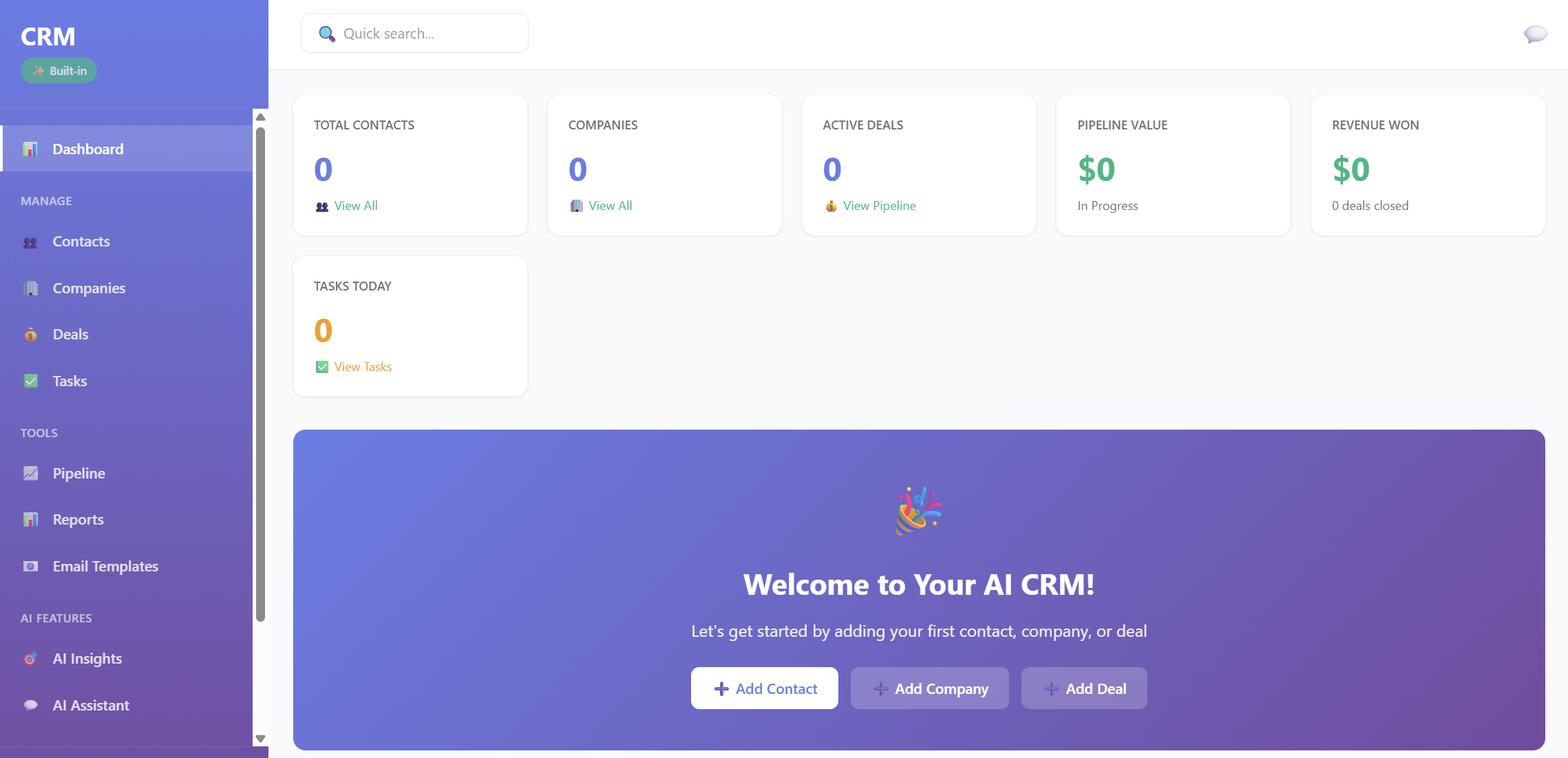
You will land on your CRM home dashboard, where all metrics initially display as 0 since no data is added yet.
Dashboard Metrics
-
Total Contacts
-
Companies
-
Active Deals
-
Pipeline Value
-
Revenue Won
-
Tasks Today
Each card includes a quick-access View button such as:
-
View All Contacts
-
View All Companies
-
View Pipeline
-
View Tasks
Welcome Section
You are prompted to begin:
-
➕ Add Contact
-
➕ Add Company
-
➕ Add Deal
Below this, you’ll see:
-
Recent Deals (empty until you add one)
-
Recent Contacts
-
Upcoming Tasks
3. Contacts
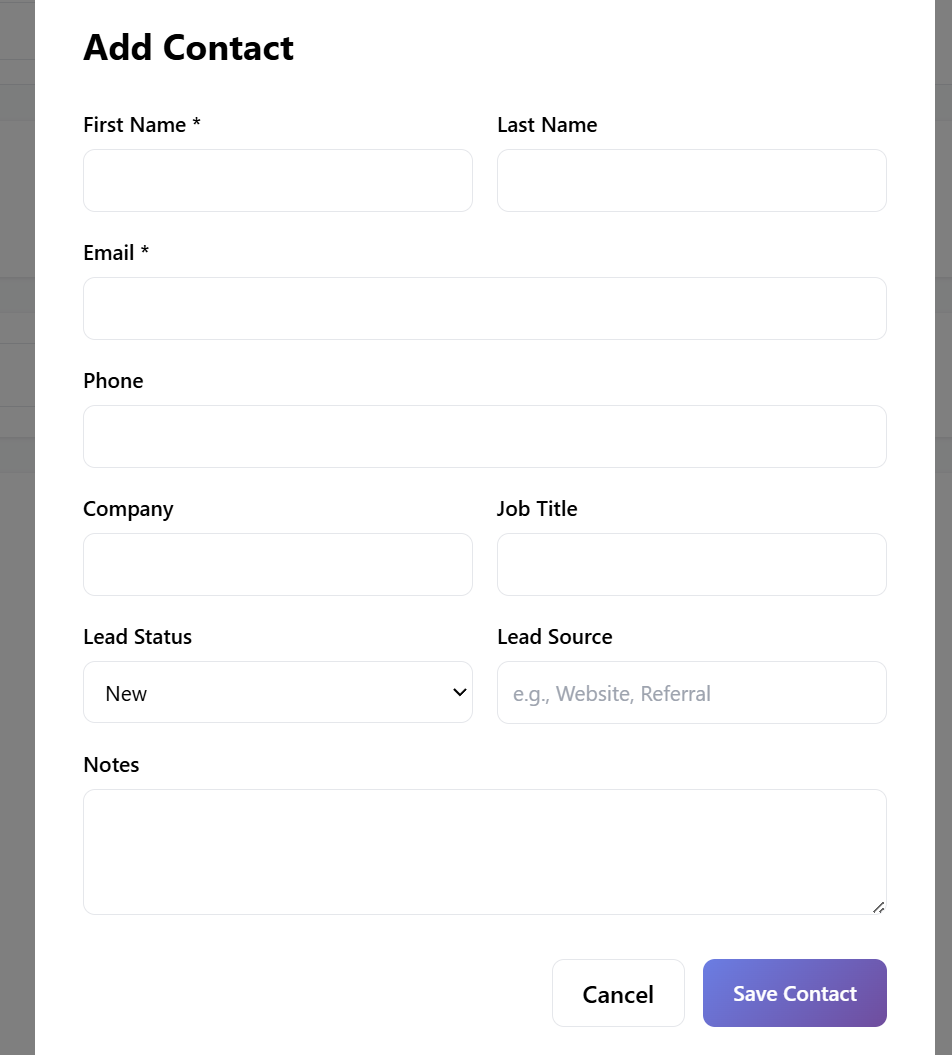
Use Add Contact to create your first contact:
-
Name
-
Email
-
Phone
-
Company (optional)
-
Notes
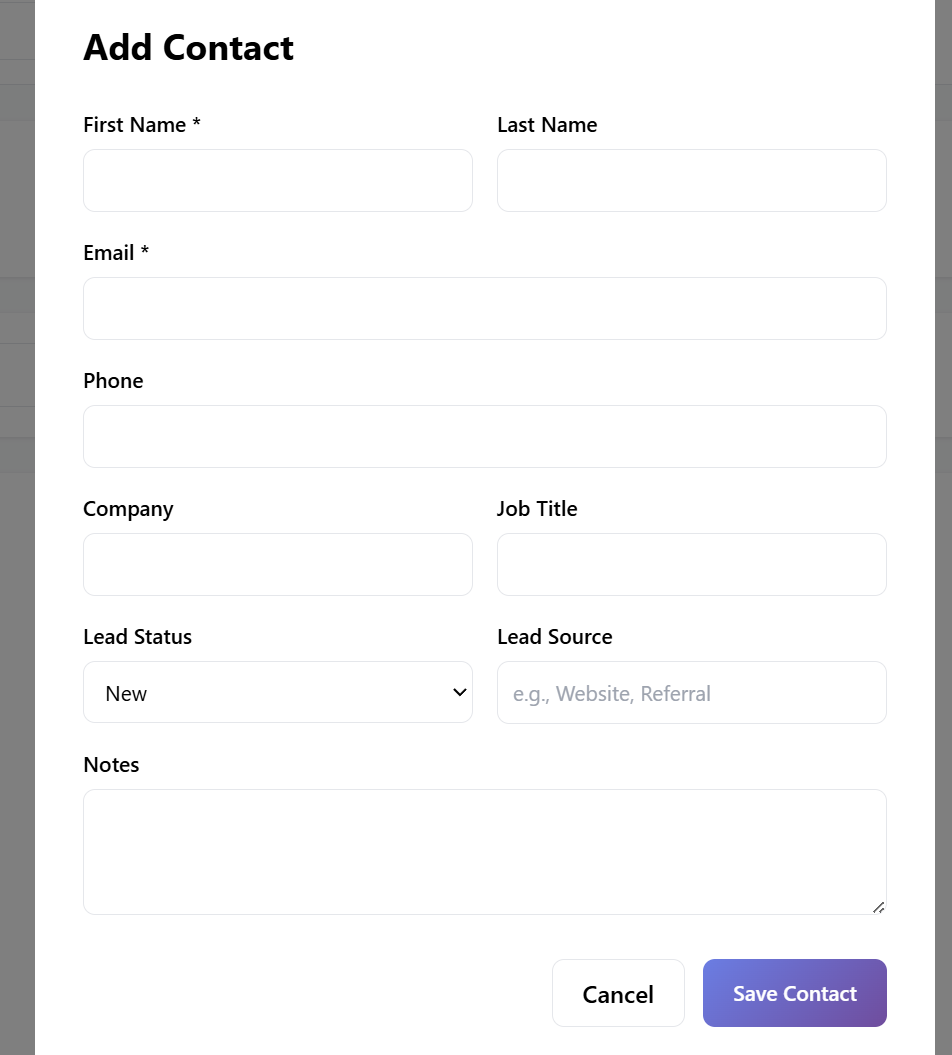
Contacts will appear under View All → Recent Contacts.
4. Companies
Add companies associated with your deals or contacts:
-
Company name
-
Website
-
Industry
-
Notes
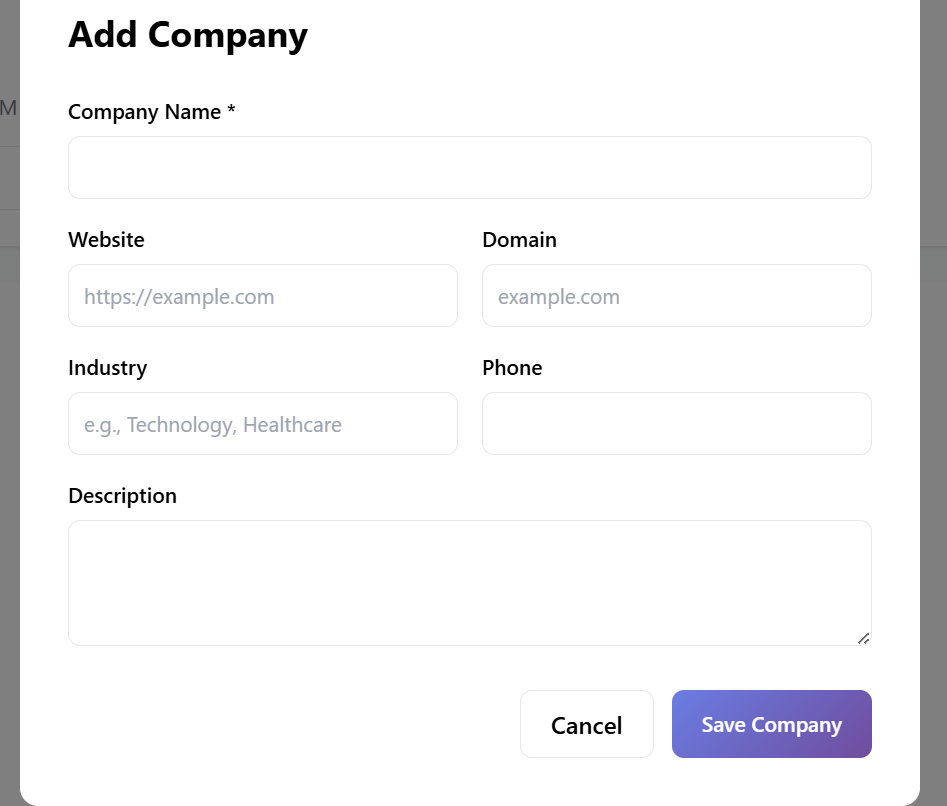
Companies appear under View All Companies.
5. Deals
Deal Filters
You can filter by stage:
-
📋 All
-
🟡 Lead
-
🔵 Qualified
-
🟣 Proposal
-
💗 Negotiation
-
✅ Won
-
❌ Lost
Initially you'll see:
“No deals found — Create your first deal to get started.”
Creating a Deal
Click Create Your First Deal.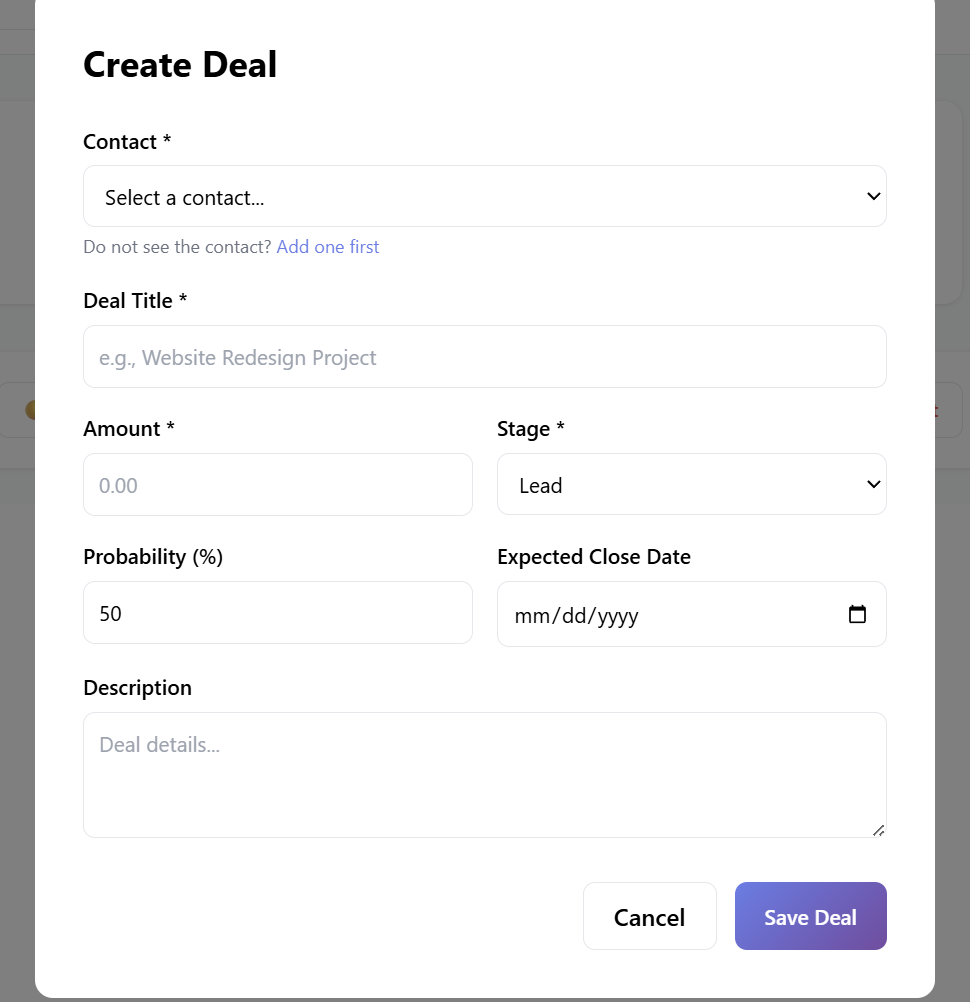
Fill out the fields:
Required Fields
-
Contact* → Select an existing contact
-
If none exist: “Do not see the contact? Add one first”
-
-
Deal Title* (e.g., “Website Redesign Project”)
-
Amount*
-
Stage* (Lead → Won → Lost, etc.)
Optional Fields
-
Probability (%)
-
Expected Close Date
-
Description
Click Create to save the deal.
Deals will now appear in the pipeline and reports.
6. Tasks
The Tasks page keeps your team organized.
Task Filters
-
⏳ Pending
-
✅ Completed
-
📋 All
-
🔴 High
-
🟡 Medium
-
🟢 Low
At first:
“No tasks found — Create a task to get started.”
Creating a Task
Click Create Your First Task.
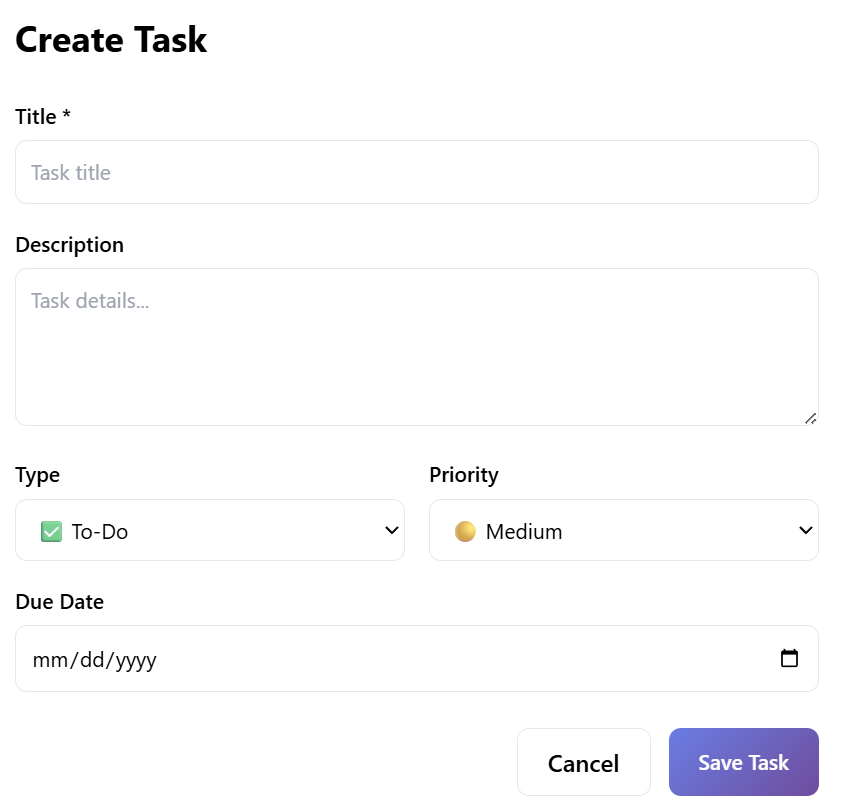
Fields:
-
Title*
-
Description (optional)
-
Type → To-Do
-
Priority → High / Medium / Low
-
Due Date
Tasks appear in dashboards & reminders.
7. Sales Pipeline
The Sales Pipeline is a visual overview of all deal stages.
Stages include:
-
Lead
-
Qualified
-
Proposal
-
Negotiation
-
Won
-
Lost
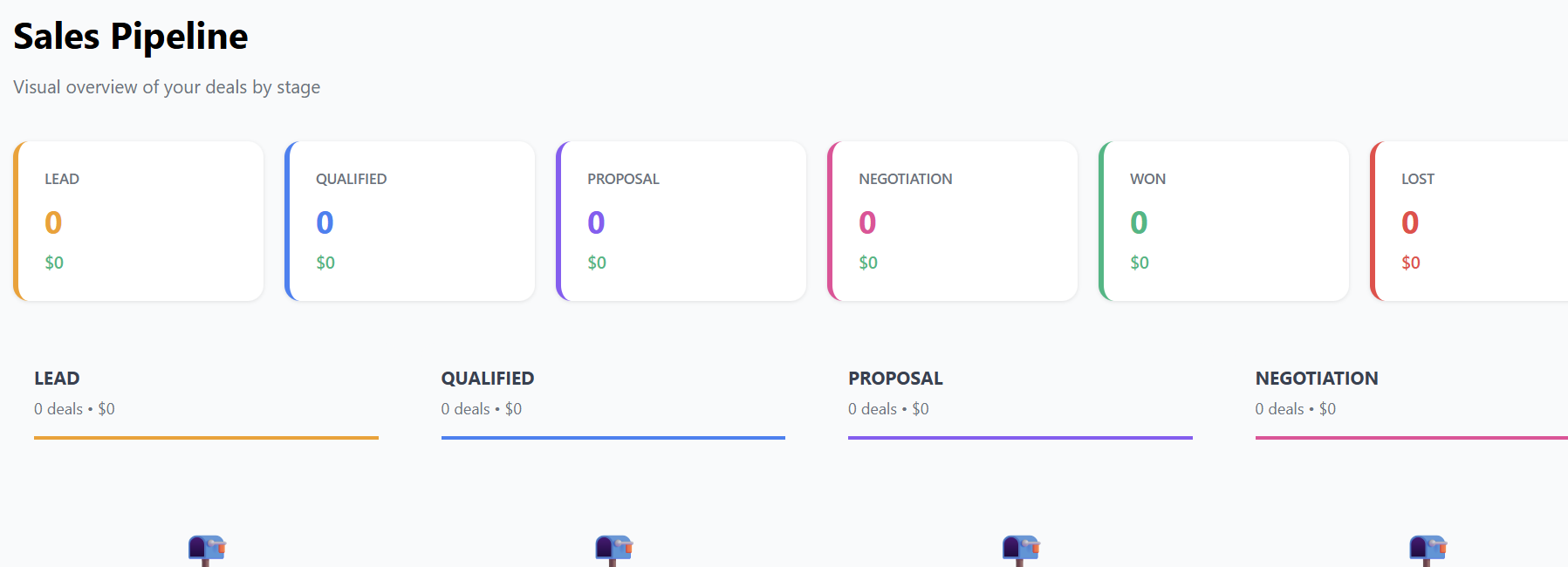
Each stage displays:
-
Number of deals
-
Total value
At first, every section shows:
“0 deals • $0 — No deals in this stage.”
Once deals are added, they’ll appear here with drag-and-drop movement between stages.
8. Reports & Analytics
Access performance metrics for any date range.
Reports Include:
-
New Contacts (Last 30 days)
-
New Deals (Last 30 days)
-
Revenue Won
-
Win Rate
-
Pipeline Value
-
Deals by Stage
-
Activity Summary
-
Top Contacts by Deal Value
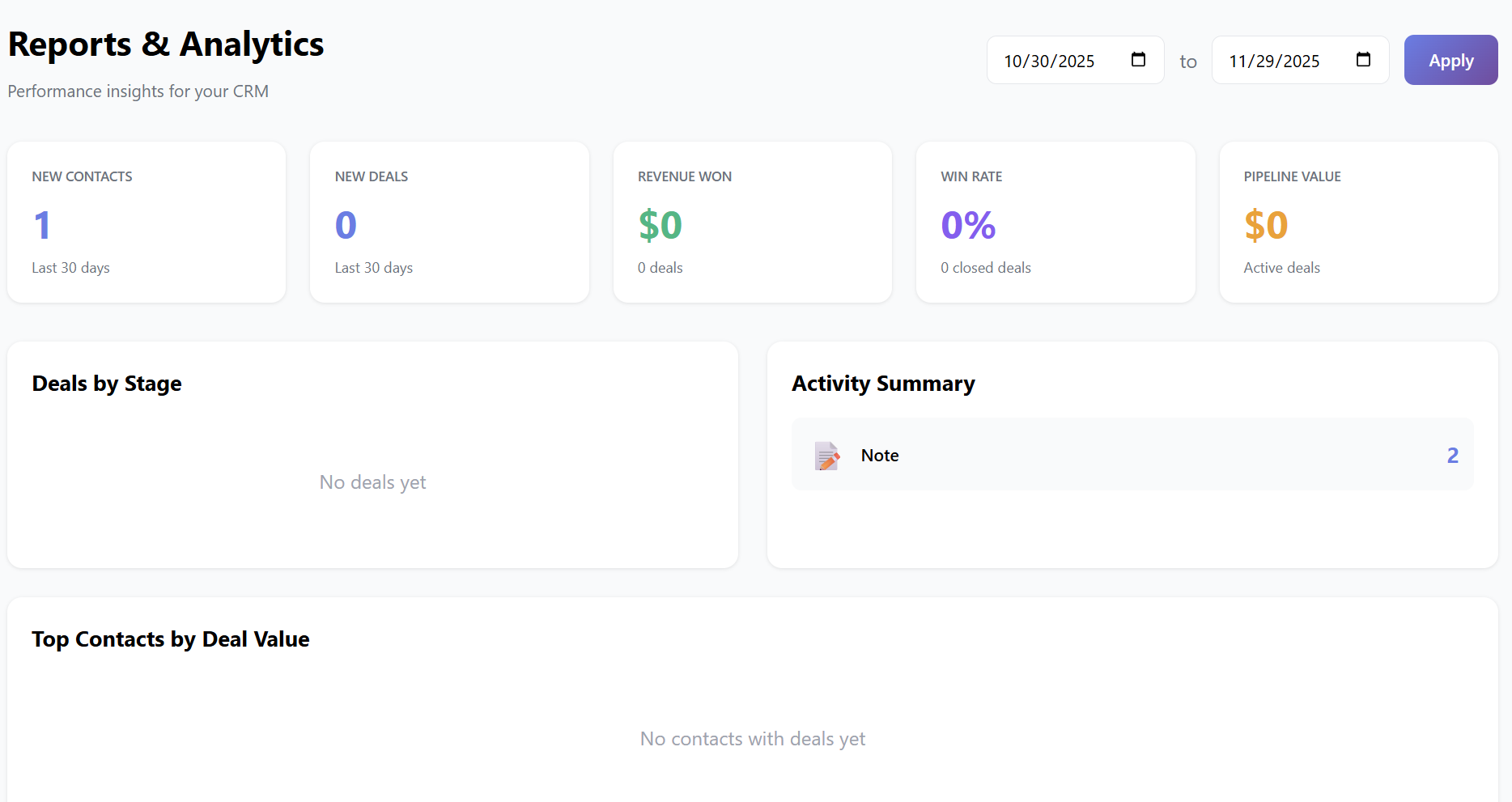
Before adding data, these areas will display “No data yet.”
9. Email Templates
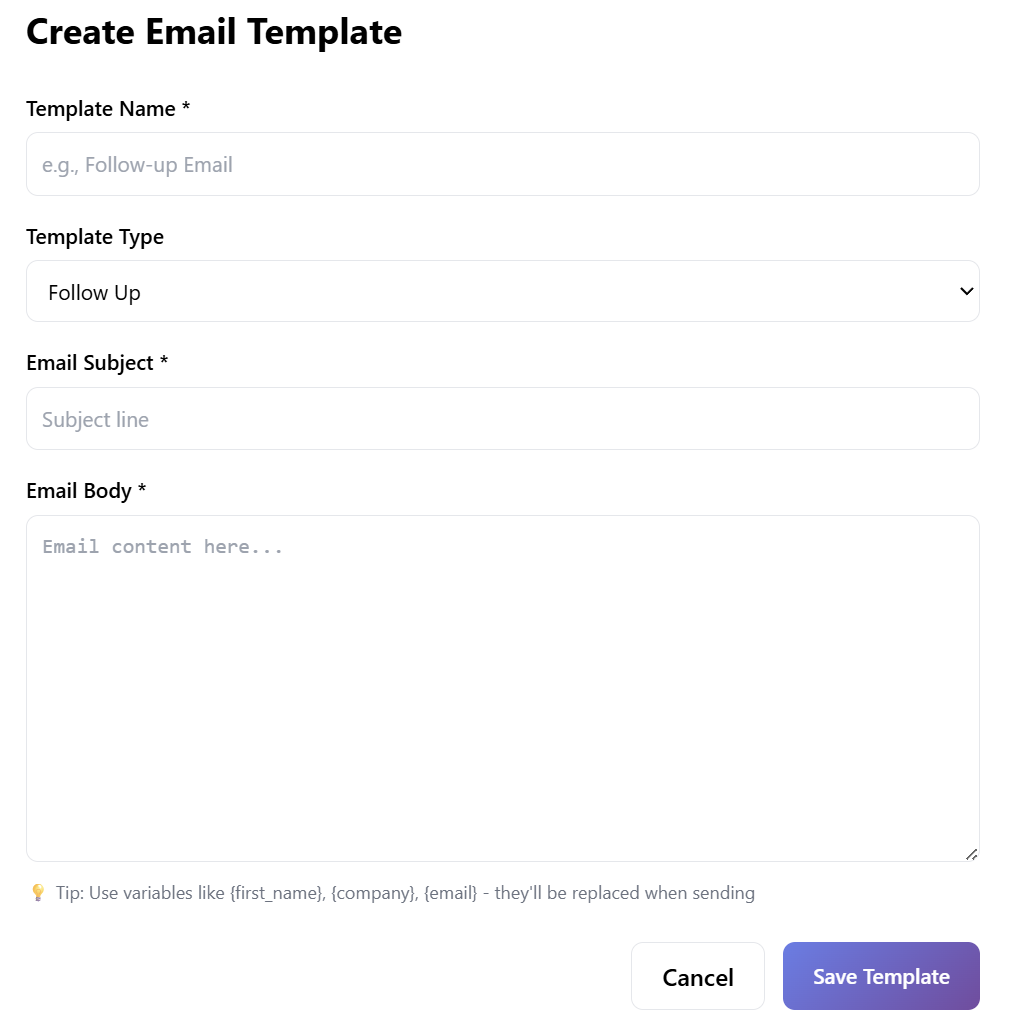
Create email templates for follow-ups, deal updates, and outreach.
Creating a Template
-
Template Name*
-
Template Type (Follow Up, etc.)
-
Email Subject*
-
Email Body*
Save the template to reuse with contacts and deals.
10. AI Insights
The AI Insights tab provides smart recommendations for your CRM.
Insight Categories:
-
⚠️ Deal Risks
-
💰 Upsell Opportunities
-
📞 Follow-ups Needed
-
📉 Engagement Drops
-
⭐ Opportunities to Grow
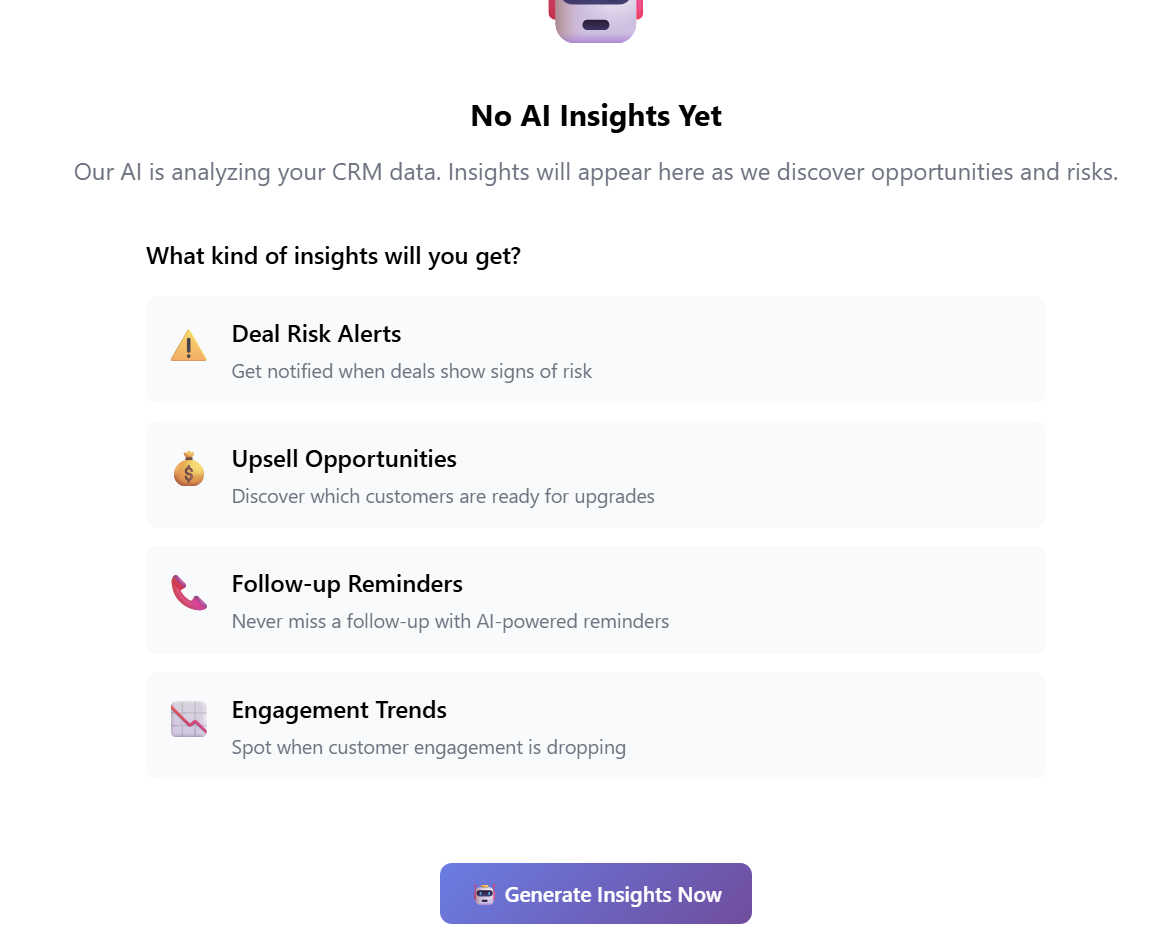
Before your CRM has enough data, you’ll see:
“No AI Insights Yet — Our AI is analyzing your CRM data.”
You can also click:
Generate Insights Now
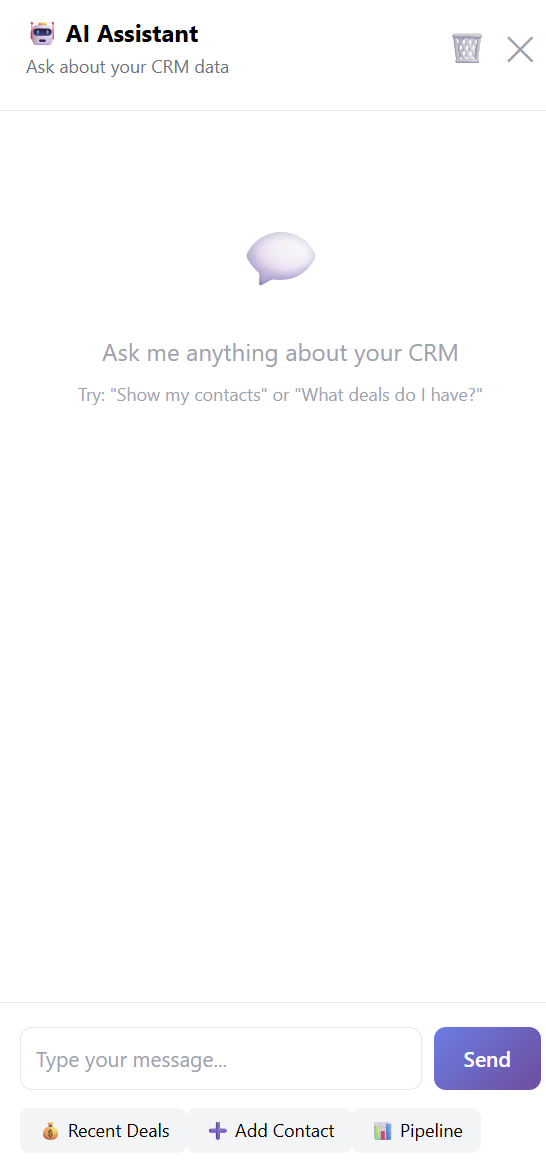
11. AI Assistant
A live CRM chat assistant that can answer questions like:
-
“Show my contacts”
-
“What deals are in negotiation?”
-
“Add a new task for today.”
-
“What deals do I have closing this month?”
You can also add quick actions:
-
Add Contact
-
View Recent Deals
-
Open Pipeline
The assistant references all your CRM data in real time.
12. Settings
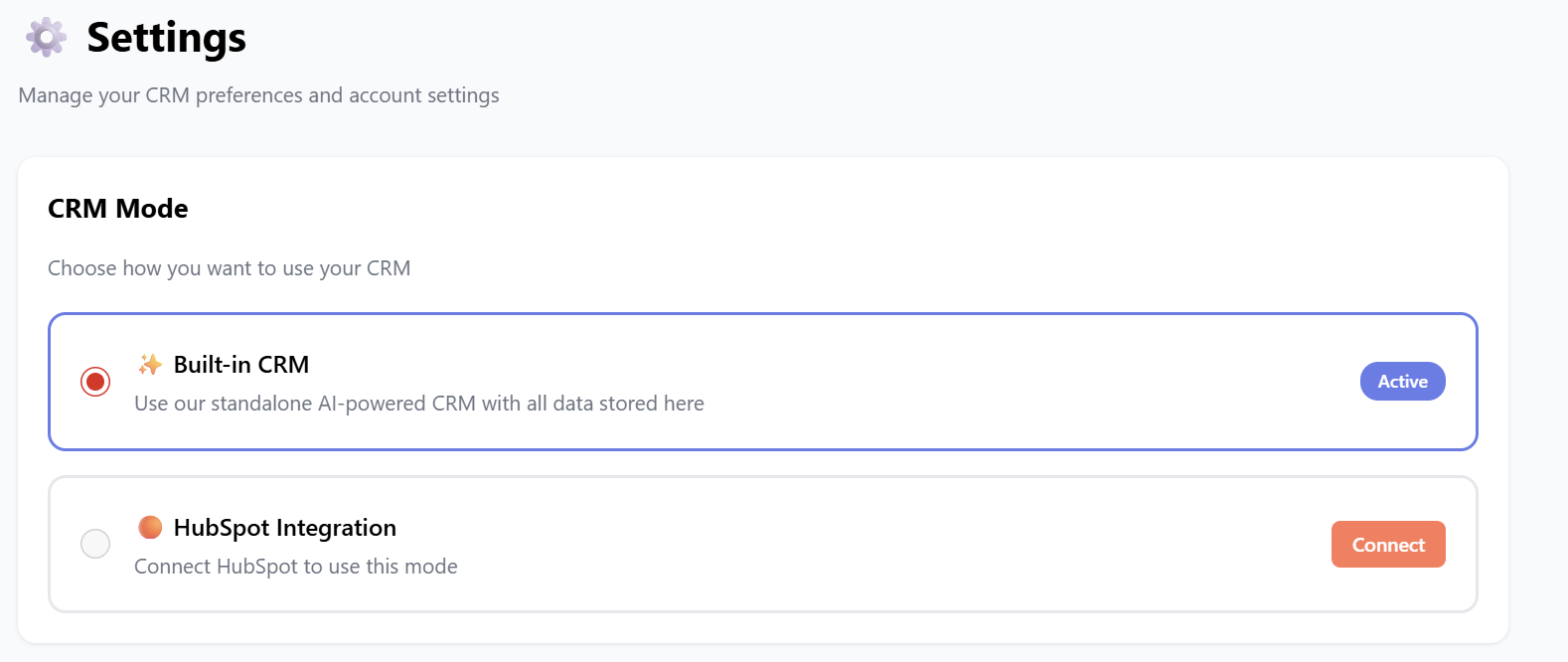
Customize your CRM’s behavior under the Settings tab.
CRM Mode
-
Built-in CRM (active by default)
-
HubSpot Integration
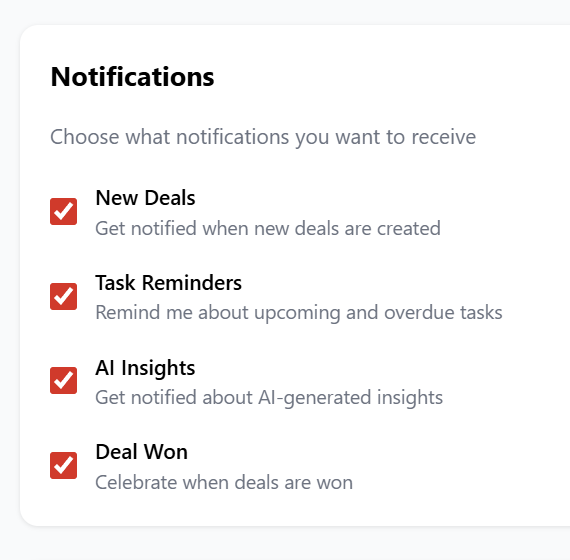
Notifications
Enable email/push notifications for:
-
New deals
-
Task reminders
-
AI insights
-
Deal won celebrations
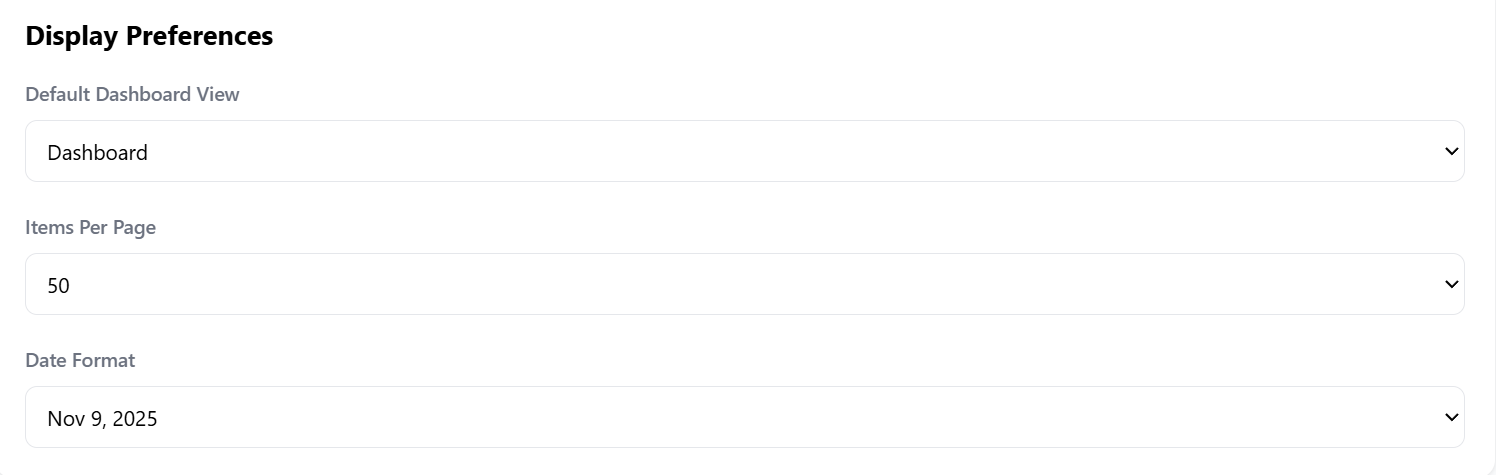
Display Preferences
-
Default dashboard view
-
Items per page
-
Date format
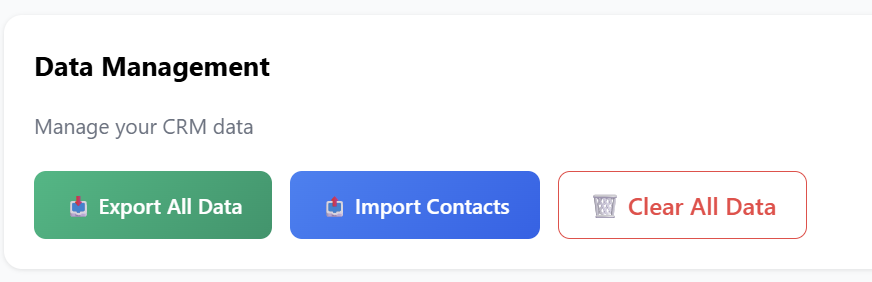
Data Management
-
📥 Export All Data
-
📤 Import Contacts
-
🗑️ Clear All Data (irreversible)
Summary
| CRM Area | What You Can Do |
|---|---|
| Dashboard | View contacts, deals, tasks, and quick actions |
| Contacts | Add, manage, and link contacts to deals |
| Companies | Manage companies and relationships |
| Deals | Track, filter, and manage your sales pipeline |
| Tasks | Organize follow-ups and daily actions |
| Pipeline | Visual view of deal stages and value |
| Reports | Analyze performance, revenue, and activity |
| Email Templates | Create reusable CRM communication templates |
| AI Insights | Receive automated alerts & opportunities |
| AI Assistant | Ask questions and manage CRM through chat |
| Settings | Control data, notifications, modes, and display |