
AI Email Auto-Responder
Welcome to Email Auto-Responder, your AI-powered inbox management system designed to streamline customer support, sales communication, and general email handling.
This guide walks you through all features—including adding accounts, managing templates, reviewing emails, and monitoring analytics.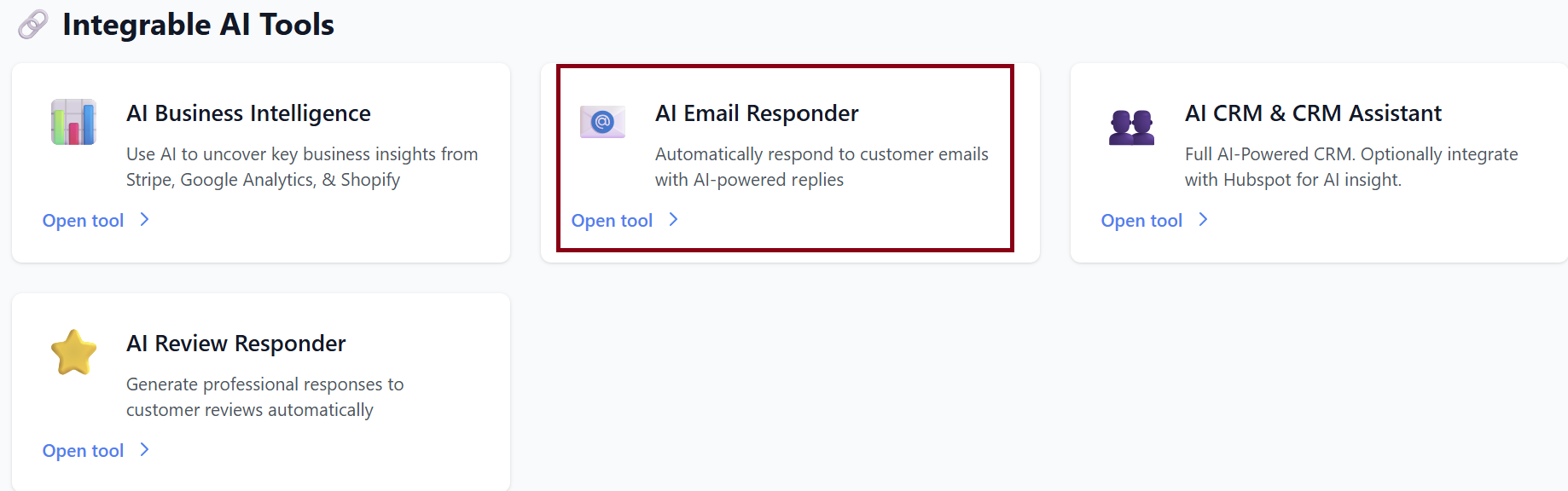
1. Dashboard Overview
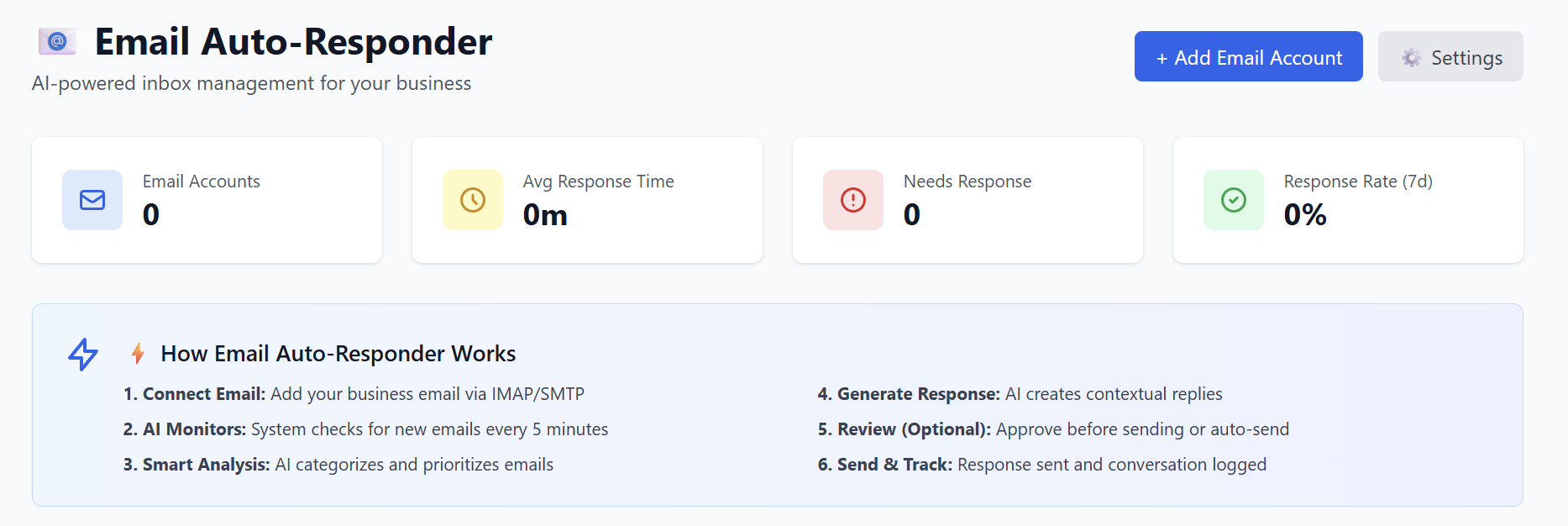
When you open the Email Auto-Responder page, you will see a quick summary of your inbox performance:
Top Metrics
-
Email Accounts: Number of connected email inboxes
-
Avg Response Time: Average time it takes your business to reply
-
Needs Response: Number of messages awaiting your attention
-
Response Rate (7d): Percentage of emails responded to over the last 7 days
These values update automatically as emails come in and responses are processed.
2. How Email Auto-Responder Works
The system manages your business emails in six simple steps:
-
Connect Email
Add your business email through IMAP/SMTP. -
AI Monitors
The system checks for new messages every 5 minutes. -
Smart Analysis
AI understands, categorizes, and prioritizes each email. -
Generate Response
AI creates contextual, personalized replies. -
Review (Optional)
You can approve replies before sending or enable auto-send. -
Send & Track
Responses are sent automatically, and conversations are logged for analytics.
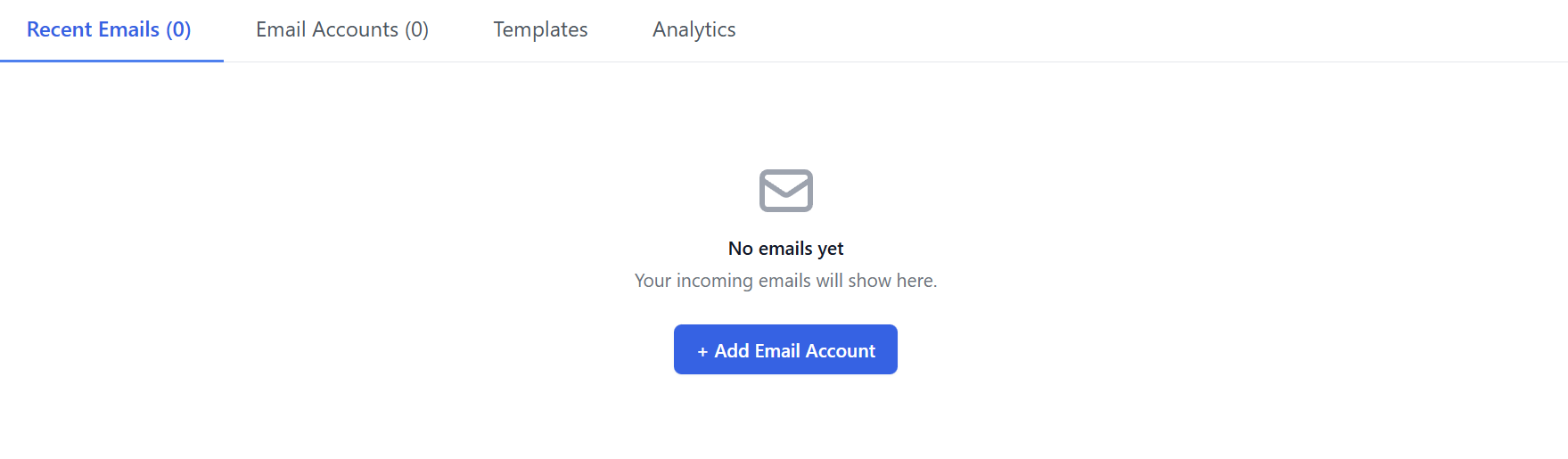
If no emails are connected yet, you will see:
“No emails yet — Your incoming emails will show here.”
3. Adding an Email Account
To get started, click + Add Email Account.
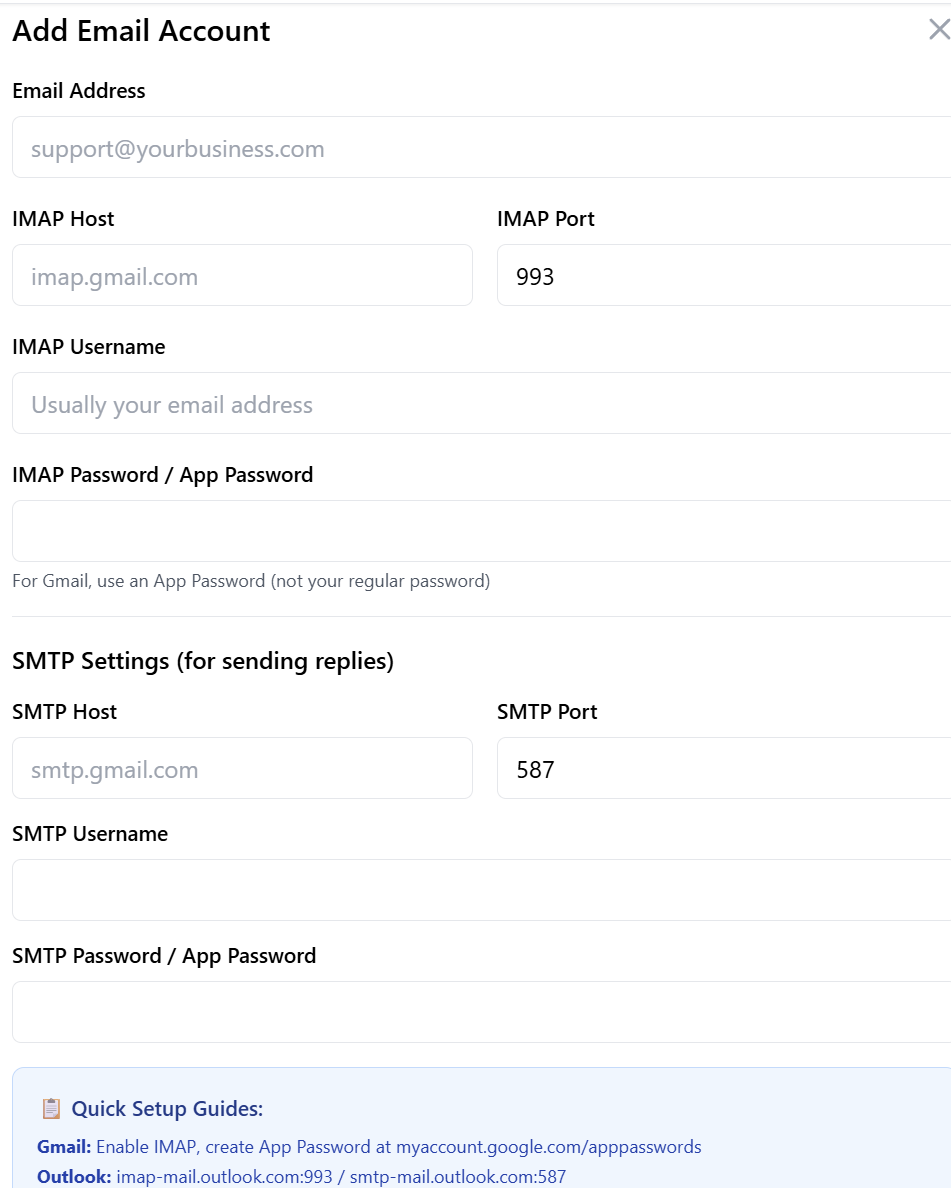
You’ll need to fill in the following details:
Email Credentials
-
Email Address:
Example:support@yourbusiness.com -
IMAP Host:
Example:imap.gmail.com -
IMAP Port:
Default:993 -
IMAP Username:
Usually your full email address -
IMAP Password / App Password:
-
Gmail requires an App Password
-
Do not use your normal password
-
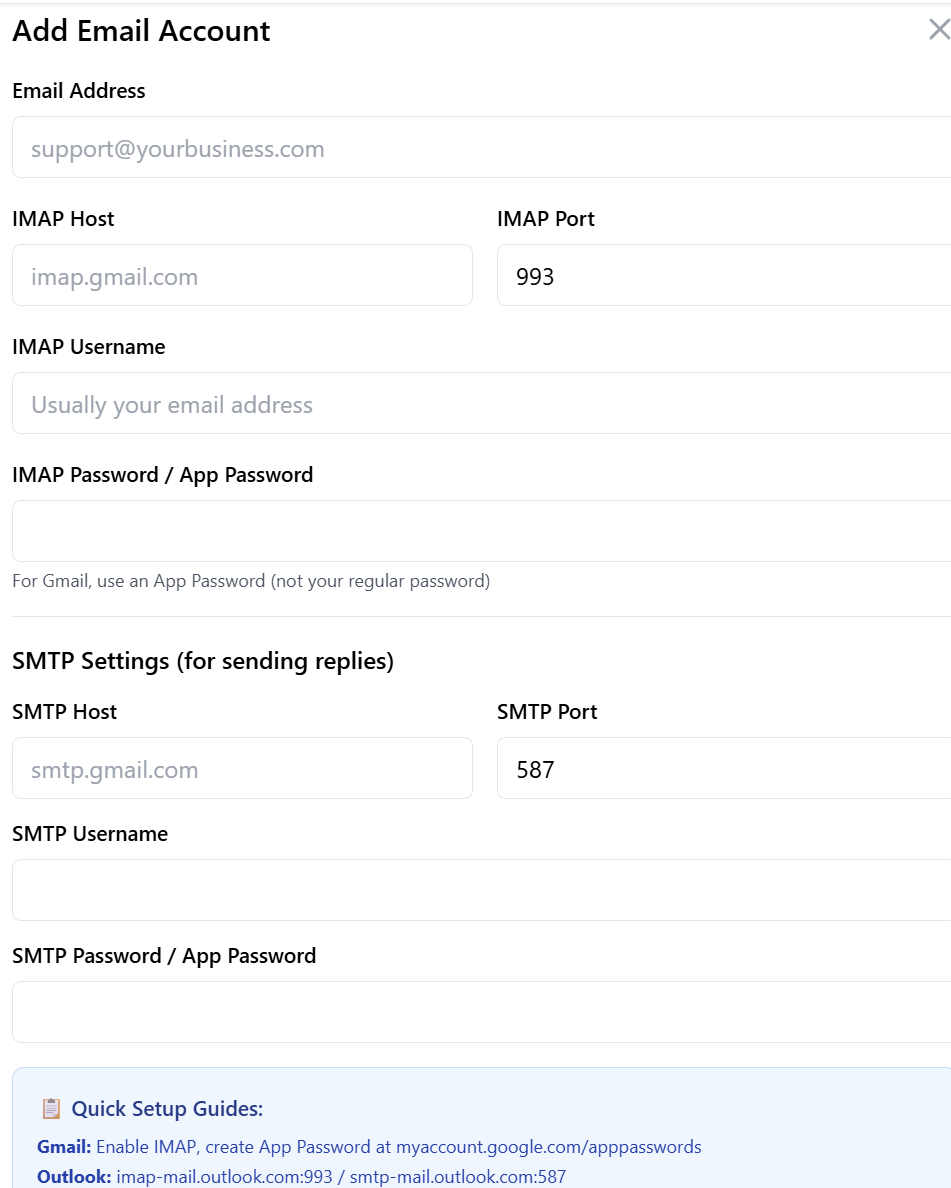
SMTP Settings (for sending replies)
-
SMTP Host:
Example:smtp.gmail.com -
SMTP Port:
Default:587 -
SMTP Username
-
SMTP Password / App Password
Quick Setup Guides
Gmail
-
Enable IMAP
-
Create App Password:
myaccount.google.com/apppasswords
Outlook
-
IMAP:
imap-mail.outlook.com:993 -
SMTP:
smtp-mail.outlook.com:587
Yahoo
-
IMAP:
imap.mail.yahoo.com:993 -
SMTP:
smtp.mail.yahoo.com:587
Once complete, click Add Account & Test Connection.
Your inbox will begin syncing, and new emails will appear under Recent Emails.
4. Recent Emails
After accounts are added, your inbox will display:
-
Sender
-
Subject
-
Category (Sales, Support, General, Out of Office)
-
Status (Needs response, responded, auto-responded)
-
AI-generated suggested replies
You can:
-
Approve AI responses
-
Edit them before sending
-
Or enable Auto-Send per email account or category
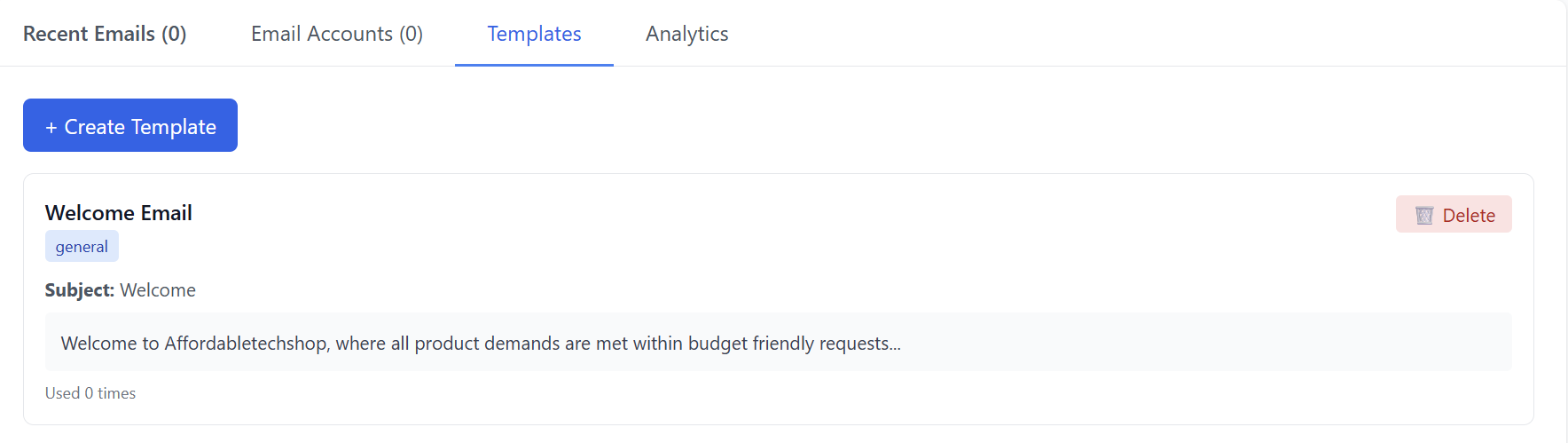
5. Templates
Templates help your business maintain consistent, high-quality responses.
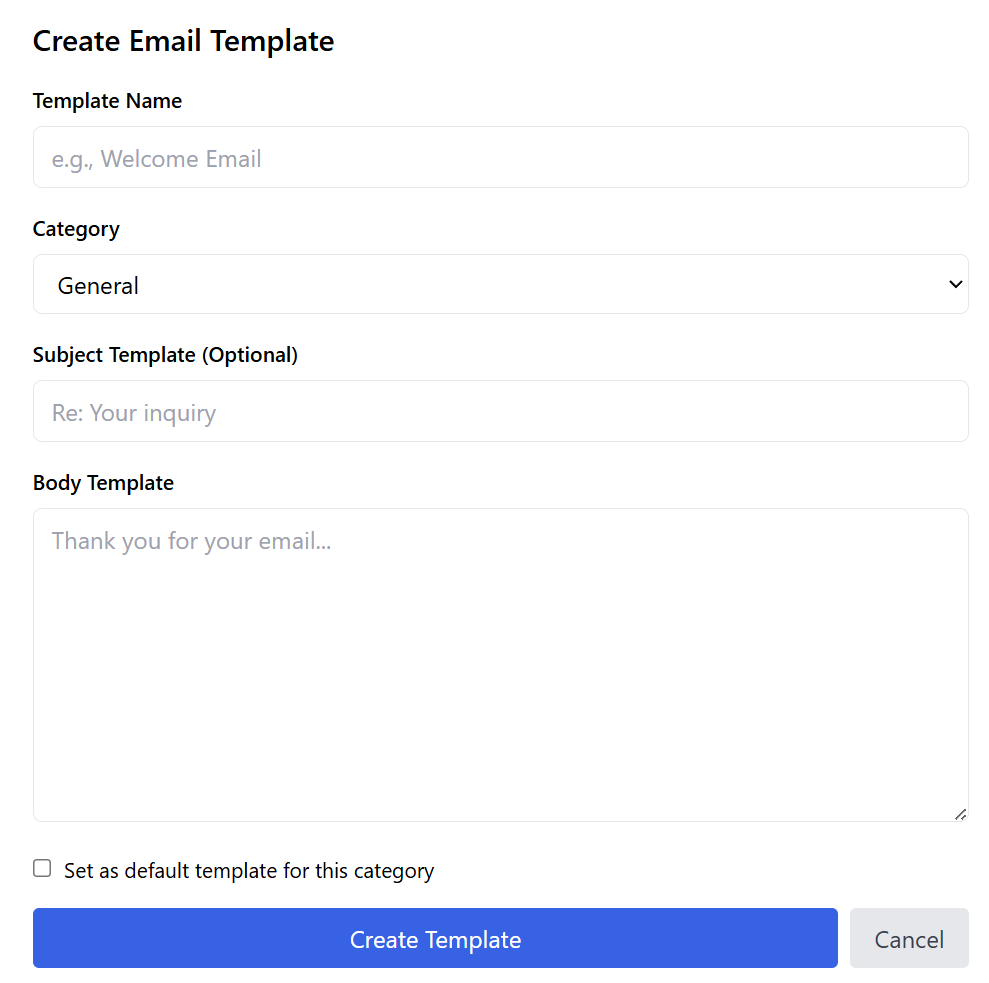
Go to the Templates tab → click Create Template.

Template Fields
-
Template Name – For internal use
-
Category – General, Sales, Support, or Out of Office
-
Subject Template (Optional) – Auto-fills subject lines
-
Body Template – The message text itself
-
Set as default template for this category (checkbox)
-
When checked, AI will use it automatically for emails in that category
-
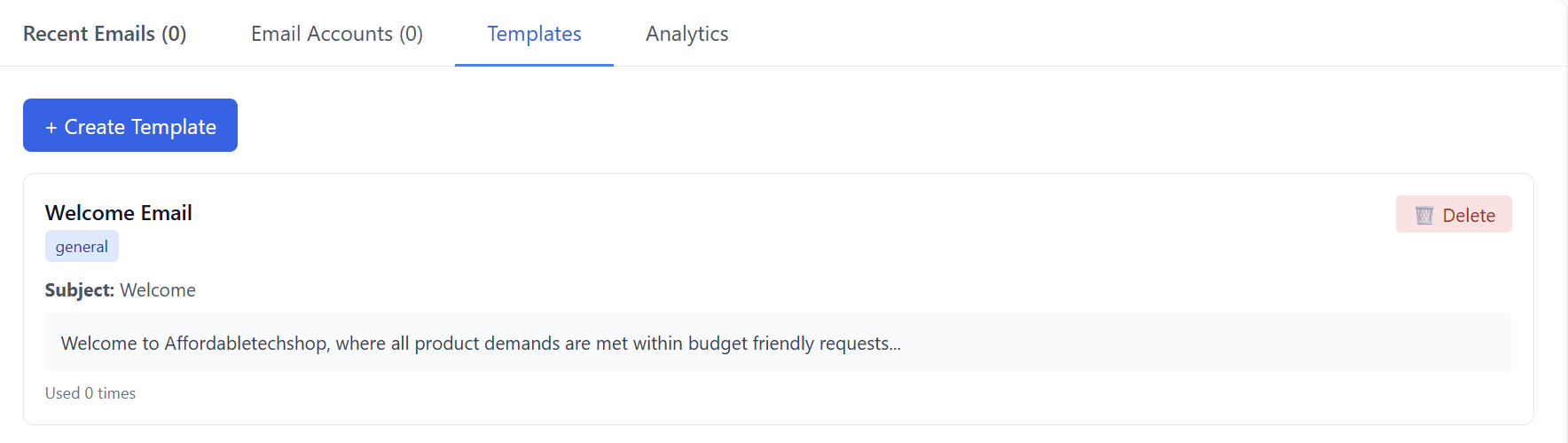
After clicking Create, the template will appear in the Templates list. You can:
-
Add additional templates
-
Edit templates
-
Delete templates
-
Set new defaults
6. Analytics
The Analytics tab provides insight into your email performance.
Metrics Displayed
-
Total Emails – Count of all messages received
-
Response Rate – % of emails you replied to
-
Avg Response Time – Speed of your replies
-
Email Volume (Last 7 Days) – Activity chart
-
Category Breakdown – Distribution of Support, Sales, General, Out of Office emails
Use these insights to measure team responsiveness, identify trends, and improve customer engagement.
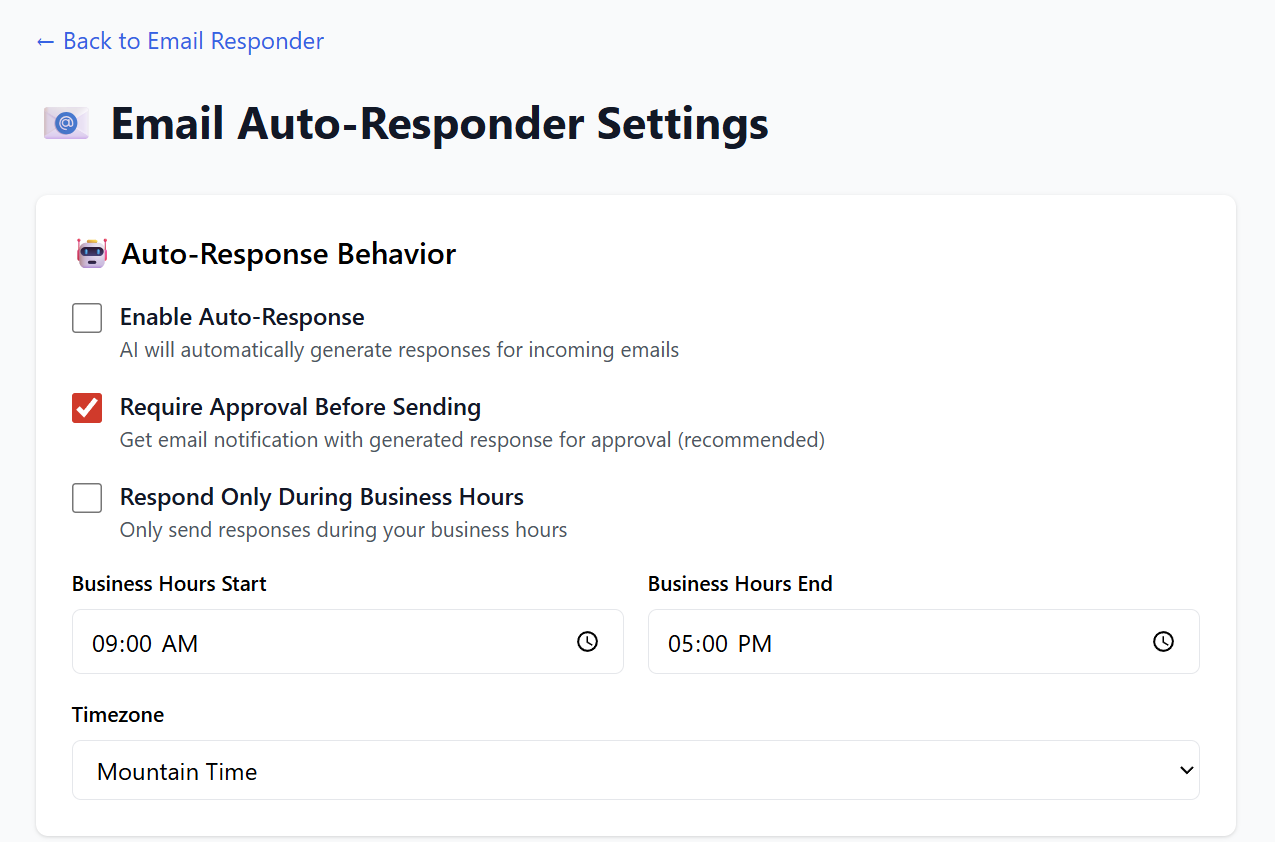
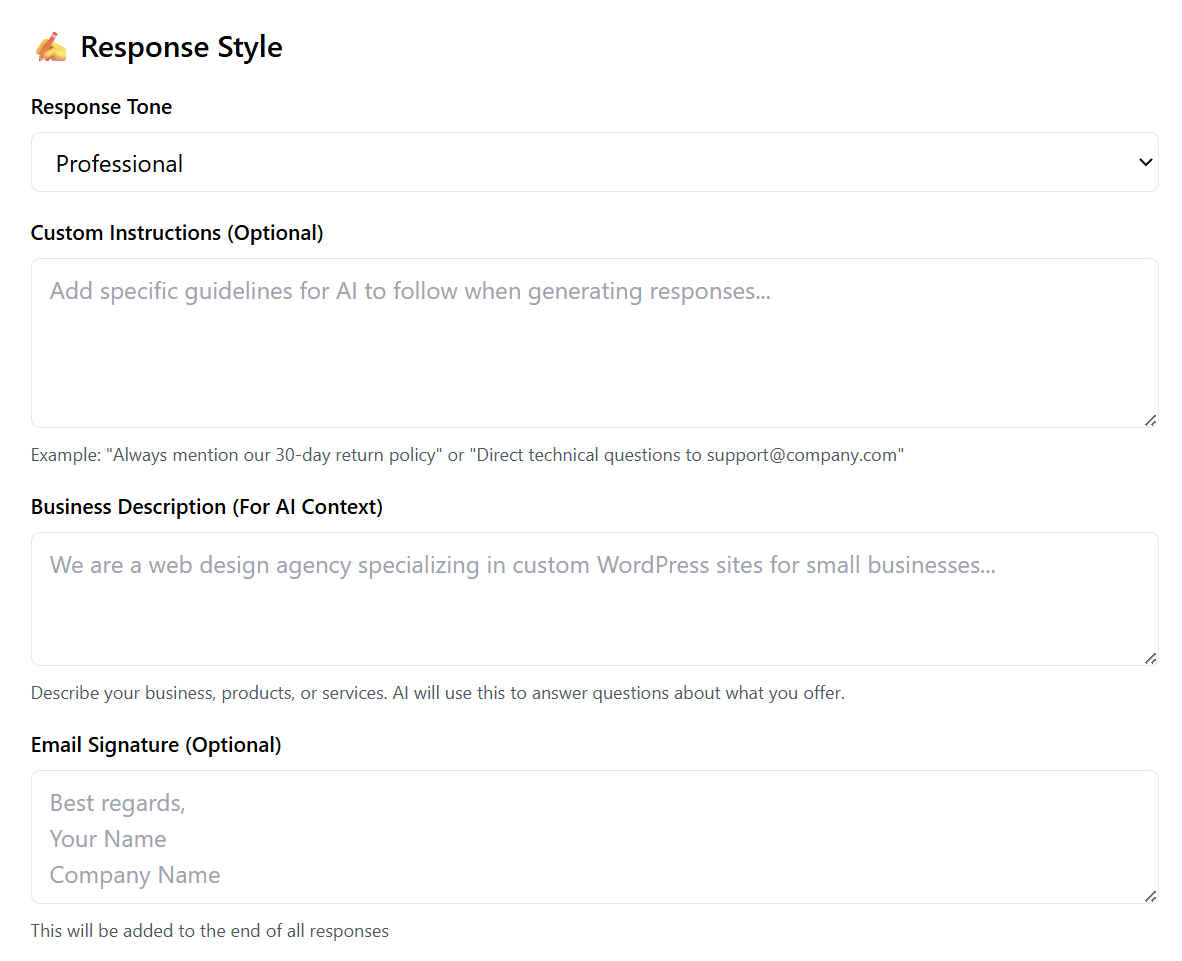
7. Settings
-
Auto-send preferences
-
Default reply behavior
-
Signature settings
-
Notification preferences
-
Connecting or removing email accounts
- Notification settings
- Smart Filtering
Summary
| Feature | What It Does |
|---|---|
| Dashboard | Shows inbox performance and key stats |
| Add Email Account | Connects IMAP/SMTP inboxes |
| Recent Emails | AI categorizes and drafts replies |
| Templates | Create reusable email response templates |
| Analytics | Tracks response rate, categories, and volume |
| Settings | Controls automation and email behavior |
Your Email Auto-Responder is now ready to automate communication and save you countless hours managing messages manually.