
Client Domain Management
Your clients can manage their domains directly from your storefront.
Accessing Domain Settings
-
Go to My Services.
-
Find the Domain Registration service.
-
Click Manage.
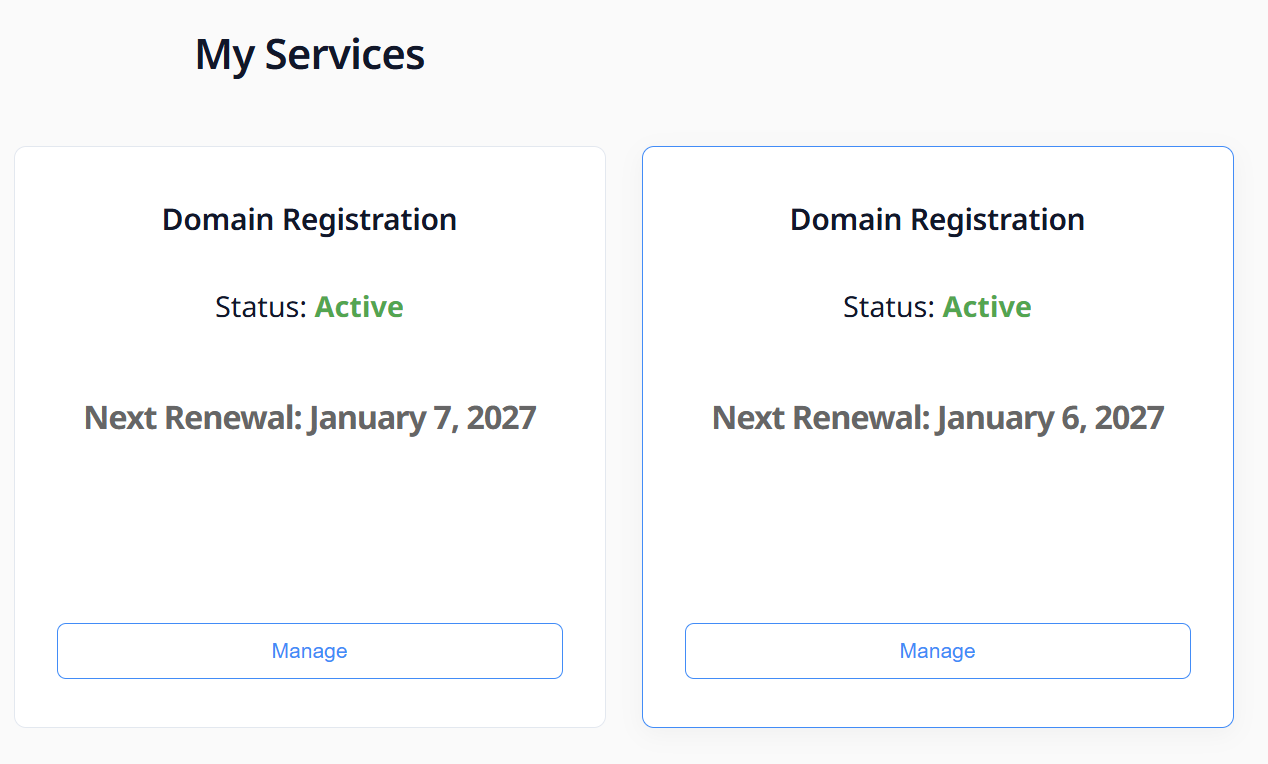
This opens the Manage Domain Registration panel.
Service Overview Panel
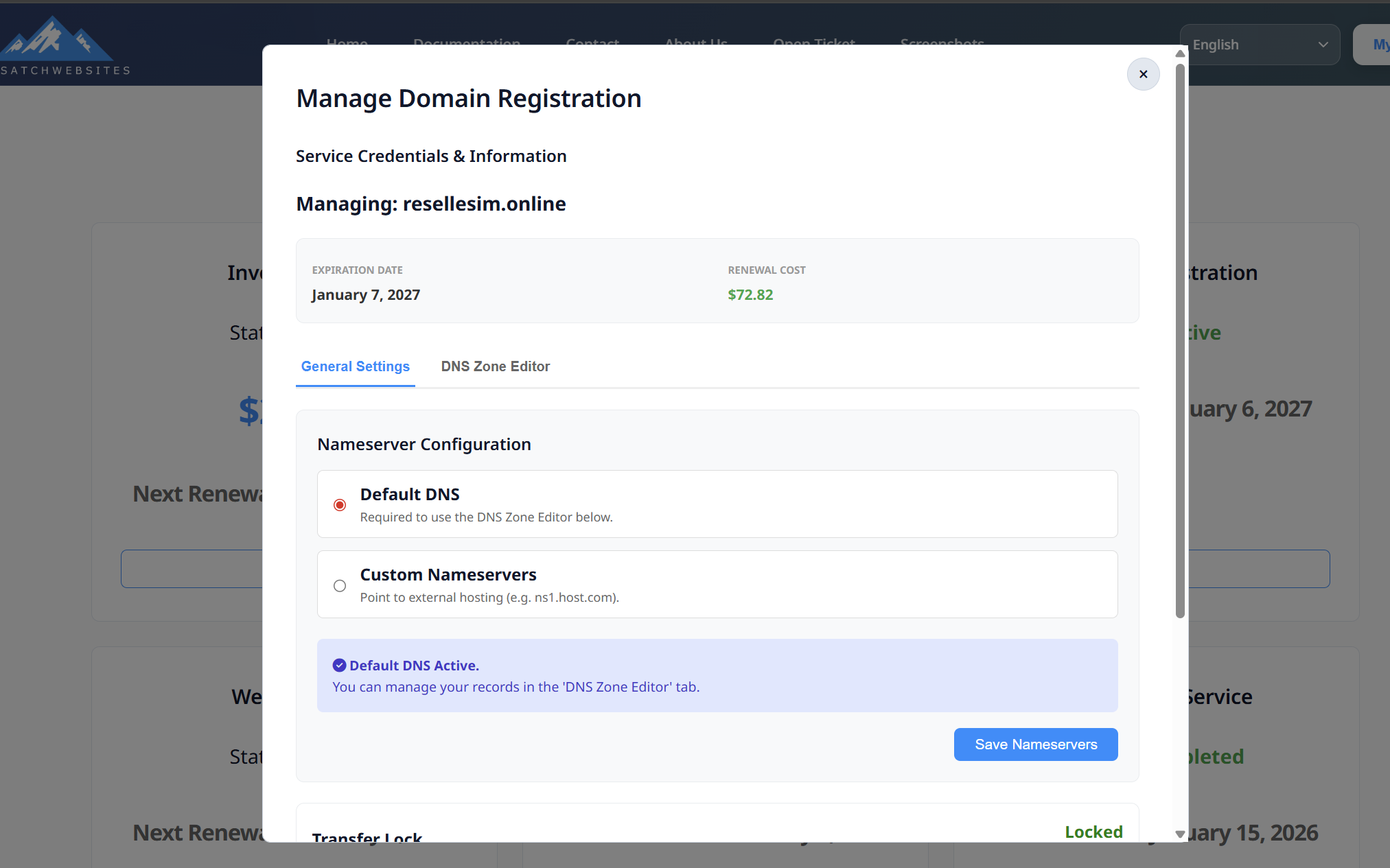
Inside the management panel, users can see:
-
Domain Name (example:
resellesim.online) -
Expiration Date
-
Renewal Cost
-
Service Credentials & Information
Nameserver Configuration
Users can choose between Default DNS or Custom Nameservers.
Option 1: Default DNS (Recommended)
-
Enables full access to the DNS Zone Editor
-
DNS changes propagate instantly
-
Ideal for websites hosted within the platfor
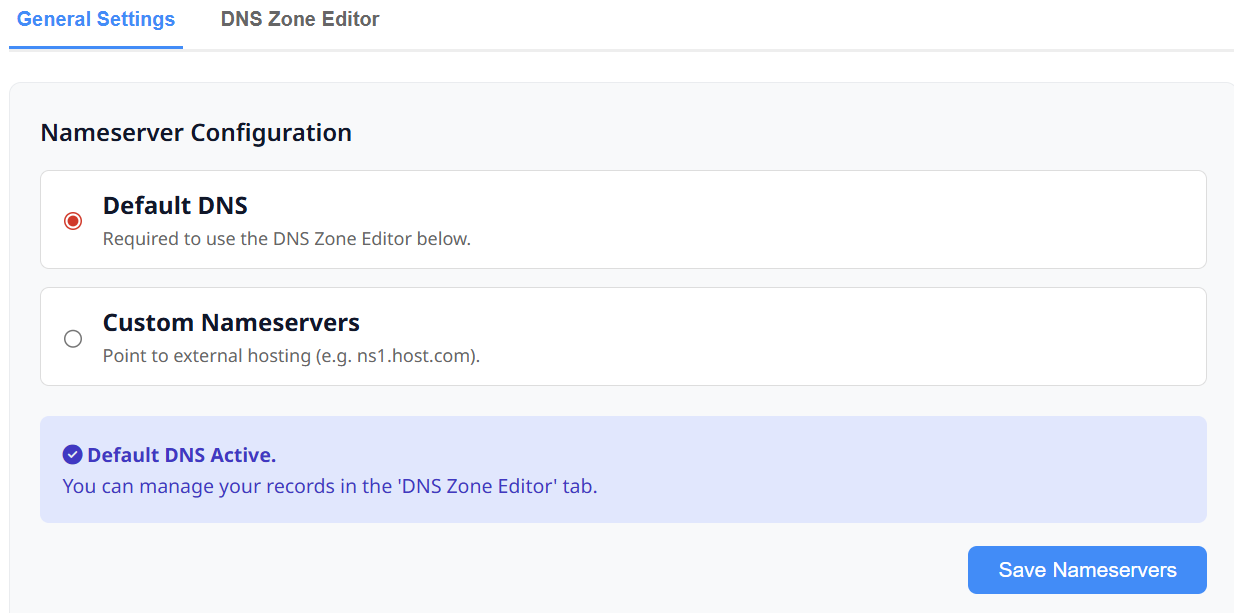
When Default DNS is selected:
-
DNS records can be edited directly inside the platform
-
The DNS Zone Editor becomes active
DNS Zone Editor (Default DNS Only)
The DNS Zone Editor allows users to manage records such as:
-
A Records
-
CNAME Records
-
MX Records
-
TXT Records
DNS Editor Fields:
-
Host
-
Type
-
Priority / Optional
-
Value (IP or Target)
Users can:
-
Add new records
-
Delete existing records
-
Save changes instantly
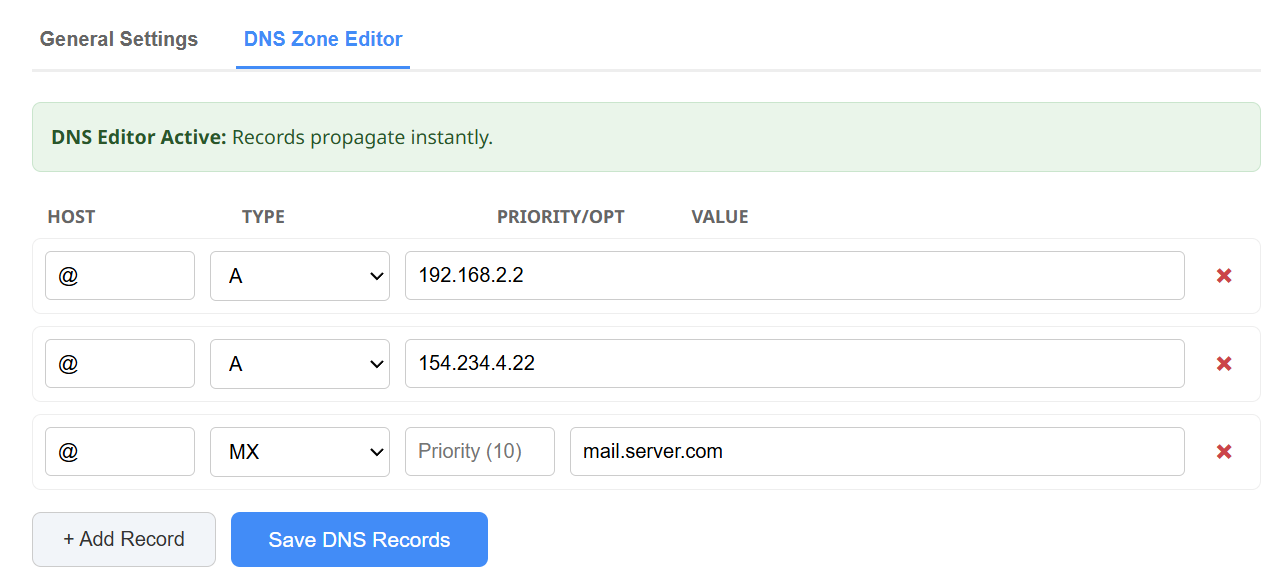
⚠️ DNS Zone Editor is disabled when Custom Nameservers are used.
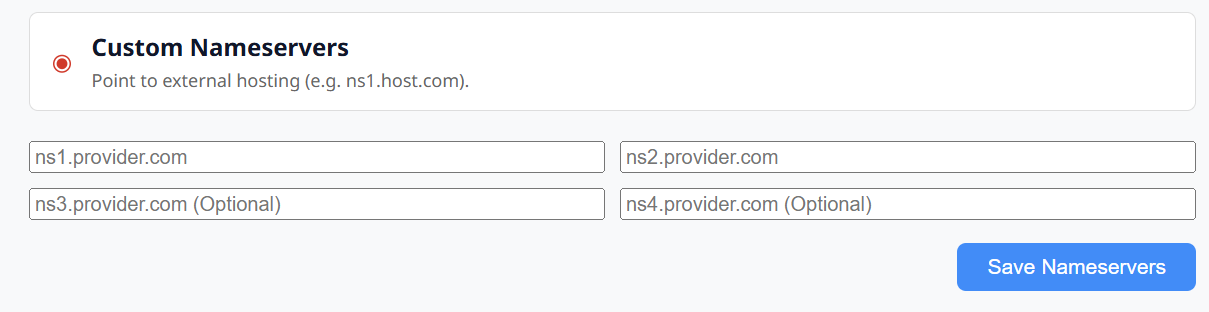
Option 2: Custom Nameservers
Use this option if the domain is hosted externally.
When Custom Nameservers are selected:
-
DNS Zone Editor is disabled
-
DNS must be managed at the external hosting provider
Required Fields:
-
ns1.provider.com -
ns2.provider.com
Optional Fields:
-
ns3.provider.com -
ns4.provider.com
-
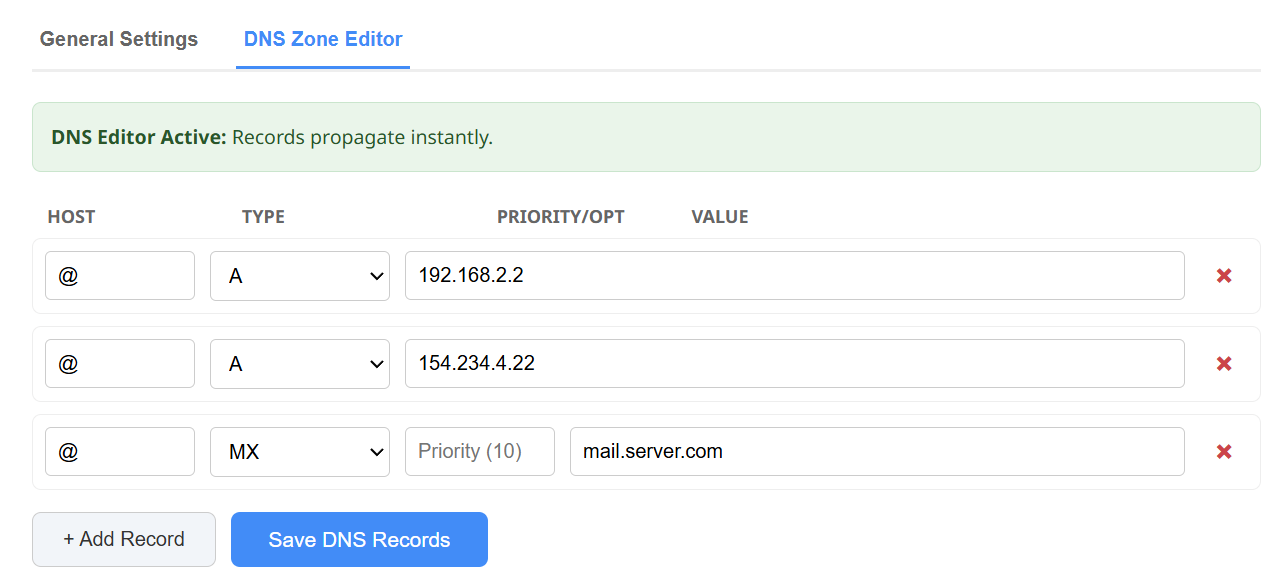
Click Save Nameservers to apply changes.
Transfer Lock
-
Enabled by default
-
Prevents unauthorized domain transfers
-
Can be unlocked manually if needed


Cancel Service
If the service is no longer needed:
-
Scroll to Service Actions
-
Click Cancel Service
Important Notes:
-
Cancellation stops future renewals
-
This action is permanent
-
The domain will expire at the end of its term if not renewed


Summary
-
Resellers register domains on behalf of clients
-
Clients manage domains via the storefront
-
Default DNS allows full DNS control
-
Custom Nameservers point to external hosting
-
Secure, flexible, and easy to manage