
Using Invoicing with AI
Help your clients move from "work done" to "payment received" faster than ever. This guide walks you through the administrative dashboard and the process of creating AI-powered estimates and invoices.
1. The Command Center (Dashboard)
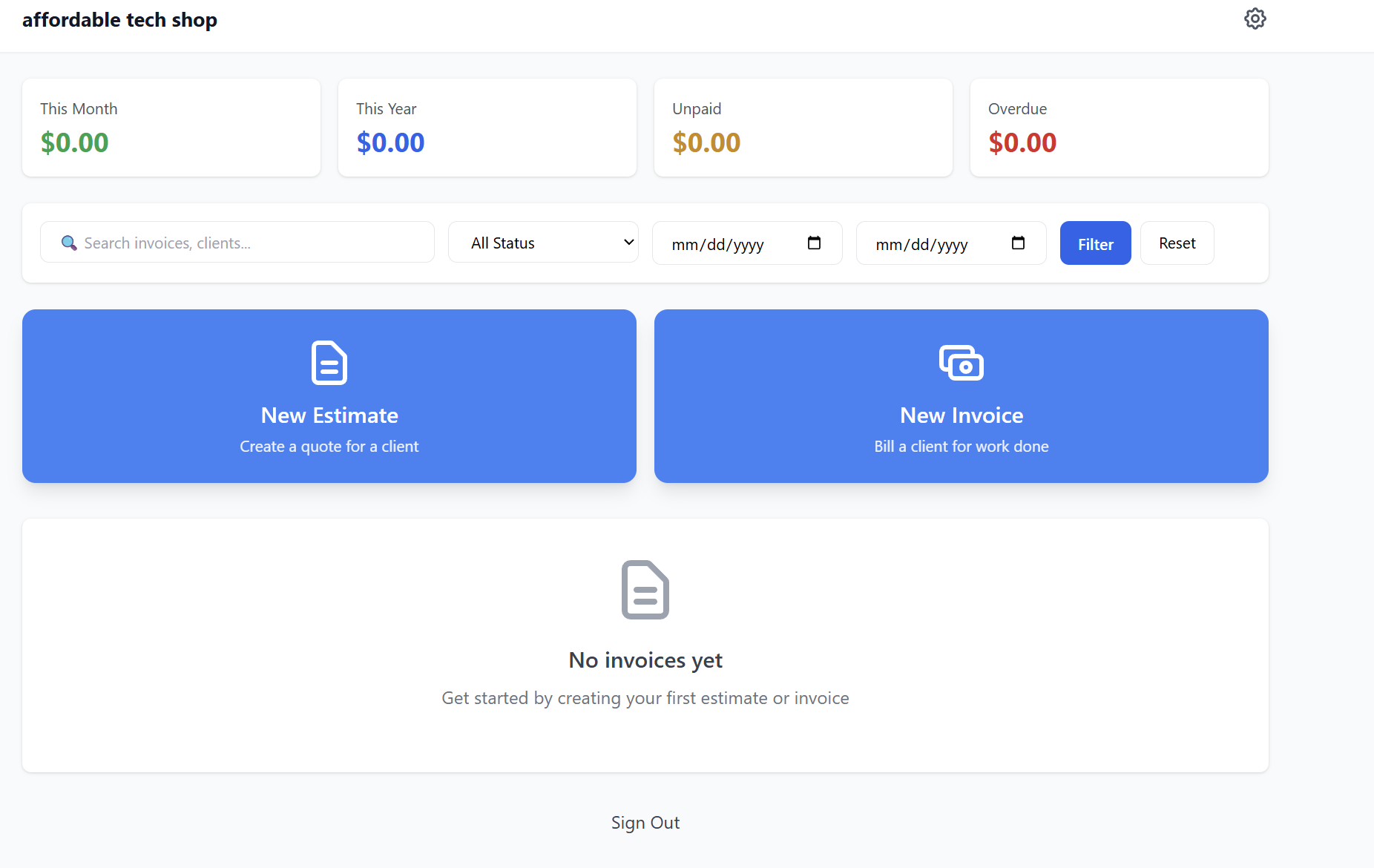
Upon logging in, users are presented with a high-level overview of their business health. The dashboard is designed for clarity and immediate action.
-
Financial Metrics: At a glance, view revenue for This Month, This Year, and track the health of your accounts receivable with Unpaid and Overdue status cards.
-
Search & Filter: Quickly locate specific transactions by searching for client names or invoice numbers. You can also filter records by status (Draft, Sent, Paid, etc.) or specific date ranges.
-
Quick Action Buttons: Large, intuitive buttons allow for the one-click creation of a New Estimate or New Invoice.
2. Creating Professional Estimates
Estimates (quotes) allow your clients to pitch their services professionally. The creation process is streamlined into three logical sections:
Step 1: Client Selection
-
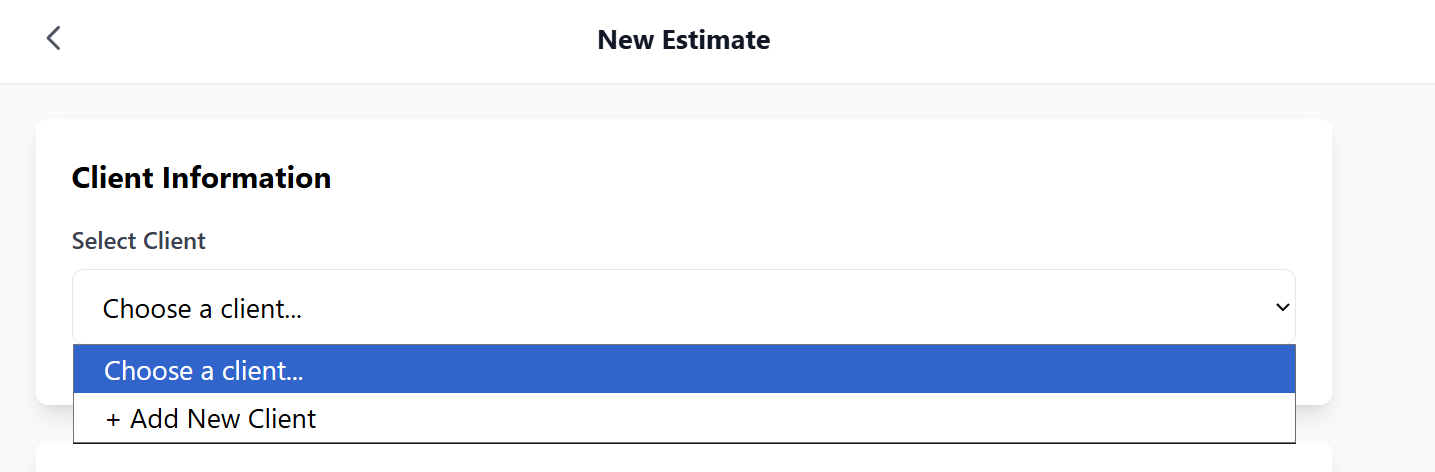
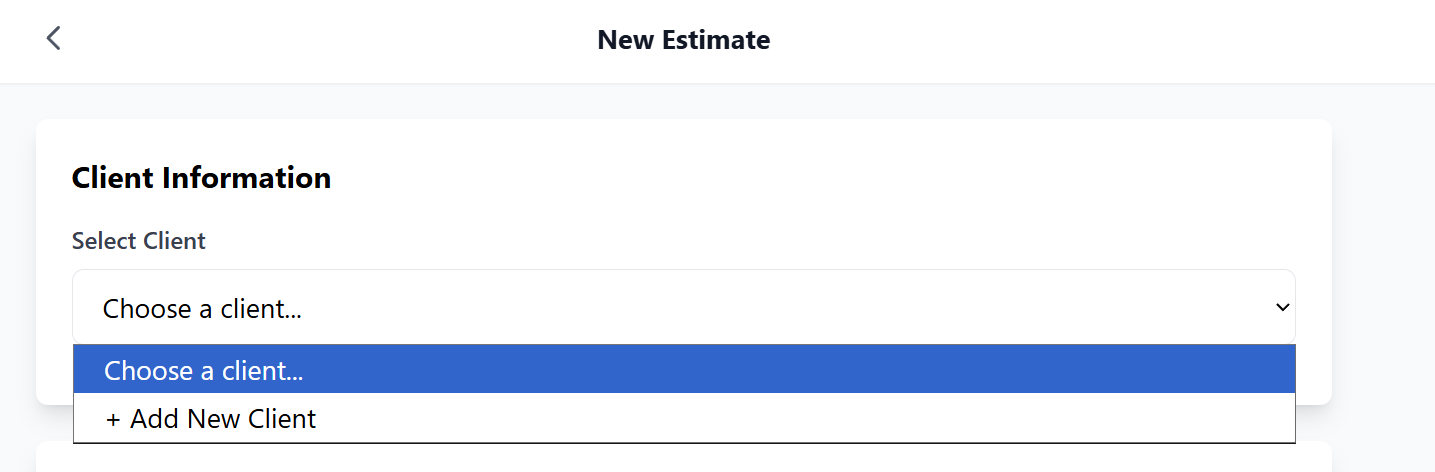
Existing Clients: Select a client from the dropdown menu to auto-populate their details.
-
New Clients: Click "Add New Client" to create a fresh record on-the-fly without leaving the estimate page.
Step 2: Line Items & AI Smart Pricing
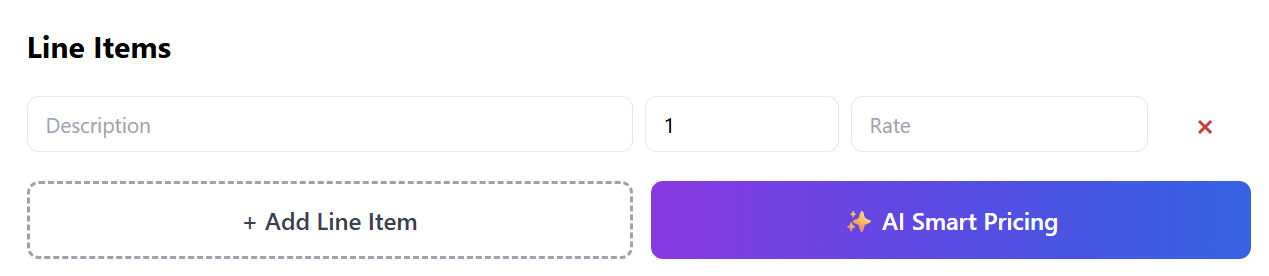
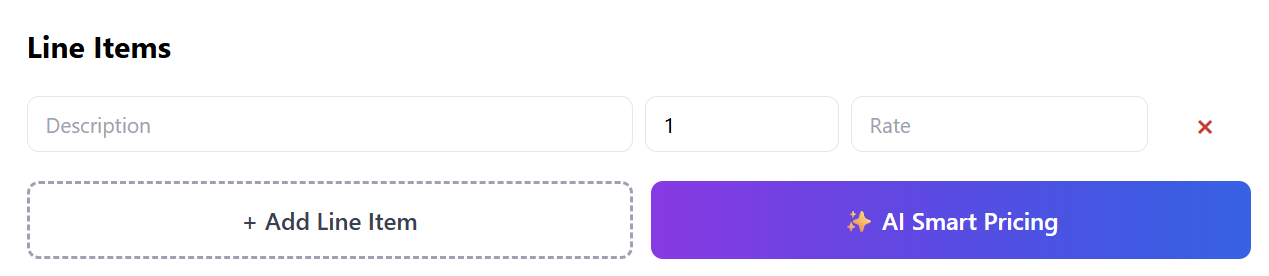
This is the platform’s standout feature. Users can add multiple line items for labor, parts, or services.
-
AI Smart Pricing Assistant: When adding an item, users can activate the AI tool. By entering a job description, the AI analyzes market data, location, and complexity to suggest an accurate, competitive price.
-
Customization: Users can manually override any AI suggestion to fit their specific business needs.
Step 3: Review & Finalize
-
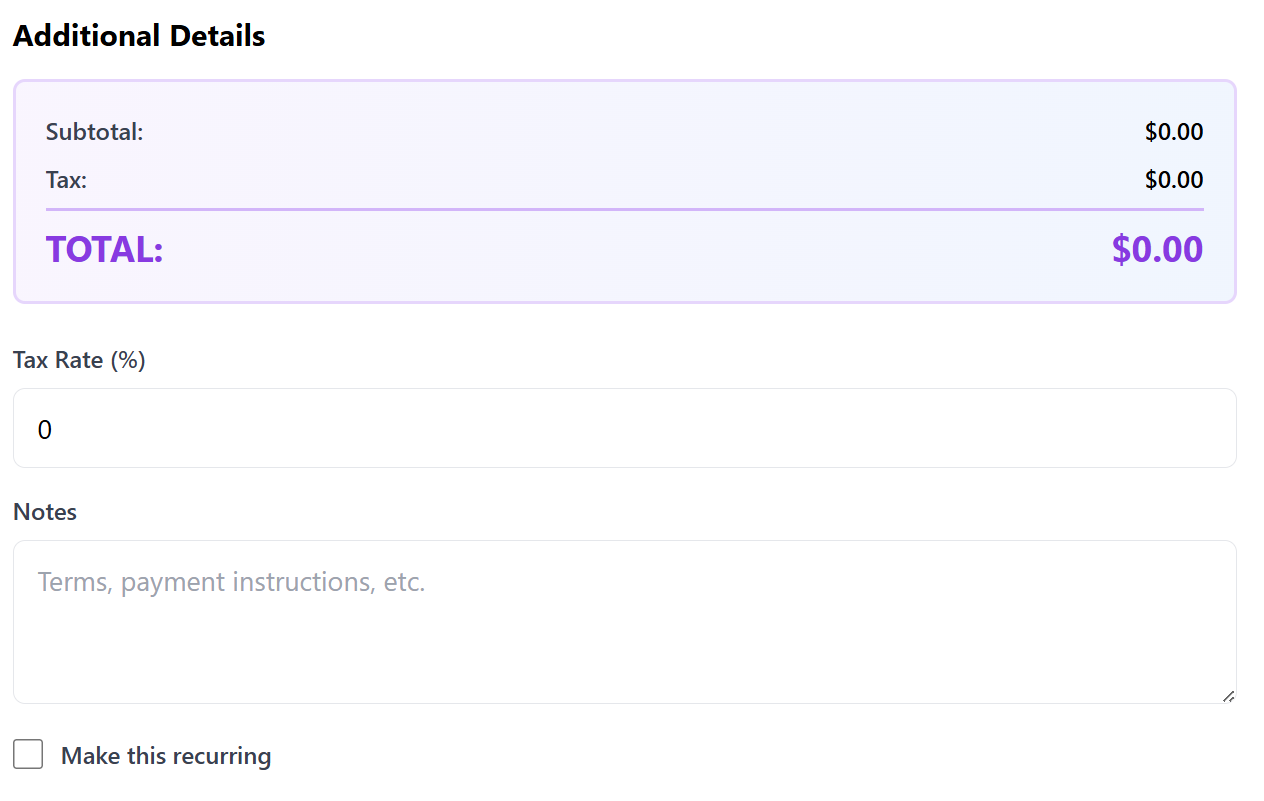
Totals & Tax: The system automatically calculates the Subtotal and Total. Users can set custom Tax Rates per estimate.
-
Notes & Terms: Add personalized notes, payment terms, or special instructions to the footer of the document.
-
Recurring Option: Toggle the "Make Recurring" switch to automatically generate this document on a weekly, monthly, or yearly basis—perfect for maintenance contracts or retainers.
3. Creating & Managing Invoices
The process for creating a New Invoice is identical to the estimate process, ensuring a zero-learning curve for your users.
-
Bill for Work Done: Select the client, add items (using AI pricing if needed), and send the invoice instantly.
-
Estimate-to-Invoice Conversion: Once a client approves an estimate, it can be converted into a live invoice with a single click, carrying over all line items and totals automatically.
-
Branded Payment Links: Every invoice sent includes a secure, one-click payment link (Stripe/PayPal), allowing the end-customer to pay via credit card immediately.
4. Key Benefits for Your Clients
As a reseller, you can highlight these time-saving features to your prospects:
-
AI Intelligence: Never under-price a job again with market-aware pricing suggestions.
-
Automated Reminders: The system automatically chases late payments so your clients don't have to.
-
Professional Branding: Every document is fully white-labeled with the client’s logo and brand colors.
-
Mobile Ready: Create and send invoices directly from a tablet or smartphone while still at the job site.
Next Steps:
Ready to empower your clients? Head to the Marketplace on www.resellportal.com to activate the Professional Invoicing + AI Assistant for your next client.