
Using Invoicing with AI
Help your clients move from "work done" to "payment received" faster than ever. This guide walks you through the administrative dashboarddashboard, the creation of AI-powered documents, and the processessential ofsettings creatingto AI-poweredbrand estimatesyour and invoices.experience.
1. The Command Center (Dashboard)
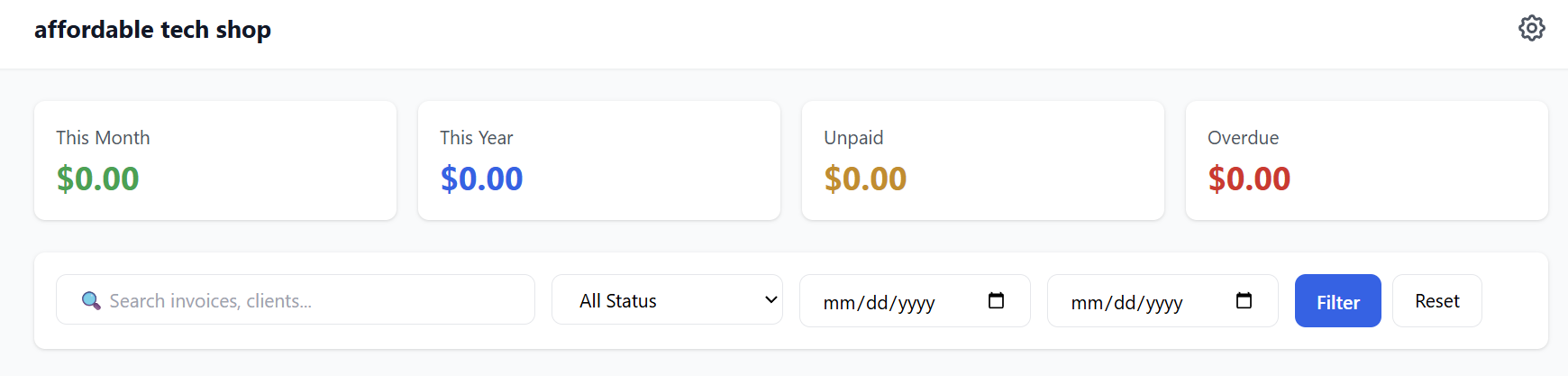
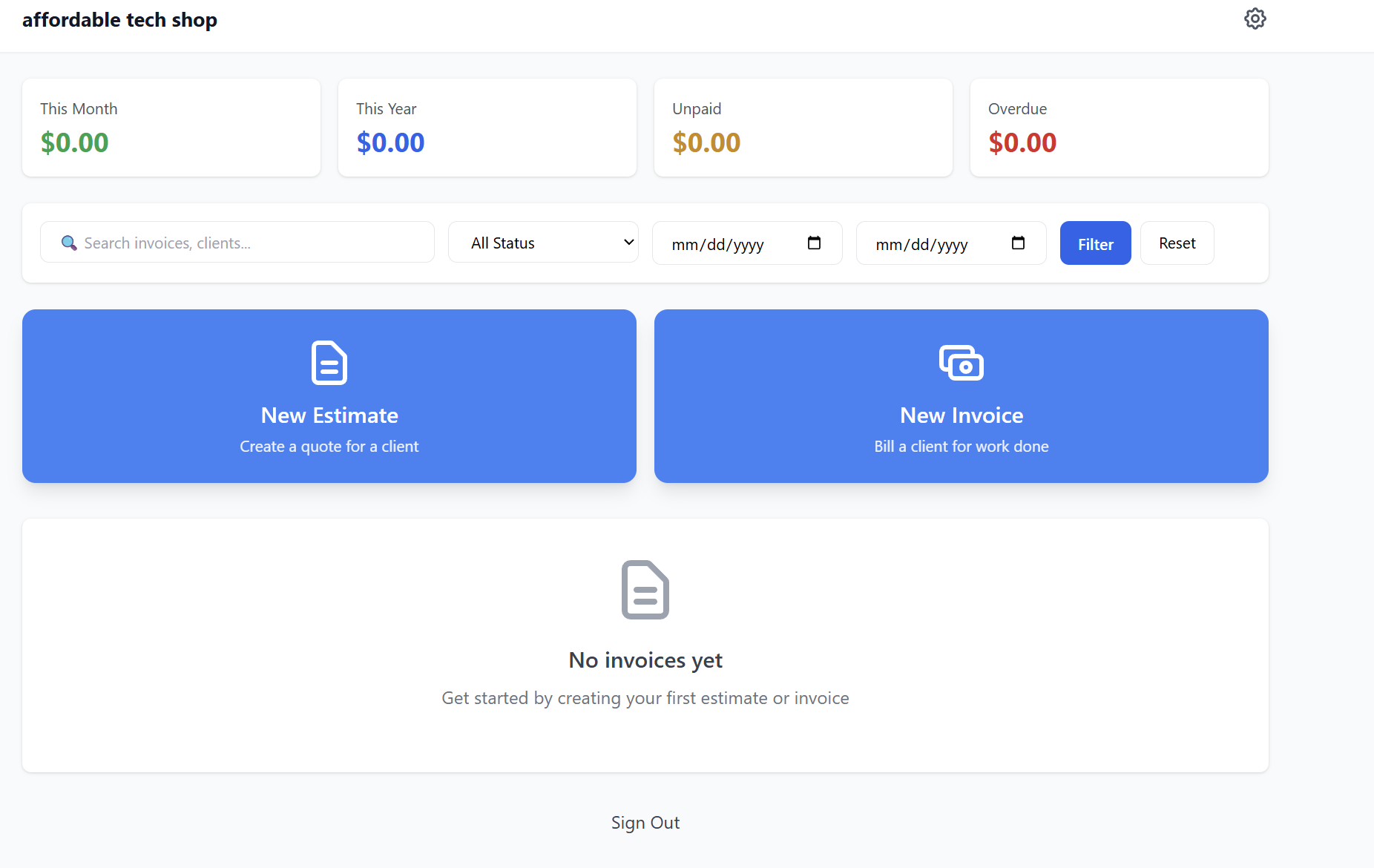
Upon logging in, users are presented with a high-level overview of their business health. The dashboard is designed for clarity and immediate action.
-
Financial Metrics: At a glance, view revenue for This Month, This Year, and track the health of your accounts receivable with Unpaid and Overdue status cards.
-
Search & Filter: Quickly locate specific transactions by searching for client names or invoice numbers. You can also filter records by status (Draft, Sent, Paid, etc.) or specific date ranges.
-
Quick Action Buttons: Large, intuitive buttons allow for the one-click creation of a New Estimate or New Invoice.
2. Creating Professional Estimates
Estimates (quotes) allow your clients to pitch their services professionally. The creation process is streamlined into three logical sections:

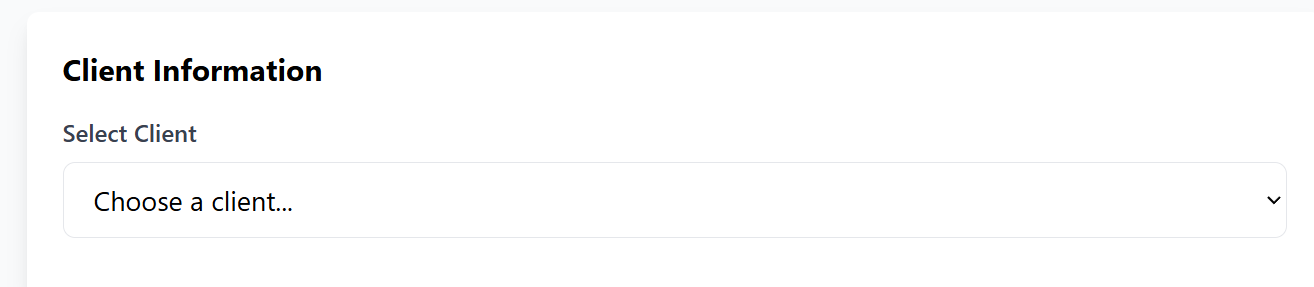
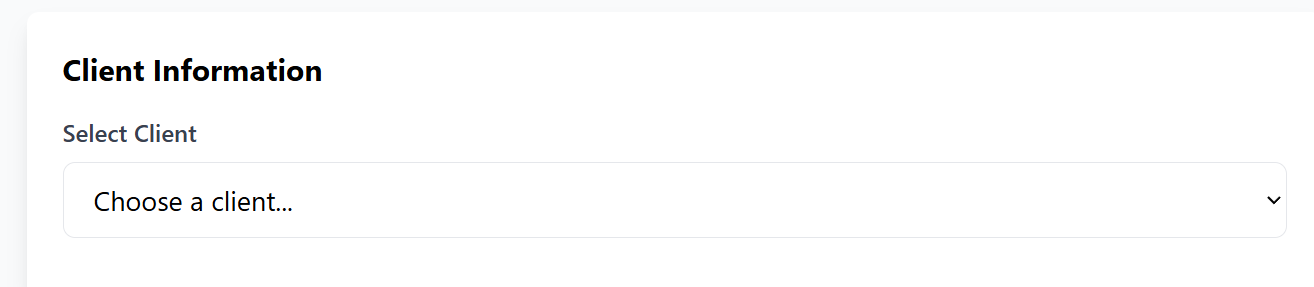
Step 1: Client Selection
-
Existing Clients: Select a client from the dropdown menu to auto-populate their details.
-
New Clients: Click "Add New Client" to create a fresh record on-the-fly without leaving the estimate
page.screen.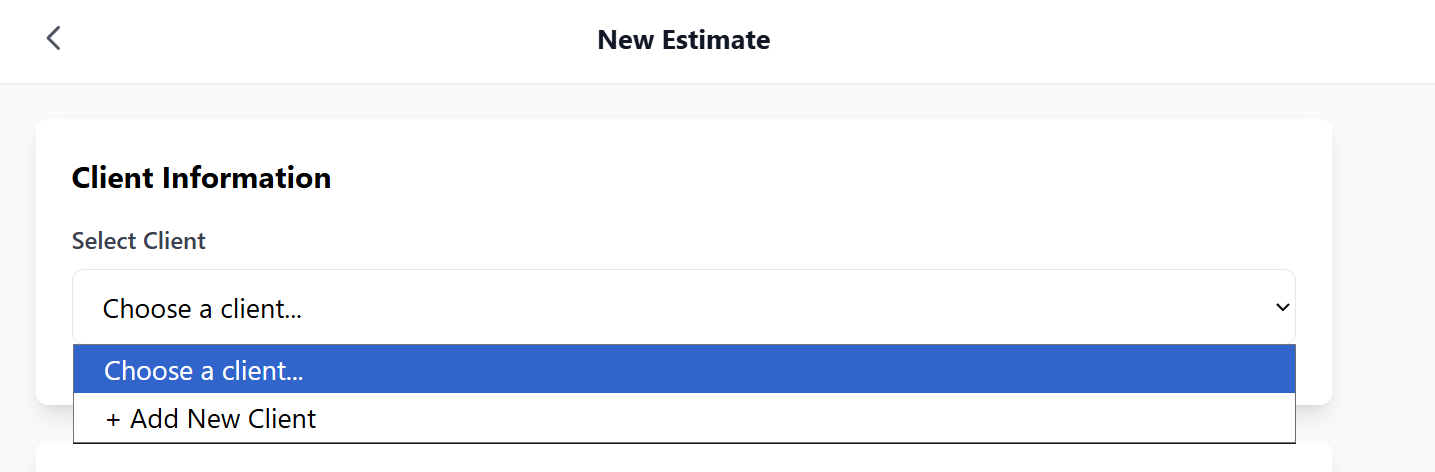
Step 2: Line Items & AI Smart Pricing
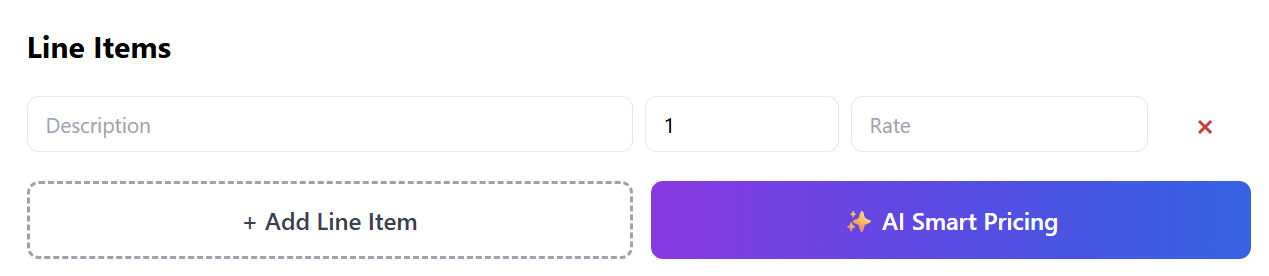
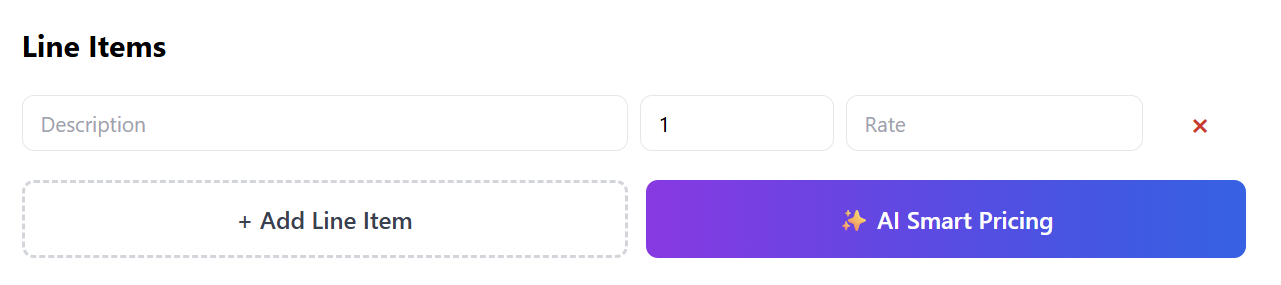
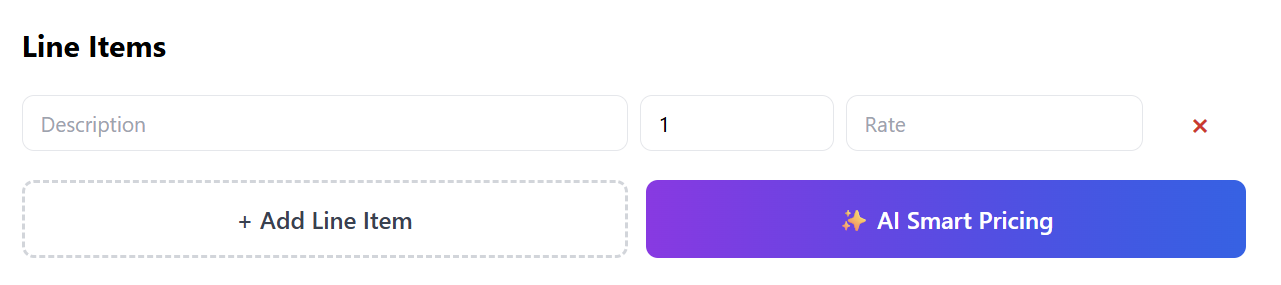
This is the platform’s standout feature. Users can add multiple line items for labor, parts, or services.
-
AI Smart Pricing Assistant: When adding an item, users can activate the AI tool. By entering a job description, the AI analyzes market data, location, and complexity to suggest an accurate, competitive price.
-
Customization: Users can manually override any AI suggestion to fit their specific business needs.
Step 3: Review & Finalize
-
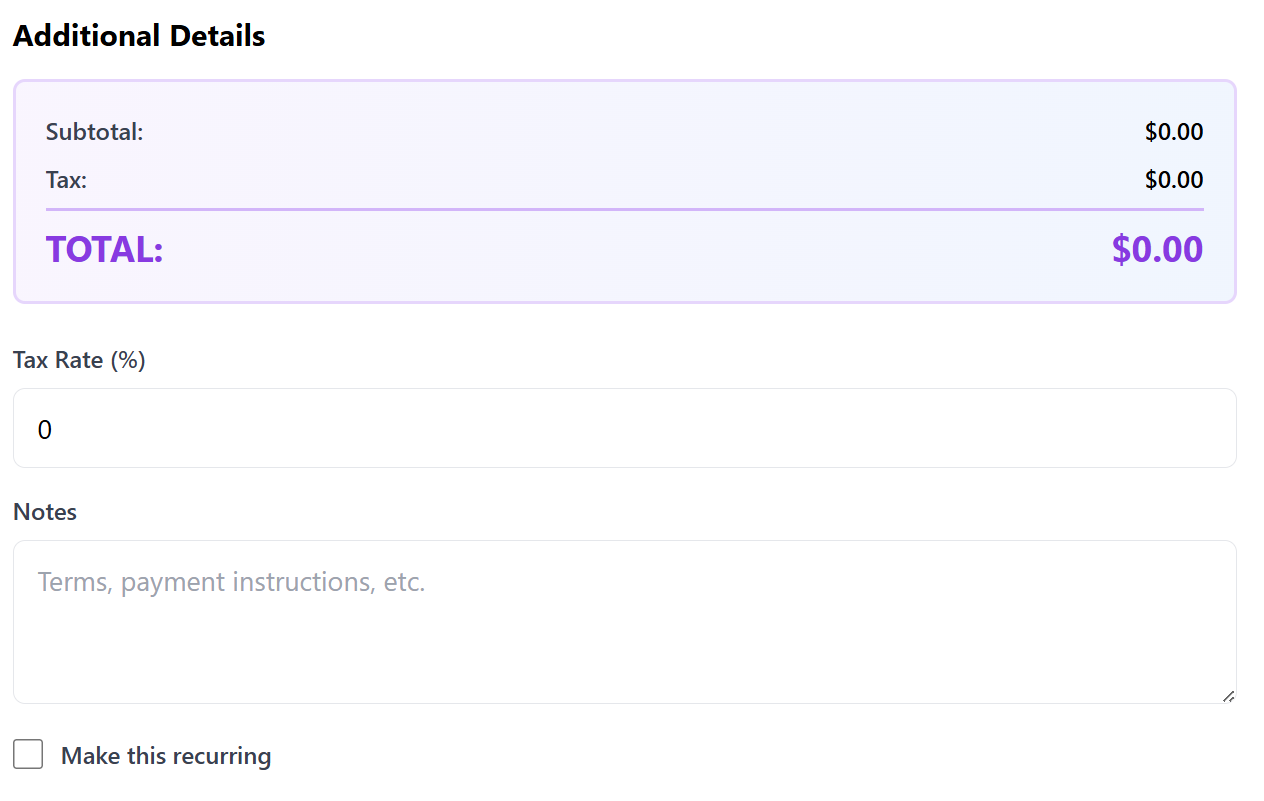
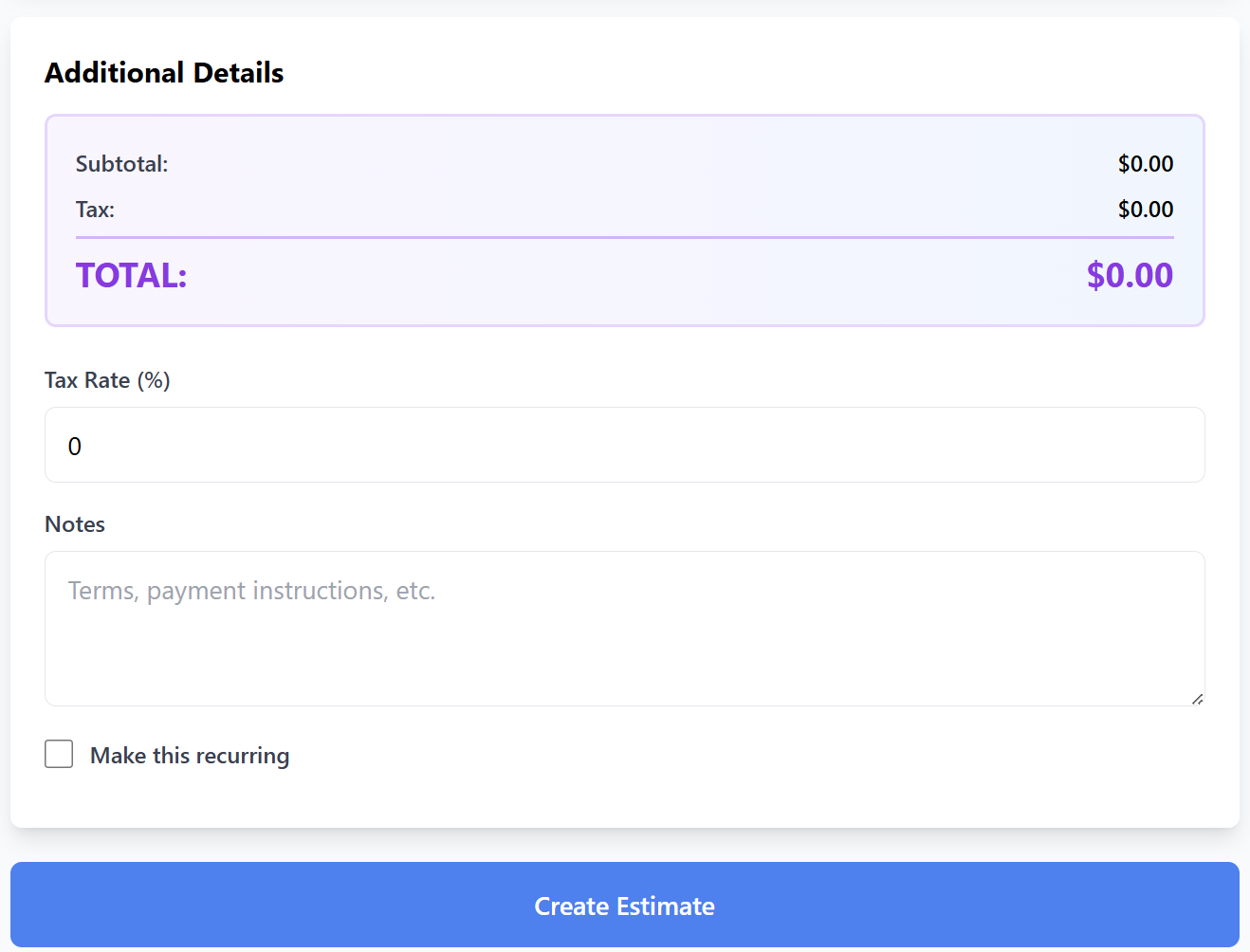
Totals & Tax: The system automatically calculates the Subtotal and
Total.Total. Users can set custom Tax Rates per estimate. -
Notes & Terms: Add personalized notes, payment terms, or special instructions to the footer of the document.
-
Recurring Option: Toggle the "Make Recurring" switch to automatically generate this document on a weekly, monthly, or yearly basis—perfect for maintenance contracts or retainers.
3. Creating & Managing Invoices
The process for creating a New Invoice is identical to the estimate process, ensuring a zero-learning curve for your users.
-
Bill for Work Done: Select the client, add items (using AI pricing if needed), and send the invoice instantly.

-
Estimate-to-Invoice Conversion: Once a client approves an estimate, it can be converted into a live invoice with a single click, carrying over all line items and totals automatically.
-
Branded Payment Links: Every invoice sent includes a secure, one-click payment link (
Stripe/PayPal)Stripe), allowing the end-customer to pay via credit card or bank transfer immediately.

4. Account & Payment Settings
To ensure the platform works for your specific brand, navigate to the Settings tab to configure your business profile.
Payment Settings
-
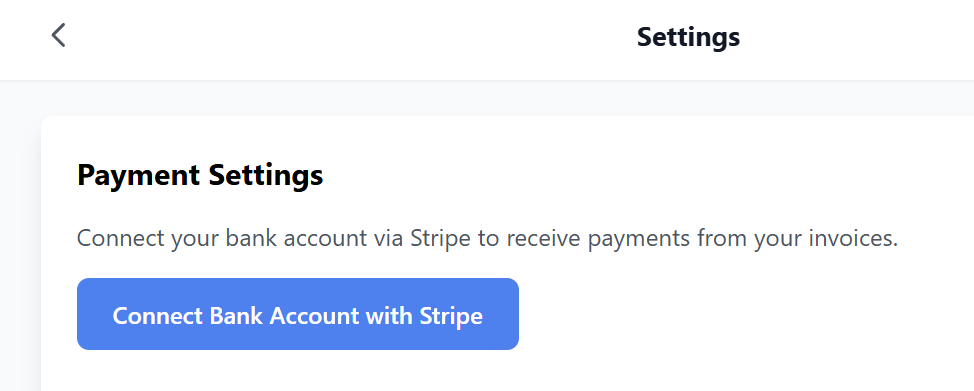
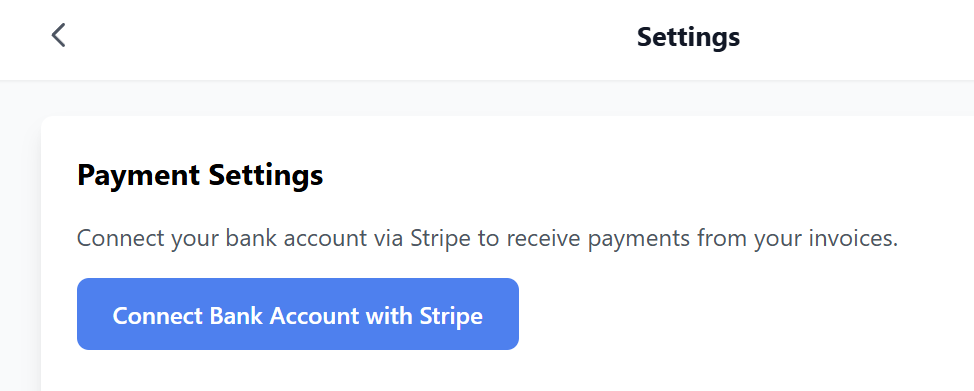
Stripe Integration: Click "Connect Bank Account with Stripe" to link your bank. This ensures that when a client pays an invoice, the funds are deposited directly into your account. Resell Portal does not touch your transaction funds.
Business Information & Branding
-
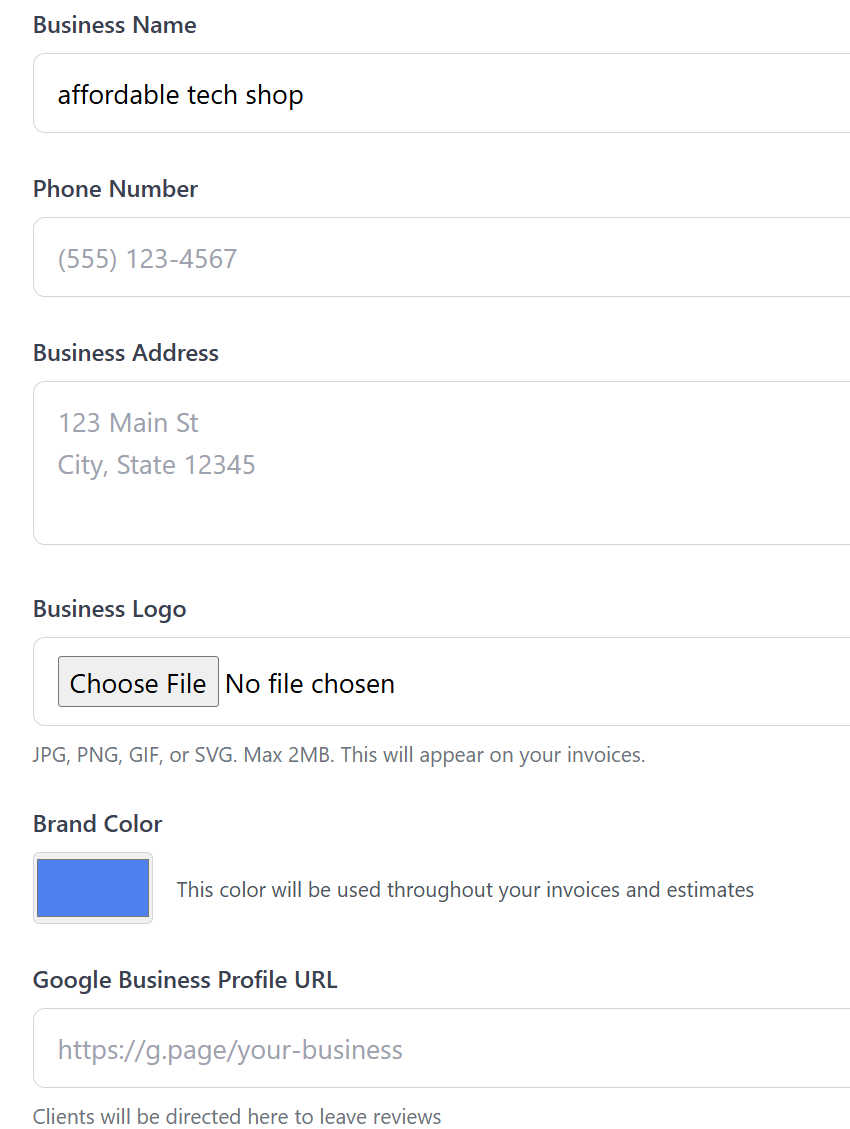
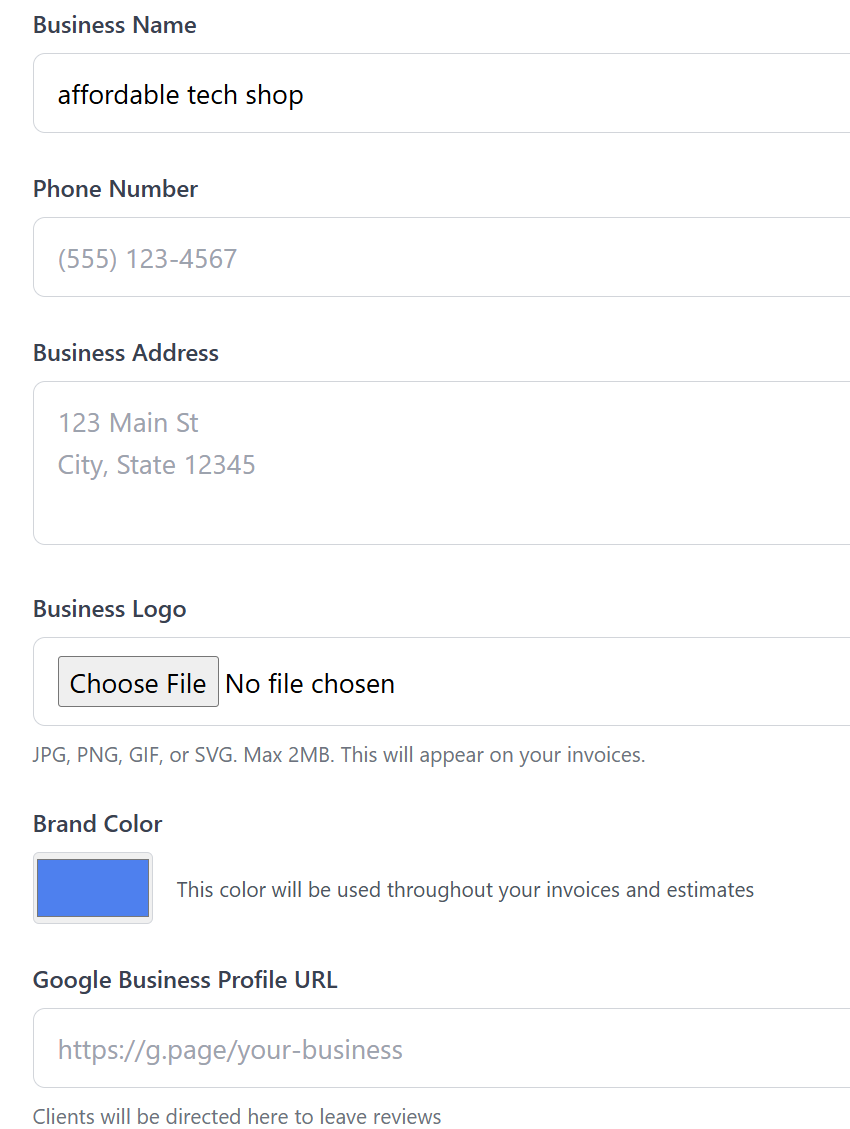
Professional Identity: Enter your Business Name, Phone Number, and physical address.
-
Logo Upload: Upload your logo (JPG, PNG, GIF, or SVG up to 2MB). This logo will appear at the top of every invoice and estimate you send.
-
Brand Color: Use the color picker to select a color that matches your brand. This color will be used for buttons, accents, and borders on your professional documents.
Reputation Management (Automated Reviews)
-
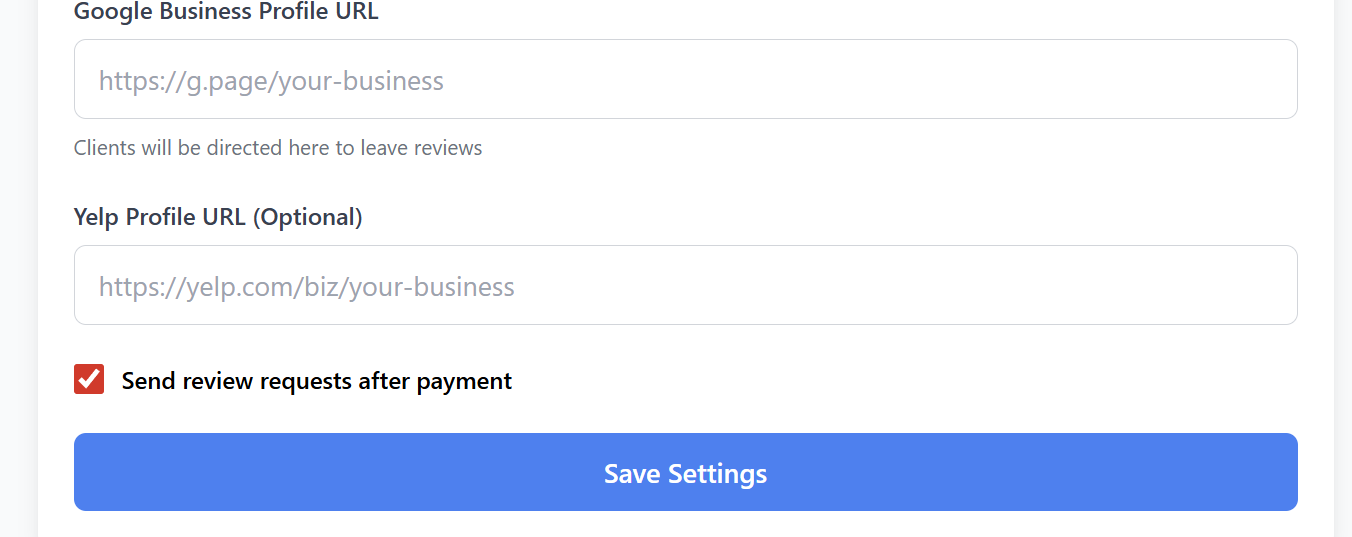
Review Links: Provide your Google Business Profile and Yelp URLs.
-
Post-Payment Automation: Toggle the "Send review requests after payment" option. When a customer pays their invoice, the system will automatically send them a polite email inviting them to leave a review on your selected profiles.
5. Key Benefits for Your Clients
As a reseller, you can highlight these time-saving features to your prospects:
-
AI Intelligence: Never under-price a job again with market-aware pricing suggestions.
-
Automated Reminders: The system automatically chases late payments so your clients don't have to.
-
Professional Branding: Every document is fully white-labeled with the client’s logo and brand colors.
-
Direct Payments: Integrated Stripe payments mean faster collections and zero manual reconciliation.
-
Mobile Ready: Create and
sendmanage invoices directly from a tablet or smartphone while still at the job site.
Next Steps:
Ready to empower your clients? Head to the Marketplace on www.resellportal.com to activate the Professional Invoicing + AI Assistant for your next client.