
Requesting Support & Using the Ticket System
Request Support
Need help? The Support Tickets system in your ResellPortal dashboard gives you a direct line to our team. You can submit questions, report technical issues, request new features, or resolve billing problems — all from inside your account.
This guide shows you exactly how to open, manage, and close a support ticket in the new platform.
How to Open a Support Ticket
Step 1: Log in to ResellPortal
Go to:
https://app.resellportal.com
Log in using your reseller credentials.
Step 2: Access Support Tickets
From your dashboard:
-
Go to the left-side menu
-
Click Support Tickets
This will take you to your support center where you can view open and past tickets.
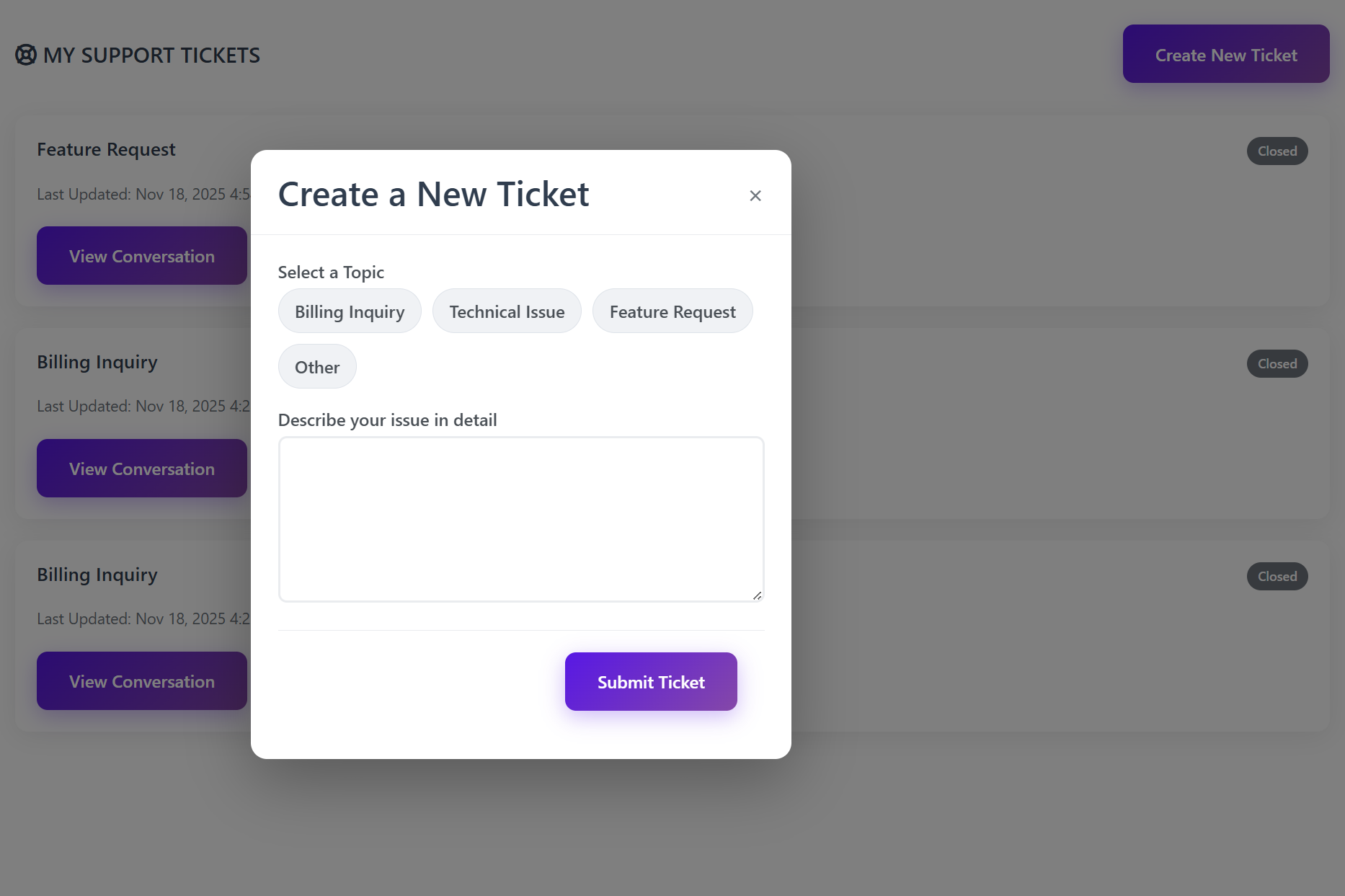
Step 3: Create a New Ticket
In the upper-right corner, click:
Create New Ticket
This will open the ticket submission form.
Choose the Correct Ticket Type
Select the most relevant category from the dropdown:
-
Billing Inquiry — Wallet balance issues, charges, Stripe billing, invoices, or subscription related questions
-
Technical Issue — Bugs, errors, broken features, activation issues, or system problems
-
Feature Request — Suggestions for improvements or new features
-
Other — Anything that doesn't fall into the above categories
Choosing the correct category helps your ticket get routed to the right team.
Describe Your Issue Clearly
In the message box, include:
-
What you were trying to do
-
What happened (or what went wrong)
-
Any error messages (if shown)
-
The specific client, store, domain, or service involved (if applicable)
The more detail you provide, the faster our team can resolve your issue.
✅ You can also attach screenshots when needed.
Once complete, click Submit Ticket.
After You Submit a Ticket
Once submitted:
-
Your ticket is received instantly by our support system
-
It is routed to the appropriate department
-
A support agent will review and respond inside the ticket thread
-
You will be notified in your dashboard when there is a reply
How to View, Reply to, or Close Tickets
Return to Support Tickets at any time to:
-
See all open tickets
-
View replies from the support team
-
Add more information or screenshots
-
Close the ticket once your issue has been resolved
Ticket status may display as:
-
Open
-
In Progress
-
Awaiting Your Response
-
Closed
Expected Response Time
We aim to respond to all tickets within 24 business hours.
Many tickets are answered much sooner, depending on complexity and queue priority.
Best Practices for Faster Support
| Tip | Why It Helps |
|---|---|
| Choose the correct category | Sends your issue to the right team faster |
| Include screenshots | Makes technical issues easier to identify |
| Be specific and detailed | Reduces back-and-forth messages |
| Include client or domain info | Helps pinpoint the issue quickly |
When to Use the Support Ticket System
Use tickets for:
✅ Billing questions
✅ Wallet or Stripe issues
✅ Technical problems
✅ Platform bugs
✅ Feature improvement requests
✅ Storefront or domain issues
Avoid using tickets for:
❌ Non-ResellPortal services
❌ Third-party login issues
❌ General tutorials already covered in documentation
Final Note
The Support Ticket system is your primary communication channel with the ResellPortal team. Use it anytime you need help, clarification, or technical assistance. We're committed to helping you run your business smoothly and scale successfully.