
Viewing the Booking Appointments page
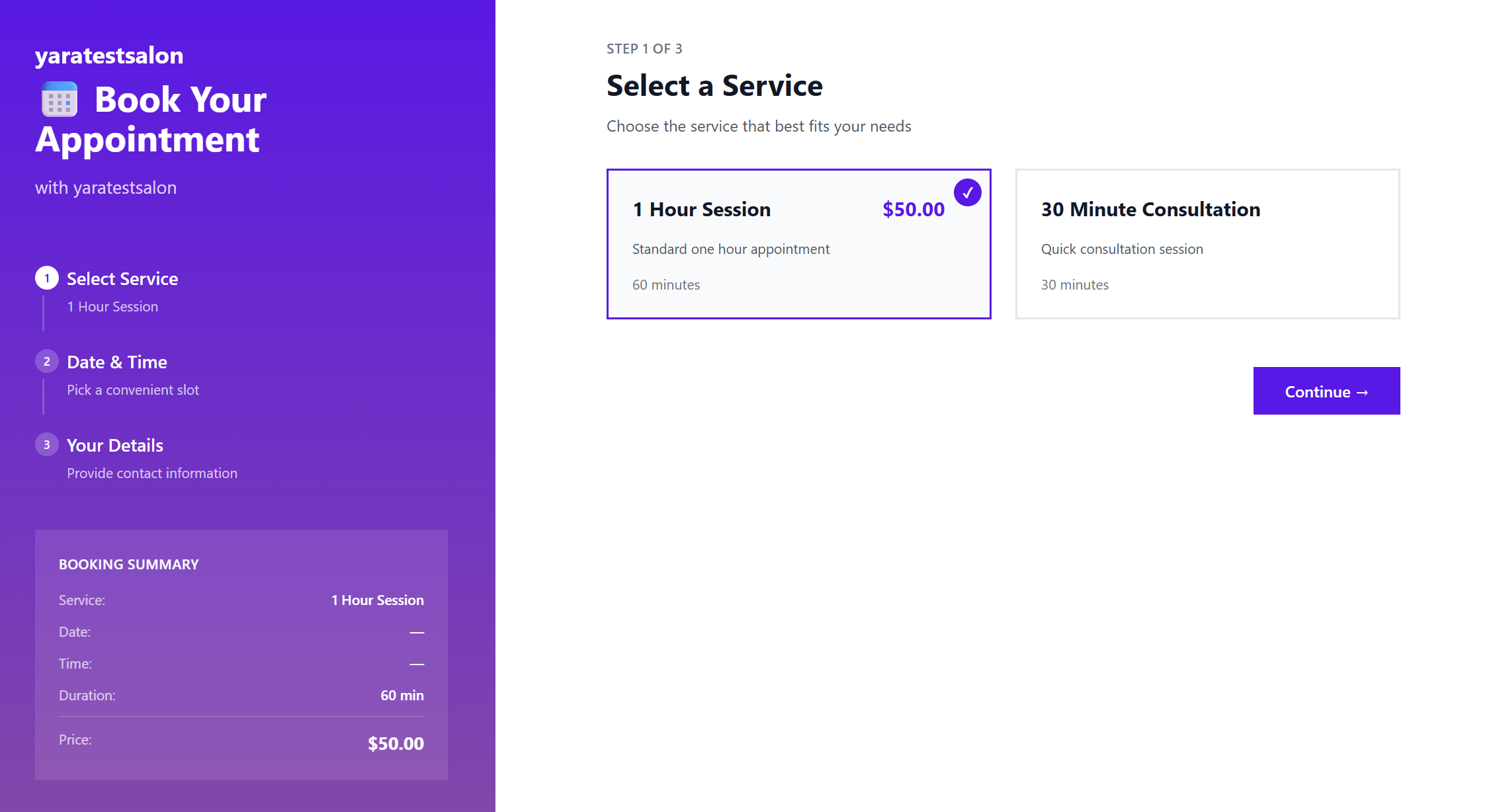
The public booking page is a sleek, white-labeled landing page designed for maximum conversion. It guides the end-customer through a simple 3-step process to ensure a seamless reservation experience.
1. The Landing Page Overview
When a customer visits the booking URL, they are greeted by a professional interface branded with your client’s logo and colors.
-
Progress Tracker: The left-hand sidebar clearly displays the three steps of the booking journey.
-
Real-time Booking Summary: As the customer makes selections, the "Booking Summary" in the sidebar updates automatically with the service name, duration, and price.
2. Step 1: Select a Service
The customer begins by choosing the service they need.
-
Services are displayed as cards showing the Price, Duration, and a brief Description.
-
Once a service is selected, the customer clicks Continue.
3. Step 2: Select Date & Time
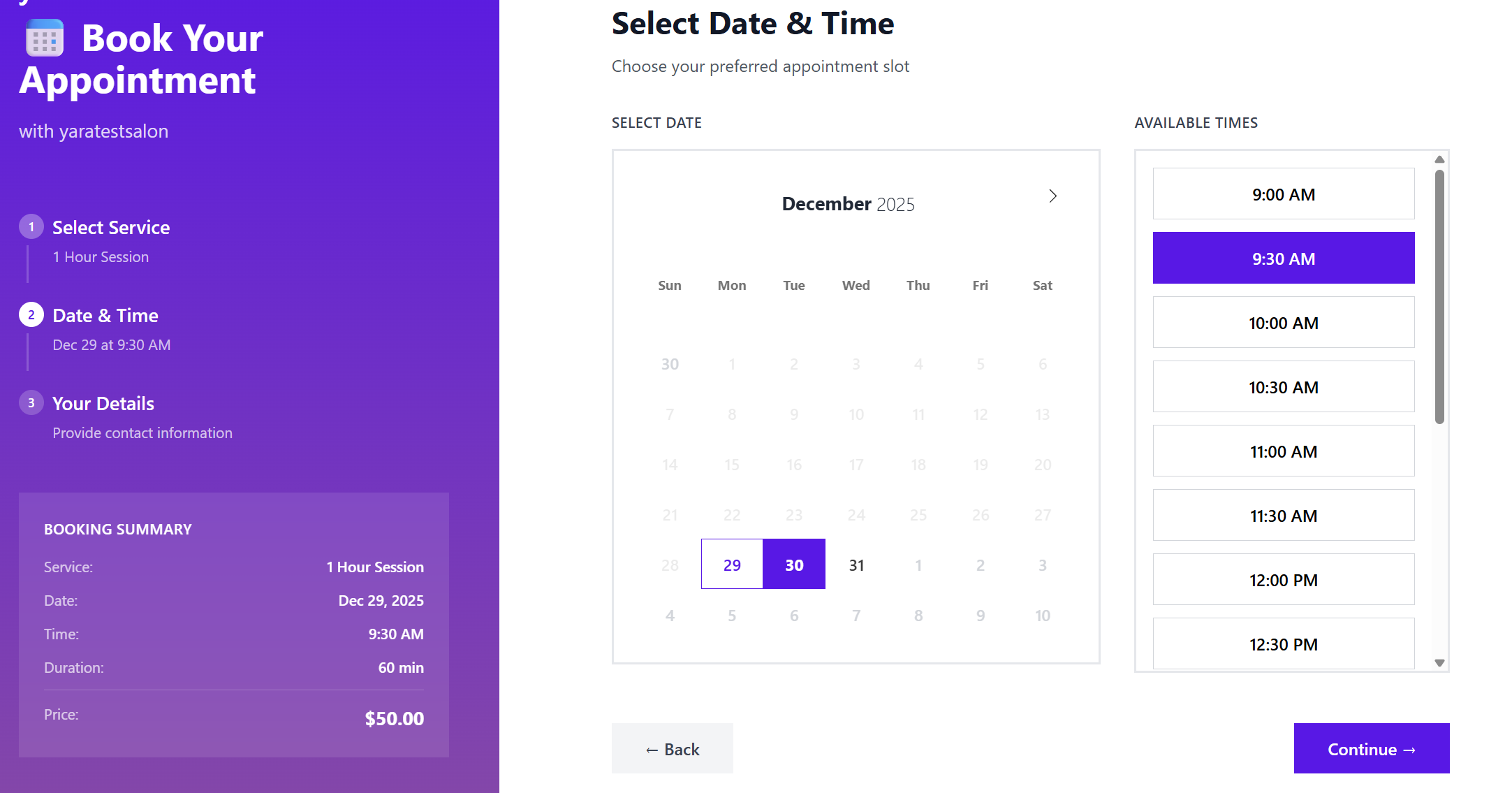
The system prevents double-bookings by only showing slots based on the "Business Hours" and "Staff Availability" configured in Phase 2.
-
Select Date: The customer picks a day from the interactive calendar.
-
Select Time: Once a date is chosen, the available time slots appear on the right.
-
The customer clicks Continue once their preferred slot is highlighted.
4. Step 3: Your Information
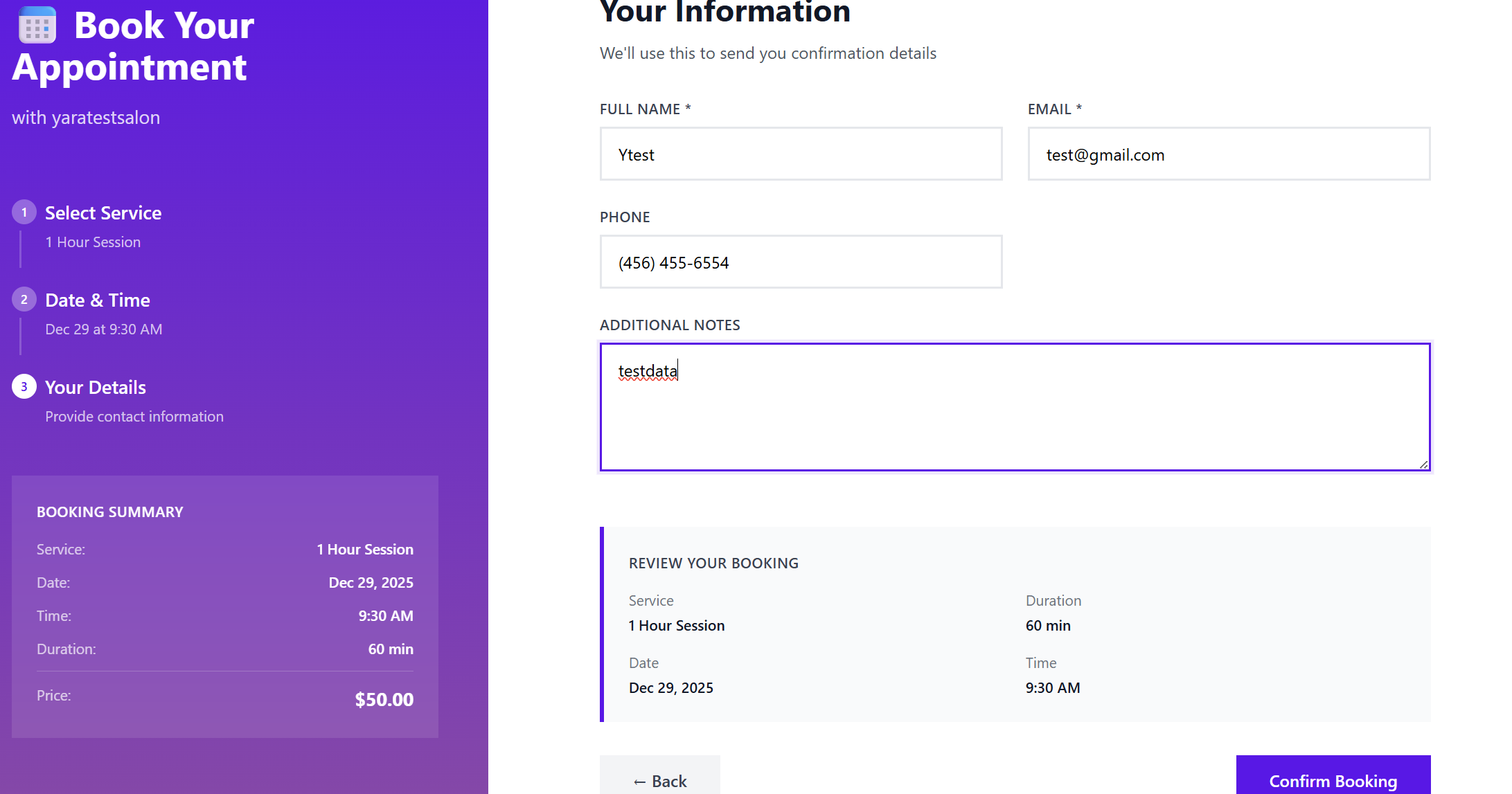
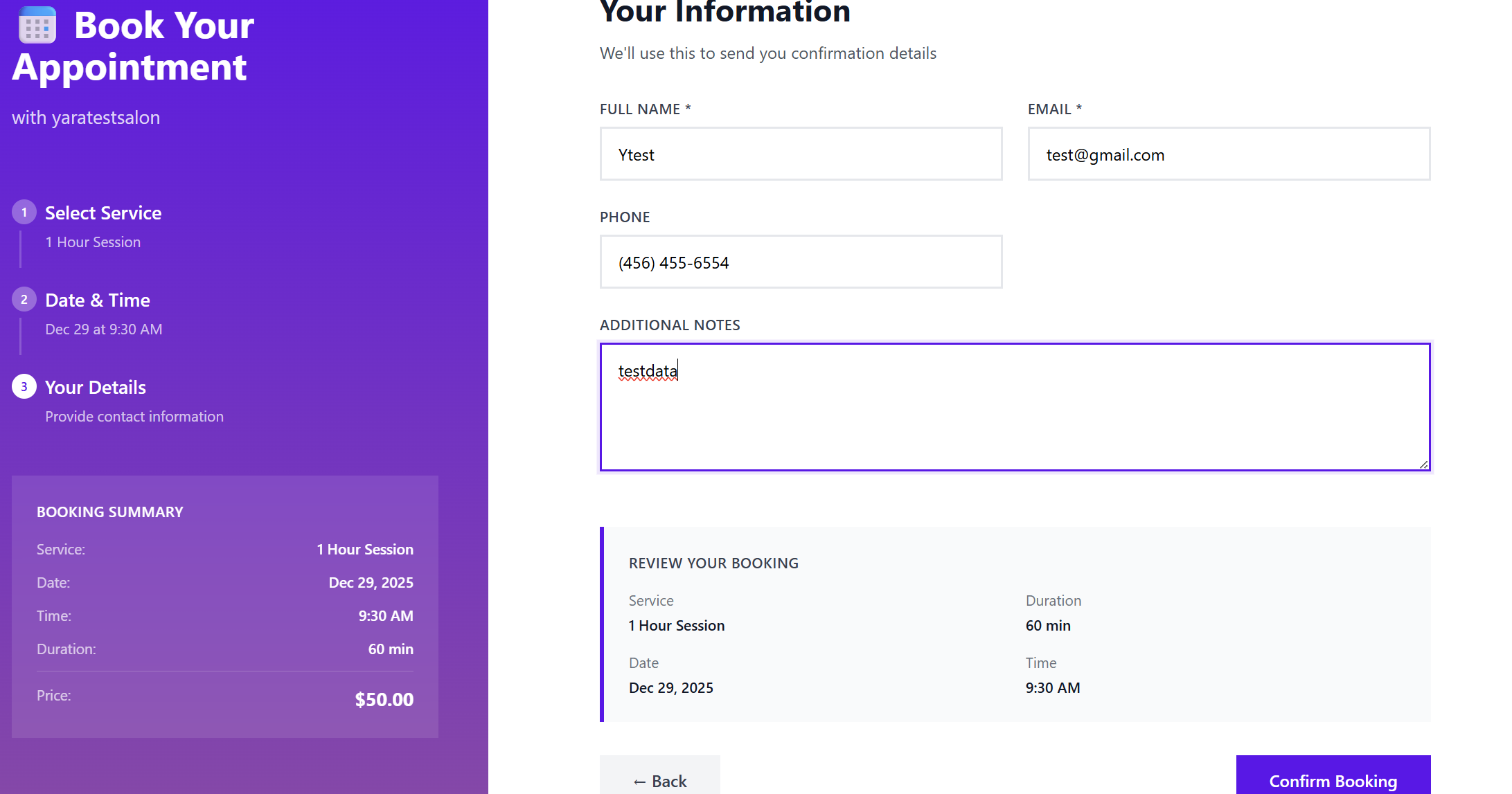
To finalize the reservation, the customer provides their contact details:
-
Required Fields: Full Name, Email, and Phone Number.
-
Additional Notes: A text area for the customer to leave specific instructions or requests for the business.
-
Review Your Booking: A final summary box appears at the bottom, allowing the customer to verify the service, duration, date, and time before committing.
5. Booking Confirmation
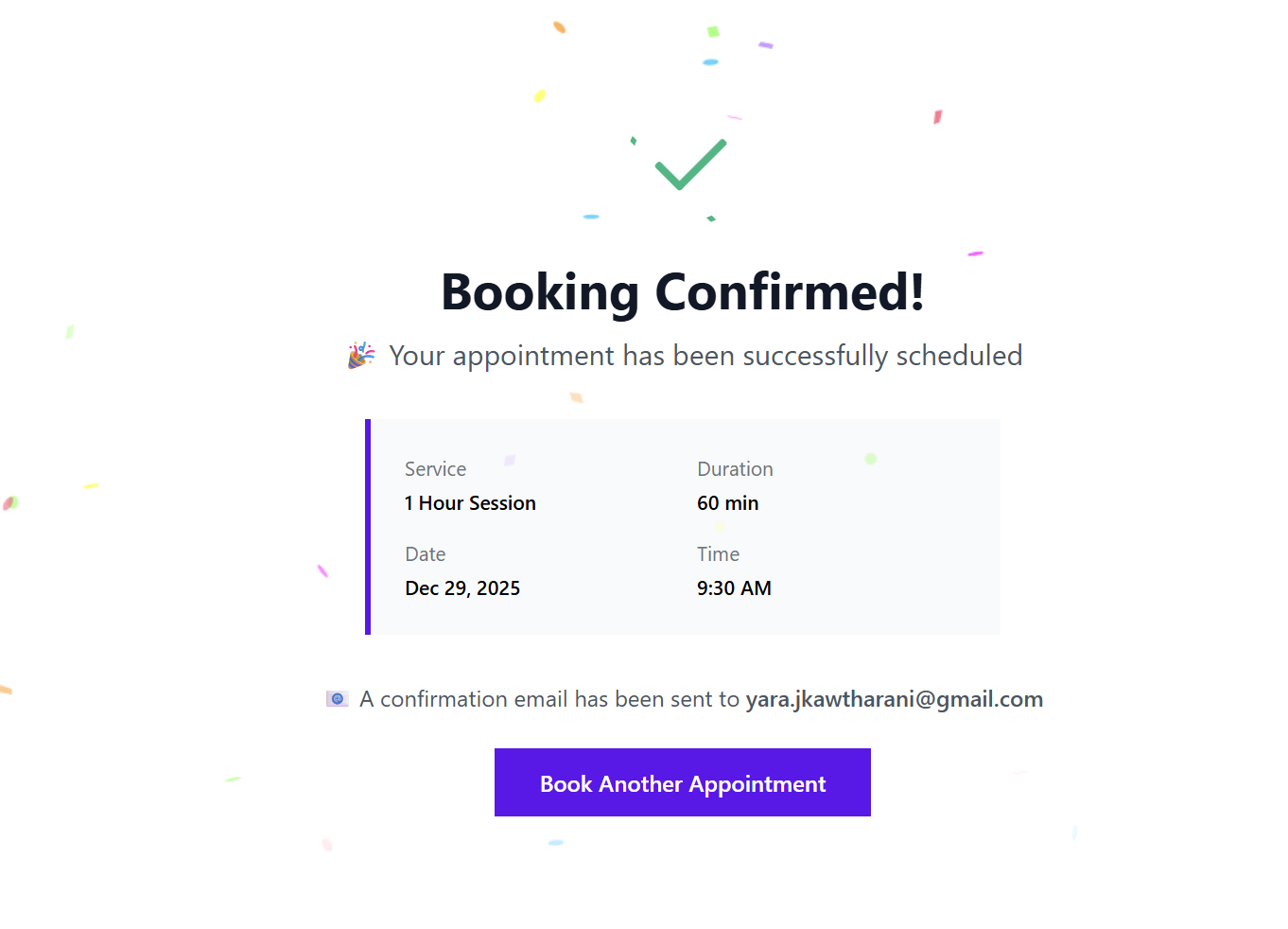
After clicking Confirm Booking, the customer is presented with a "Booking Confirmed!" success screen.
-
Success Details: The screen displays a summary of the appointment with a celebratory confetti animation.
-
Automated Email: The system instantly sends a professional confirmation email to the address provided by the customer.
-
Next Steps: The customer can choose to Book Another Appointment or simply close the window.
This streamlined, mobile-responsive flow ensures that your clients' customers can book appointments in under 60 seconds. All bookings made here will immediately appear in your client's Admin Dashboard (as seen in Phase 2) for management and tracking.
Congratulations! You have now completed the full walkthrough for the Appointment Booking service on ResellPortal.com.