
AI Dynamic FAQ Knowledgebase
The AI Knowledgebase Search (FAQ Assistant) is an intelligent search widget that instantly answers customer questions using your approved FAQ knowledgebase.
You can manually add FAQs, let AI generate them from a webpage, set proactive triggers, and embed the widget anywhere on your website.
This guide walks you through creating, configuring, training, and deploying your FAQ search widget.
1. Accessing the AI Knowledgebase Search Tool
Once the AI Business Tools Suite is activated:
-
Go to your dashboard.
-
Open AI Tools.
-
Select 🔍 AI Knowledgebase Search (FAQ Assistant).
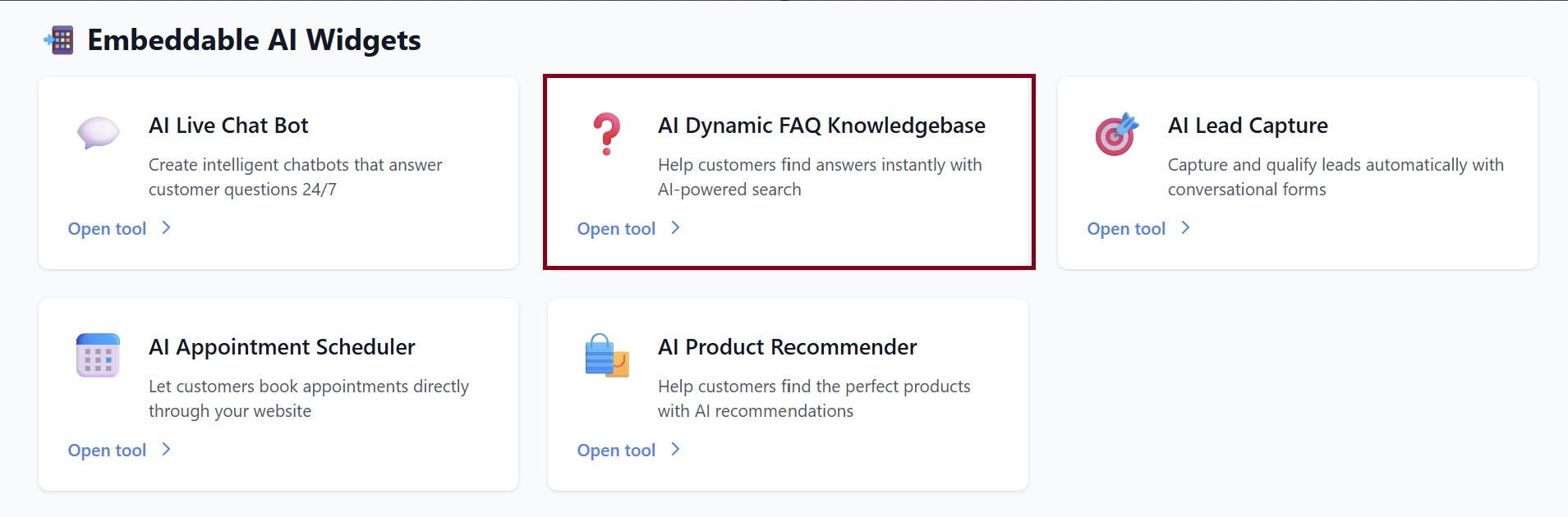
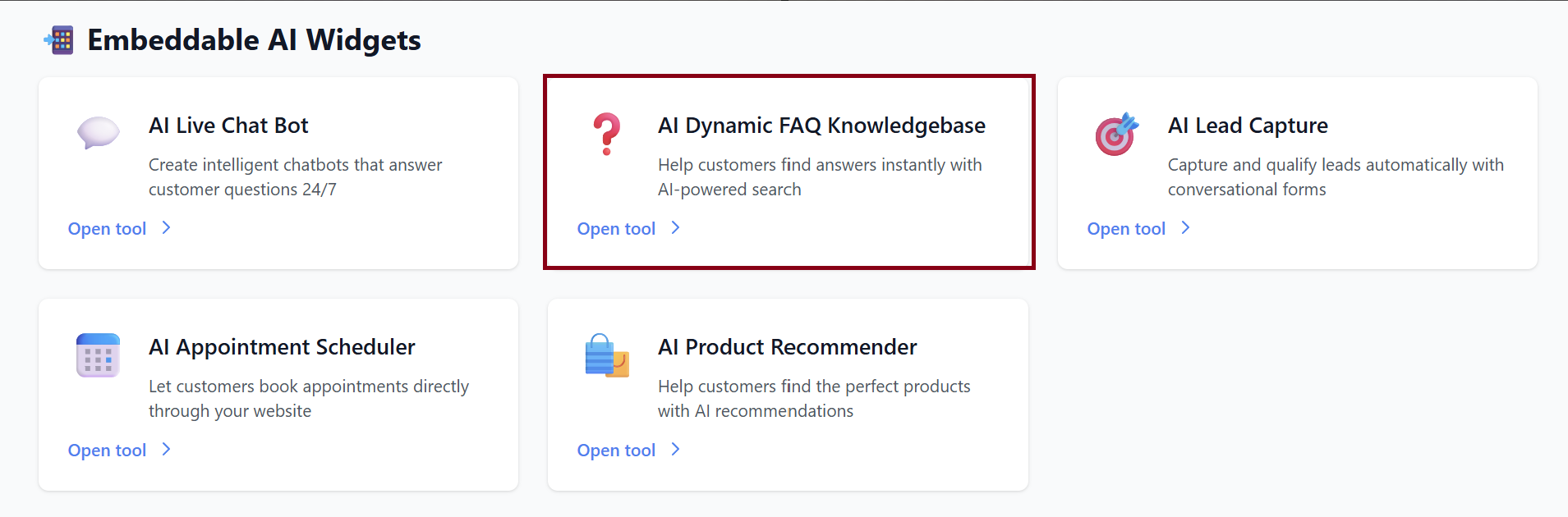
You will see your widgets dashboard where you can create new FAQ widgets or manage existing ones.
2. Creating a New FAQ Widget
Fill out the required and optional settings:
Fields Explained:
| Field | Description |
|---|---|
| Widget Name | Name for your FAQ search widget (e.g., Product Help Center). |
| Primary Color | Color theme used for the widget’s design. |
| Welcome Message | The message users see at the top of the FAQ panel. |
| Header Avatar (Optional) | Upload a logo or image for the widget header—up to 2MB. |
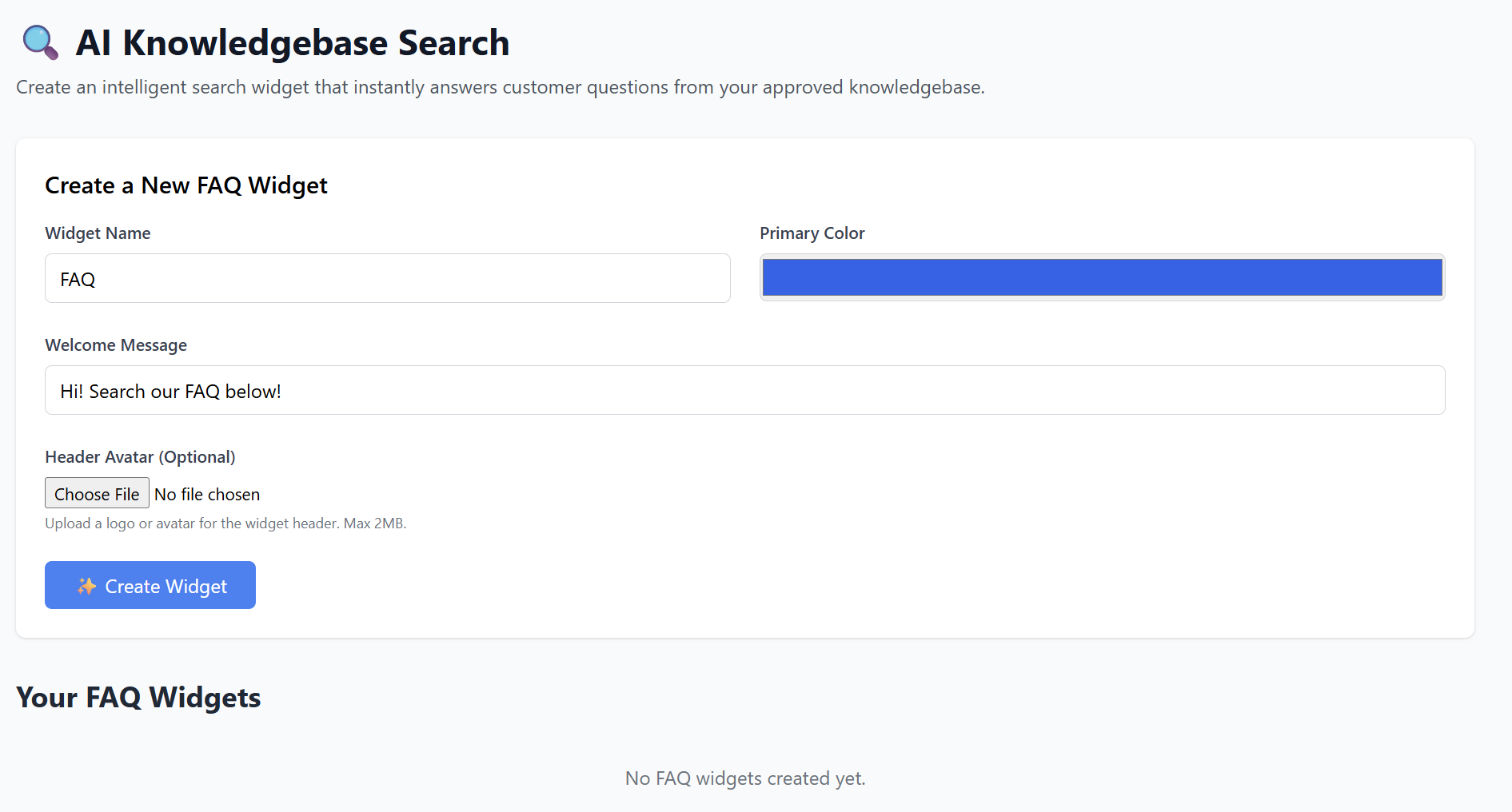
Once complete, click:
✨ Create Widget
Your new FAQ widget will appear under Your FAQ Widgets, showing:
-
Name
-
Creation date
-
Actions:
-
Edit Settings
-
Delete

-

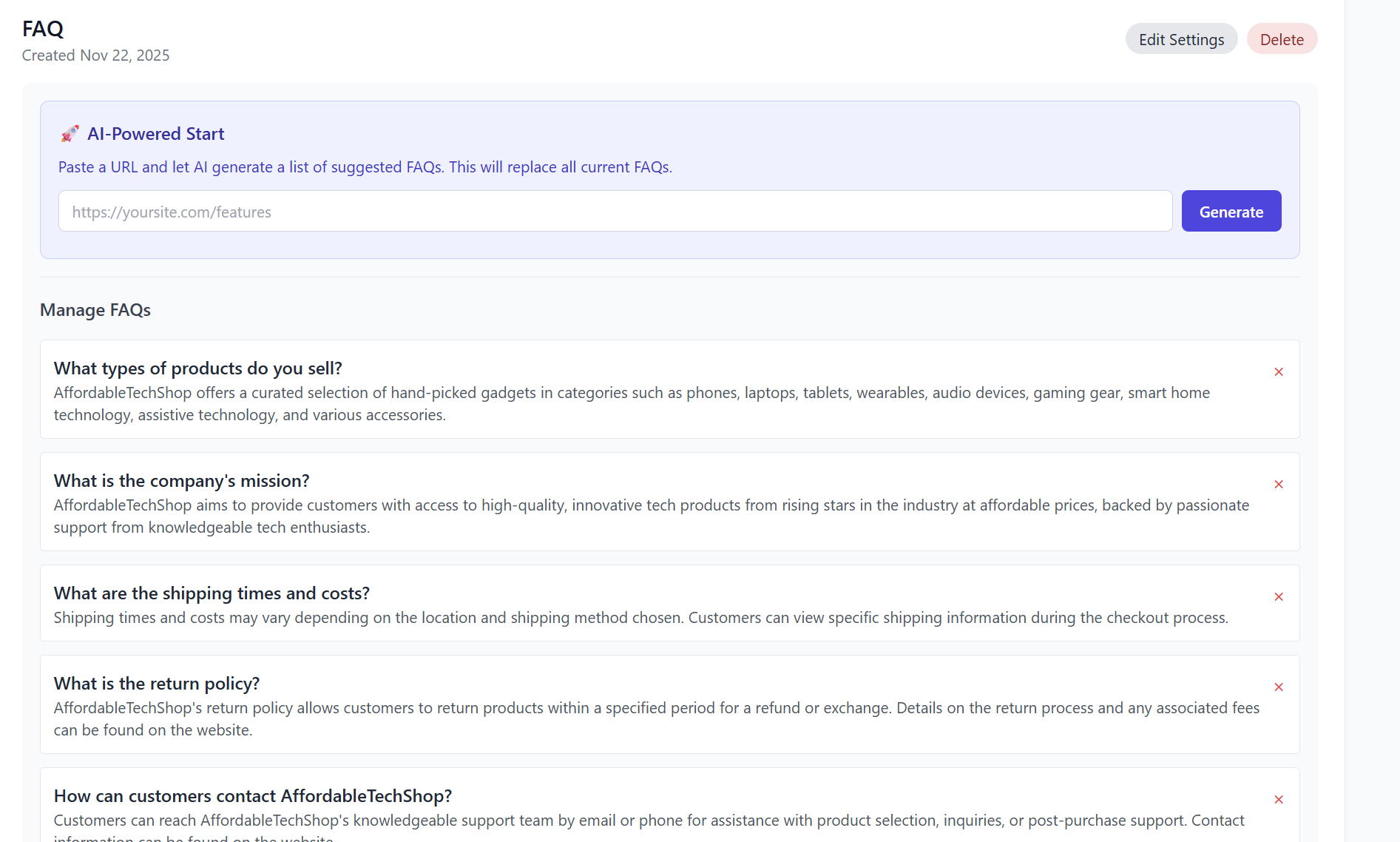
3. AI-Powered FAQ Generation (Optional)
The FAQ Assistant can auto-generate FAQs from any webpage.
Steps to Generate AI FAQs
-
Go to the widget you created.
-
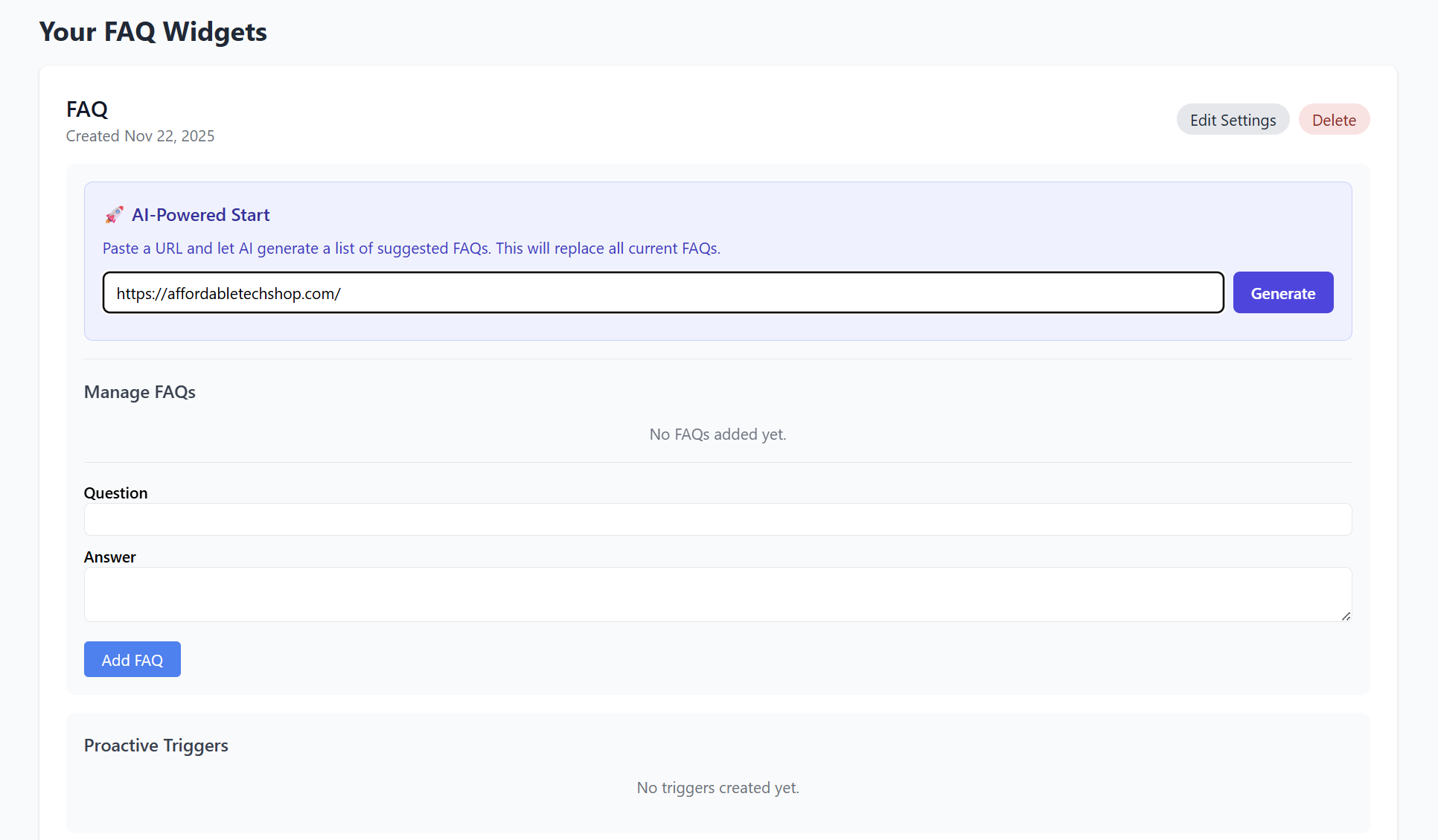
Scroll to 🚀 AI-Powered Start.
-
Paste a URL containing product or support content.
Example: -
Click Generate.
Note:
This replaces all existing FAQs in the widget, so use with caution.
The AI will scan the topic and automatically create suggested FAQ questions and answers based on its content.
4. Manually Adding FAQs
You can add unlimited custom FAQs.
How to Add an FAQ
-
Go to Manage FAQs.
-
Enter a Question.
-
Enter the Answer.
-
Click Add FAQ.
Each FAQ will appear below with an × (delete) option to remove individual entries.

5. Proactive Triggers (Optional)
Proactive triggers allow the widget to show messages or suggestions automatically—for example:
-
“Looking for product info?”
-
“Need help choosing a plan?”
Currently, your widget shows:
No triggers created yet.
You can add triggers here once available.
6. Insights: Top Unanswered Questions
This section shows real customer search queries that your knowledgebase could not answer.
-
Helps you identify missing FAQs
-
Helps refine your support content
-
Shows common customer concerns
If no one has used your widget yet, it will say:
No unanswered questions have been logged yet.
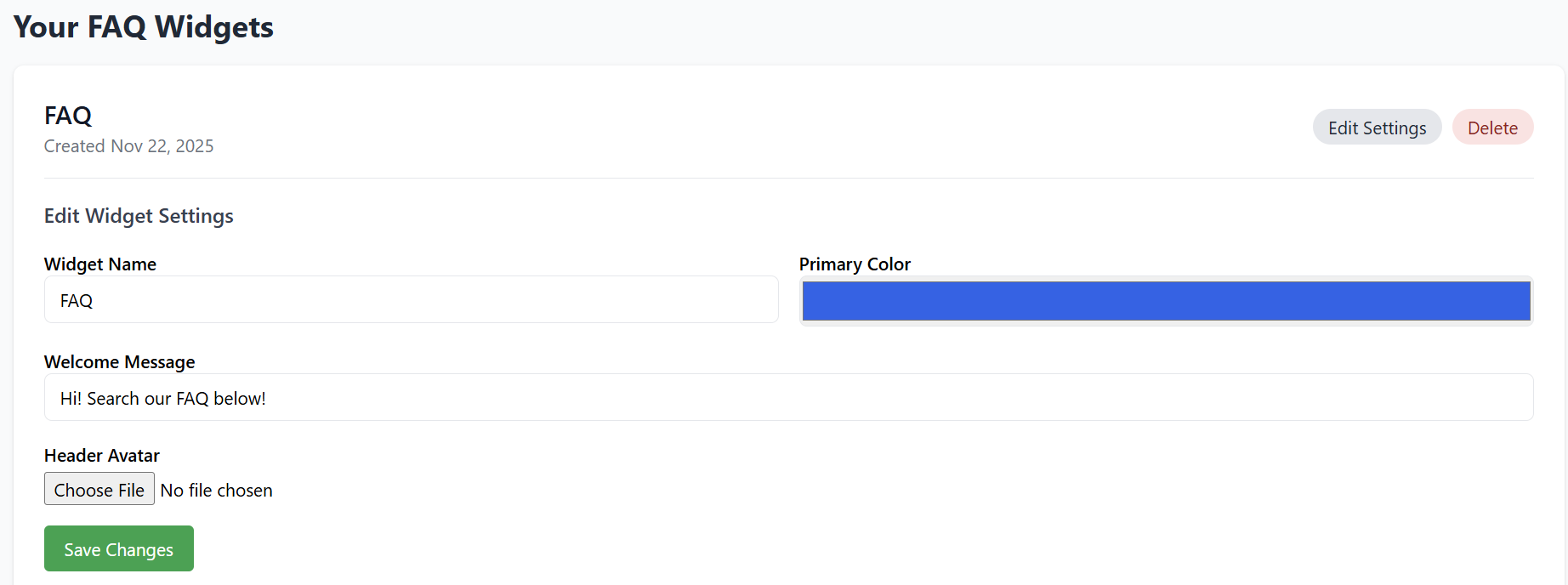
7. Editing Widget Settings
Click Edit Settings next to your widget to update:
-
Primary color
-
Welcome message
-
Header avatar
-
Widget name
-
FAQ content (via Manage FAQs)
After making changes, they are saved automatically or via the save button if available.
8. Embedding Your FAQ Widget on a Website
To install your widget:
-
Locate 📋 Embed Code.
-
Click Copy.
-
You will receive code like this:
Installation Instructions
Paste this entire snippet inside your website’s <head> section.
On platforms like WordPress, Wix, Shopify, or Squarespace:
Your FAQ search widget will now be visible on your site.

9. Deleting a Widget
To permanently remove a FAQ widget:
-
Open Your FAQ Widgets.
-
Click Delete next to the widget.
-
Confirm the deletion.
Once removed, the widget will instantly stop working on all websites where it was embedded.

Summary
| Feature | Description |
|---|---|
| Create Widget | Build an AI-powered FAQ search tool. |
| AI FAQ Generation | Auto-create FAQs from any webpage. |
| Manual FAQs | Add unlimited custom questions & answers. |
| Insights | Track unanswered customer questions. |
| Customization | Change colors, avatar, messages. |
| Deployment | Embed using a simple HTML snippet. |
Your AI Knowledgebase Search widget is now ready to provide instant, accurate answers and reduce customer support workload.